NEW8.5.2 · New start screen, Updates page, gauges to 4/0→

Design wire harnessesPCB layoutsschematicscable looms like the pros.

Draw the wiring with real connectors — HarnessLab writes the pinouts, cut list, wire list and BOM for you as you go. Harness and PCB studio for Windows. 100% offline. Pay once, it’s yours.

Free demo for Windows 10 & 11 · no sign-up · no card
  • One-time purchase
  • Offline by design
  • Your files, your drive
JC HARNESSLABBUILD v8.5.2/ JC-0001 SelectWireLoom Export Print PDFCut listBOMWire list
Twisted pair · CAN · Z lay
MAIN · Wire listAUTO
WireSignalAWGLen
BOMfrom the drawing
0connectors0terminals0seals0ft of wire
Ready|0 parts · 0 wires
Shop packet readyPDF · cut list · BOM · wire list
Tables fill themselvesevery wire you draw lands in the list
Real twisted pairspitch, lay & label you can set
One-click shop packettitled, numbered, ready to build
0connector families
with renders & 3D
0dev boards & modules
with named pins
0schematic & PCB
symbols
0export formats,
Gerber to PDF
0built-in
help guides
$0a month —
ever
SEE IT WORK

Two minutes. Parts to print.

A quick look at JC HarnessLab — from a real 3D harness and the design studio to wiring, the finished print and the community behind it.

WHY SWITCH

The spreadsheet is lying to you.

Every time a wire moves, a hand-typed pinout drifts a little further from the drawing. HarnessLab keeps one source of truth — the drawing — and builds every table from it.

HarnessLab Pins & circuits table built from the drawingBuilt from the drawing · always in sync
  • Pinouts typed into spreadsheets by hand
  • Cut lists rebuilt every time a wire changes
  • Connectors redrawn from scratch each job
  • BOMs that drift away from the drawing
  • Generic CAD that doesn’t know what a cavity is
  • Pinout tables that fill themselves from the wiring
  • Cut lists and wire lists that stay in sync
  • 214 connector families with rendered pictures and 3D — plus your own
  • A priced BOM straight from the drawing
  • A tool built around pins, wires, looms and terminals
HOW IT WORKS

From idea to shop packet in four steps.

The same flow whether it’s a two-wire pigtail or a full machine harness.

01

Place real parts

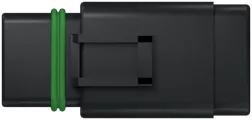
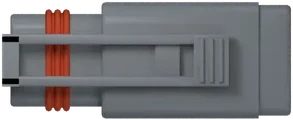
Pick from 214 connector families with rendered pictures and 3D models, terminals, switches, relays, fuses, dev boards and modules — or build your own from a photo in Connector Studio.

Deutsch DTWeather-PackMetri-PackAmphenol AT+ your own
02

Wire & dress it

Wire pin to pin, twist pairs, add splices, then paint looms with tees, ties, grommets, convolute and heat-shrink — with every run measured as you draw it.

Twisted pairsSplicesLoom Studio V268 accessories
03

Check & document

Ampacity and fuse sizing, open-circuit checks, live pinout tables, a priced BOM and a full revision history — all built from the same drawing, so nothing drifts.

Fuse sizingLive tablesPriced BOMRevisions
04

Ship the packet

One click builds the PDF, images, BOM, cut list, wire list and project file — titled, numbered and ready for the floor.

PDFPNG / SVGCSV.json project
Place real parts01 / 04
Placing real connectors on the HarnessLab canvas Loom Studio: painted cable runs with tees and labels Priced bill of materials built from the drawing The finished print with wire list, face views and tables
DO THE MATH

What do hand-typed tables cost you?

Slide in your own numbers. This only counts the time spent typing and re-checking pinouts, cut lists and BOMs by hand — the part HarnessLab fills in from the drawing.

4
24
3
$60
Time back every month4.8 h
Worth, every month$288
Worth, every year$3,456
The $129.99 installer pays for itself on harness #2.
Estimate from the numbers you enter — not a promise. Your mileage will vary with how you work today.
BUILT FOR

Wherever wires meet hardware.

The connectors, presets and checks for the work you actually do.

Pickup engine bay with the wiring harness in split loom and sealed connectors

Automotive & off-road

Deutsch DT/DTM, Metri-Pack, Weather-Pack and GT connectors, relays, fuses and ring lugs.

Tractor-to-planter harness in convoluted loom at the hitch, with corn rows behind

Agriculture & implements

ISOBUS breakaway, SAE J928, DIN 9680 and HD30 — with CAN pairs that look like CAN pairs.

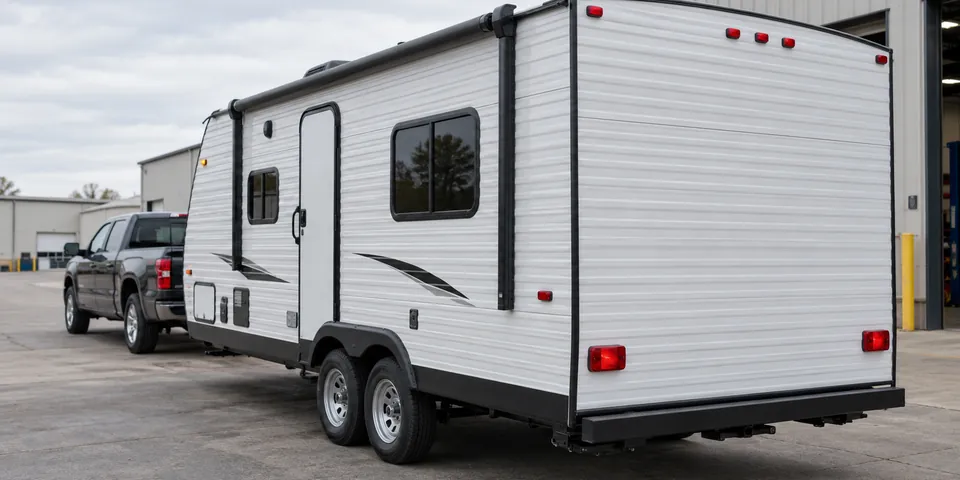
Travel trailer hitched to a pickup, with tail, stop and marker lights

Trailers & RV

7-way RV, 4-flat, J560 and ISO 11446 plugs, trailer cord presets and ground studs.

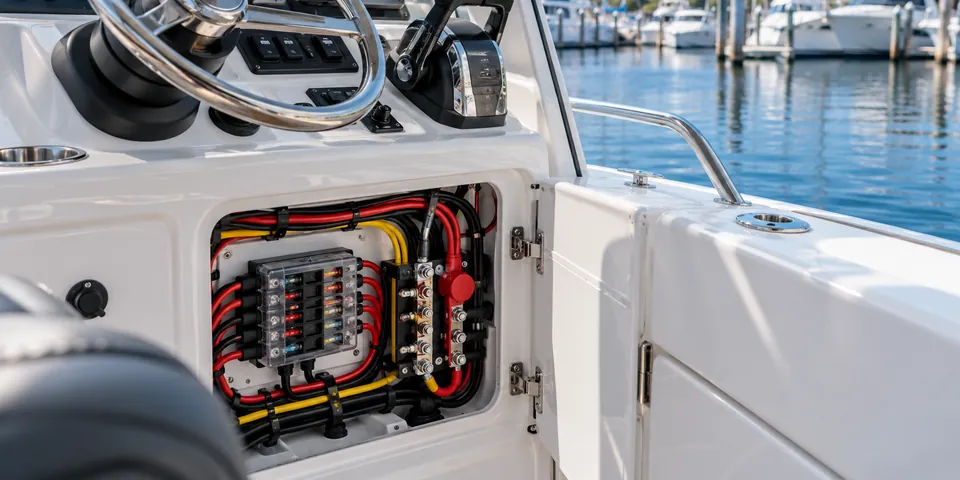
Boat helm with the console panel open: fuse block, bus bars and marine wiring

Marine & boat electrical

Marine BC5W2 wire on the BOM, battery switches and cable, bilge pumps, float switches and strobes — with battery runtime and voltage drop per run.

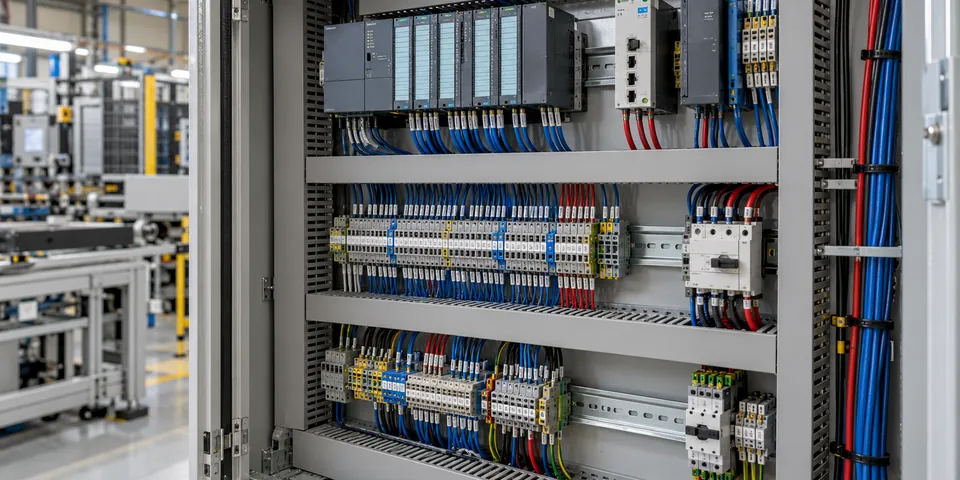
Control cabinet with PLC modules, terminal blocks and motor starters, wires labelled in duct

Industrial controls

M12 circulars, DIN solenoid plugs, terminal blocks, E-stops, limit switches and panel wiring.

Automated packaging line with a pick-and-place gantry, conveyors, sensors and cable carriers

Industrial machinery & automation

Prox and limit sensors, contactors, time-delay and solid-state relays, valves and motors on 24 V — then run Test Sim before the first power-up.

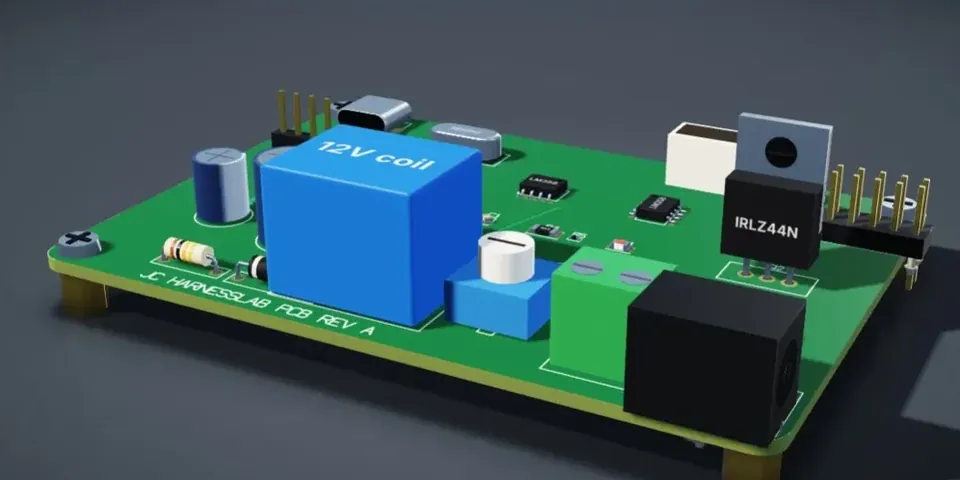
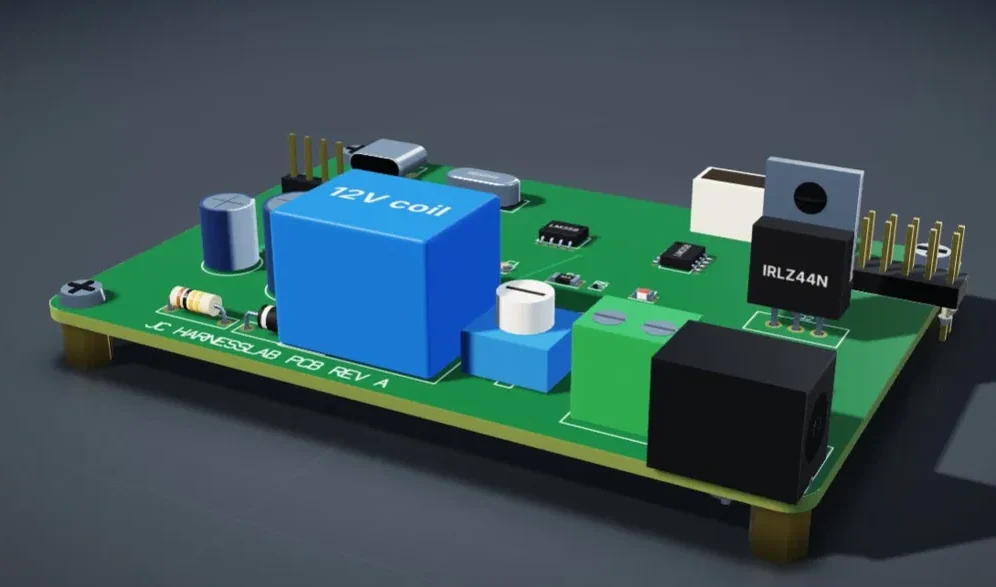
A circuit board rendered in the HarnessLab 3D Board ViewRendered in HarnessLab

Robotics & embedded

ESP32, Arduino, Raspberry Pi and 100+ modules with pin guides, then a board you can send to the fab.

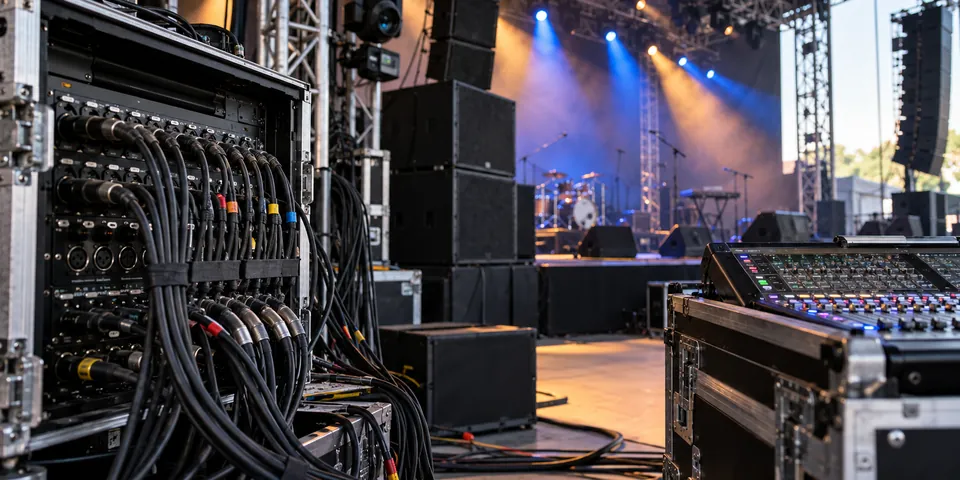
Concert stage with a stage box full of XLR cables, line-array speakers, lighting and a mixing console

Audio, lighting & entertainment

XLR 3- and 5-pin for audio and DMX, Speakon, TRS and RCA, speakers and amps, LED strips and strobes — with cut lists for every snake.

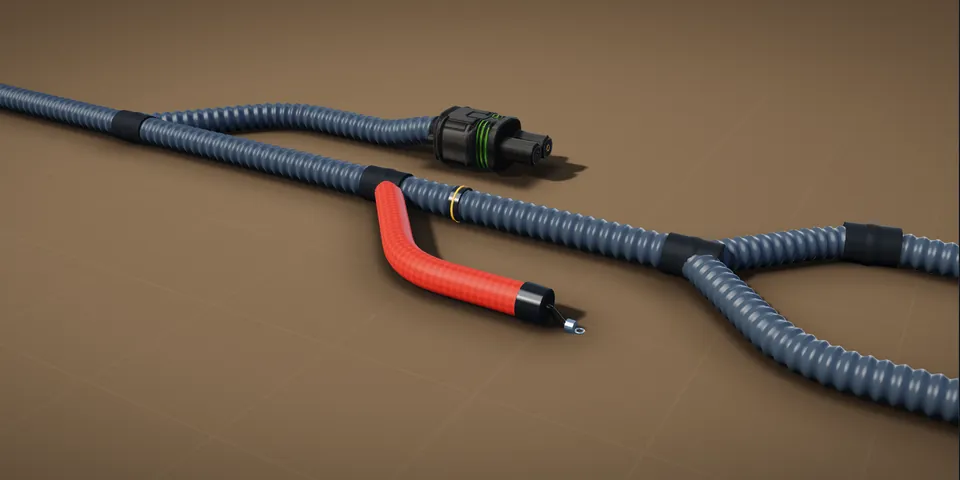
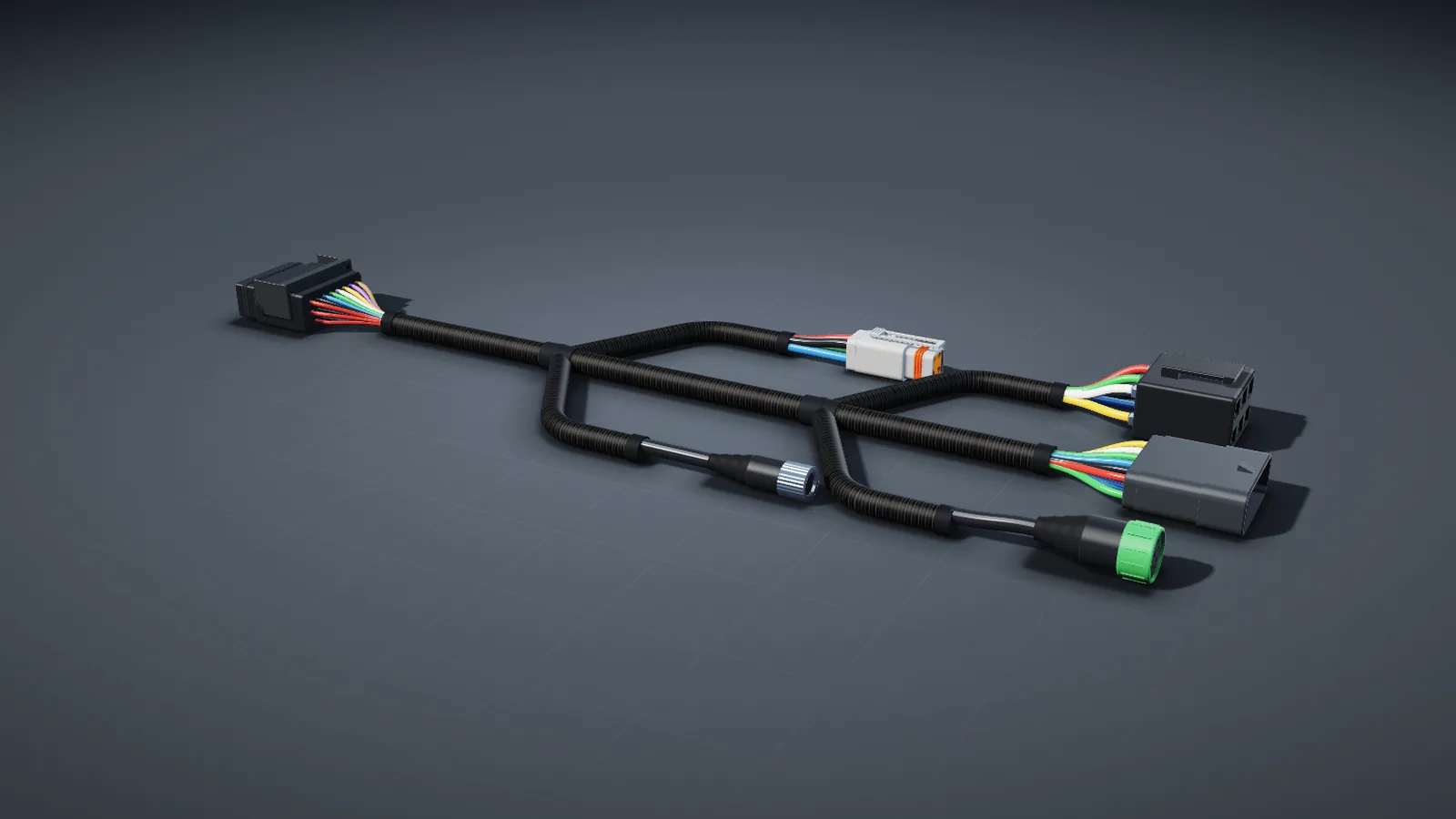
A branched harness rendered in the HarnessLab 3D Render StudioRendered in HarnessLab

Shop & field service

Portable edition on a USB stick, print-ready sheets and cut lists the bench can build from.

NO STRINGS

Yours. Actually yours.

No monthly fee to keep drawing, no forced cloud, no locked file format.

Pay once. Keep it.

Desktop Installer $129.99 or Portable Edition $149.99 — a one-time purchase. New versions arrive right inside the app.

Offline by design.

Draw, check and export with no internet at all. Only the extras go online: the AI assistant (your own key), optional Cloud, and update checks.

Your files, your format.

Projects save as portable .json files wherever you choose. Exports are standard PDF, PNG, SVG and CSV — plus KiCad and Gerber for boards.

NOT JUST AN APP

Join the people building with it.

Ask questions, share your builds, and grab connector libraries, mods and templates other builders made.

QUESTIONS

Before you buy.

Is it a subscription?

No. The app is a one-time purchase — Desktop Installer $129.99 or Portable Edition $149.99. HarnessLab Cloud is an optional monthly add-on for syncing and teams; you never need it to use the app.

Does it need the internet?

No. Drawing, checking and exporting all work offline. The internet is only used by optional extras: the AI assistant (with your own key), HarnessLab Cloud, and update checks.

What’s in the free demo?

The real app with a few limits: up to 5 real parts per drawing (wires, splices, looms, ties and shapes don’t count), a starter set of the library, and 2 exports with a watermark. Board exports, the full package ZIP and the AI assistant are locked. Opening a whole project always works.

Installer or Portable — which one?

Installer: a normal Windows install with a Start menu shortcut (a per-user install works without admin rights). Portable: one program you run from a USB stick or folder — no install, and your settings, shapes and footprints travel with the drive.

What can I export?

PDF prints, PNG and SVG images, BOM, cut list and wire list (CSV), the project file (.json) and a full package ZIP — and for boards, KiCad, Gerber + drill, netlist and 3D images.

What computers does it run on?

Windows 10 and 11 (64-bit). A Mobile Edition for phones and tablets is in development.

How do updates work?

The app checks for new versions and installs them from inside the app (Help › Check for Updates). New versions also show up in your account’s Downloads tab.

Still wondering? Visit Support or ask the community.

READY WHEN YOU ARE

Your next harness
starts here.

Pay once, draw forever. Or take the free demo for a spin first.

Desktop Installer
$129.99one-time

Start menu install · per-user install without admin rights

MOST FLEXIBLE
Portable Edition
$149.99one-time

Runs from a USB stick · no install · settings travel with you

Compare editions & Cloud plans →
BETTER HARNESSES · A BRIGHTER TOMORROW
FEATURES

One studio.Two trades.

Wire harnesses and circuit boards in the same offline app — drawn with real parts, checked as you go, and exported ready for the shop floor or the fab house.

OR
Windows · installer or portable Runs 100% offline One-time purchase Free demo
FOR HARNESSING

Design the harness the way it’s built.

Drop connectors from a 214-family library, paint the loom, twist the pairs and wire the whole thing pin to pin. Lengths measure themselves and the cut list, wire list and BOM are already done when you are.

Ag & implementsTrucks & trailersIndustrial controlsMotorsport & off-roadMarine & RVRoboticsTest fixturesPrototype shops
214connector families with rendered pictures, faces & 3D
68loom accessories that draw themselves and hit the BOM
13wire-end finishes, from ferrule to flag ring
5live harness tables: cut list, wire list, splices, segments, crimp
1click to a full shop packet ZIP
214 connector families — any cavity count, either gender, rendered pictures and 3D.

A real print, straight out of the app.

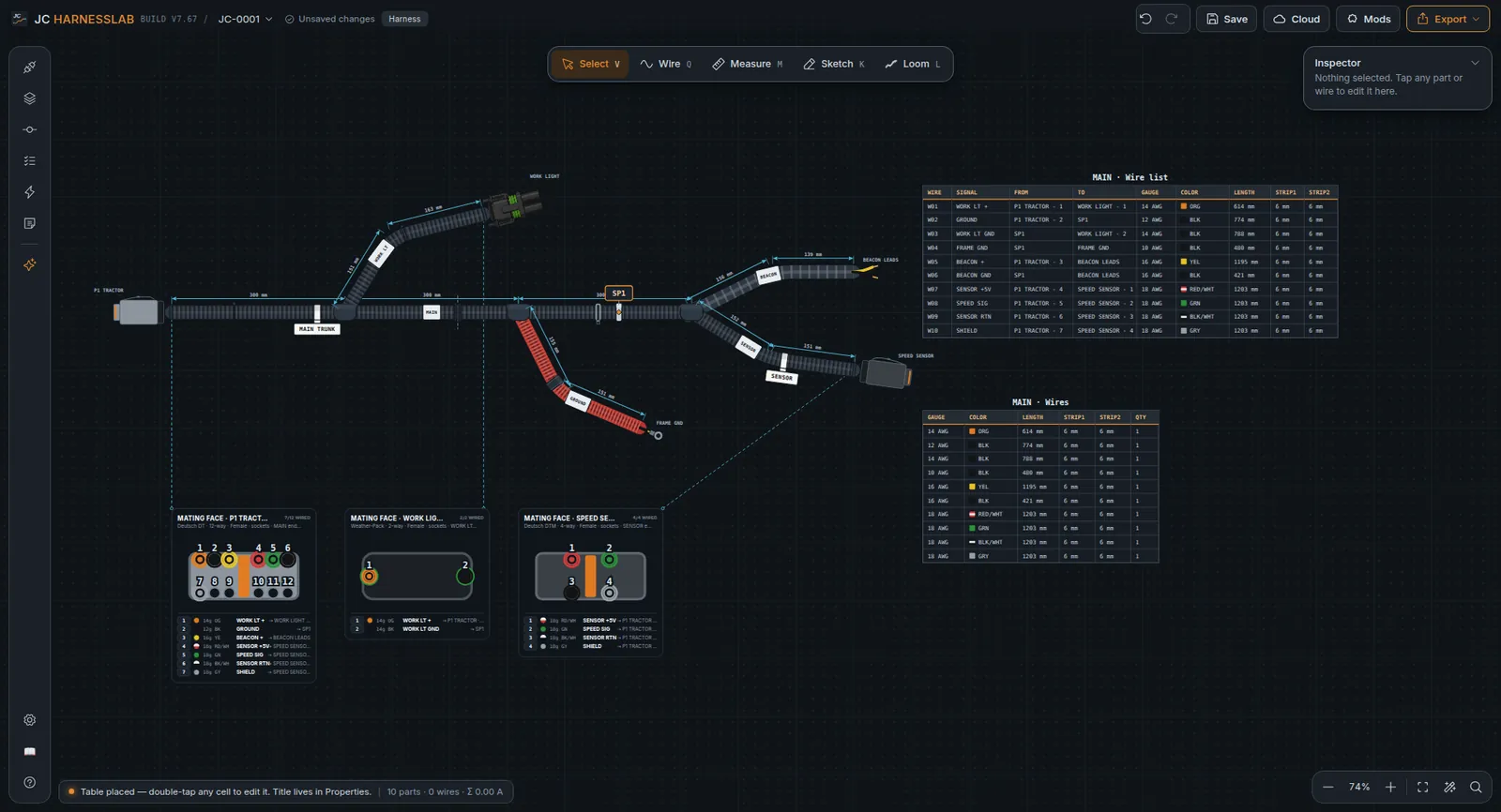
A five-run implement harness: loom, splice, three face views and two live tables — nothing typed twice.

HOVER THE NUMBERS
CLICK TO ENLARGE
JC HarnessLab — Implement lighting harness
JC HarnessLab drawing of a branched implement harness with mating-face views and live wire tables
Lengths measure themselvesEvery segment is dimensioned along the curve — and each circuit’s cut length follows its real path.
Splice inside the harnessDrag SP1 anywhere along the run. Wires stop right at it and the butt splice lands on the BOM.
Bare leads & ring terminalsDrag each lead where you want it and pick its finish — ring, ferrule, quick-disconnect and more.
Wire list writes itselfSignal, from, to, gauge, colour, length and strip for every circuit — live, as you wire.
Mating-face viewsCavities fill with their wire colours; the legend shows gauge, signal and where each wire goes.
01REAL PARTS ON THE SHEET

Draw with the connectors you actually crimp.

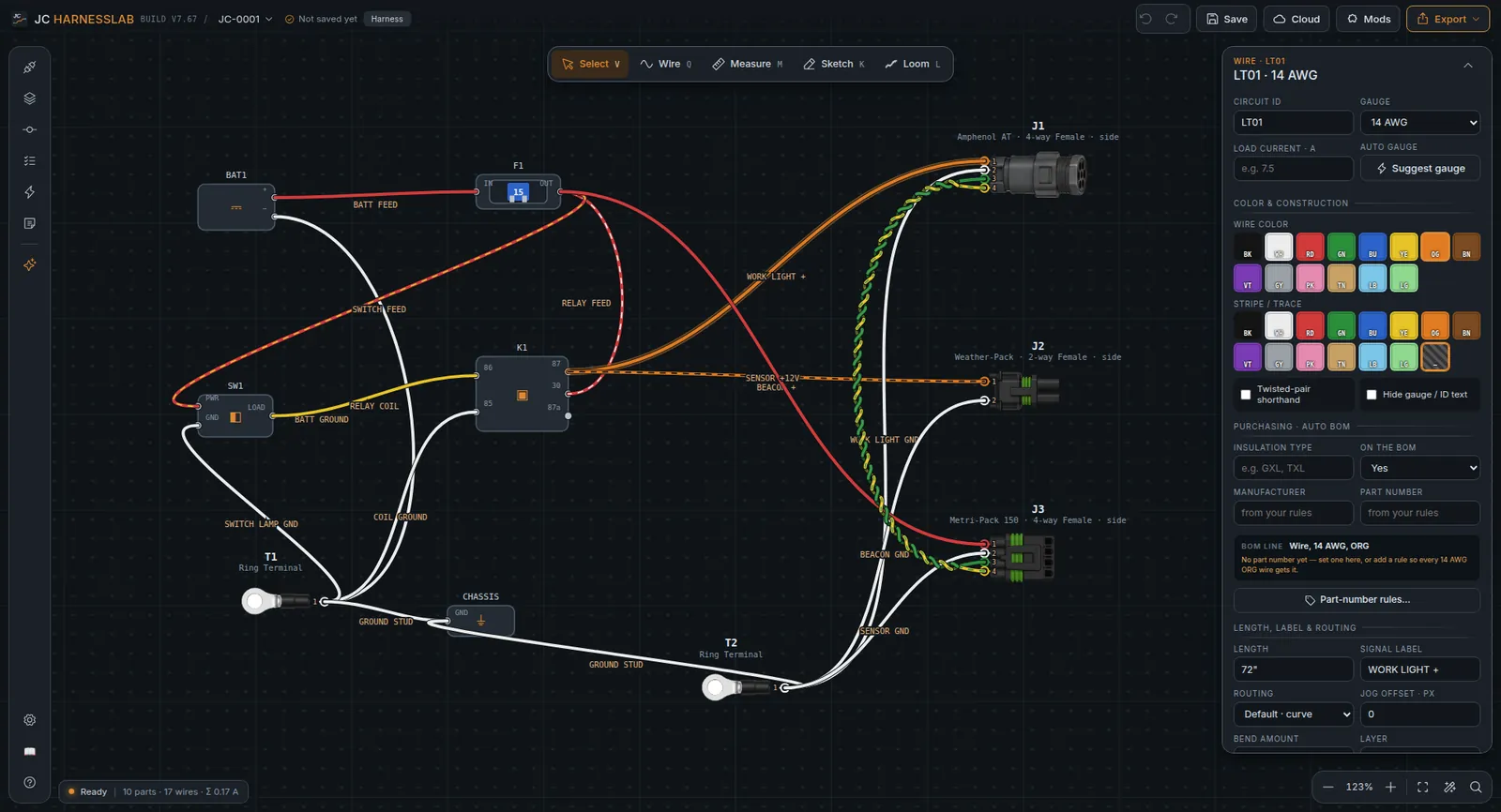
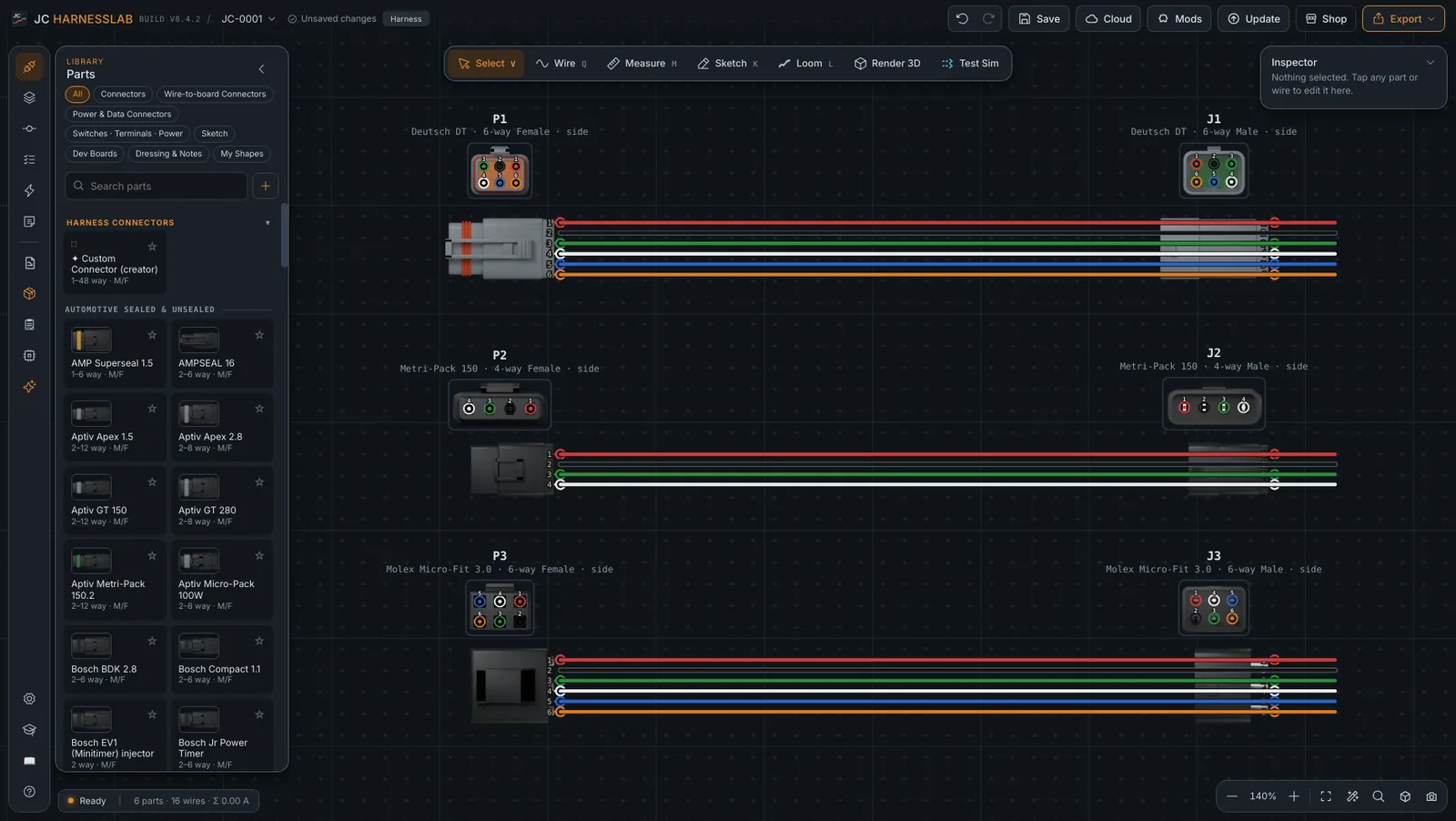
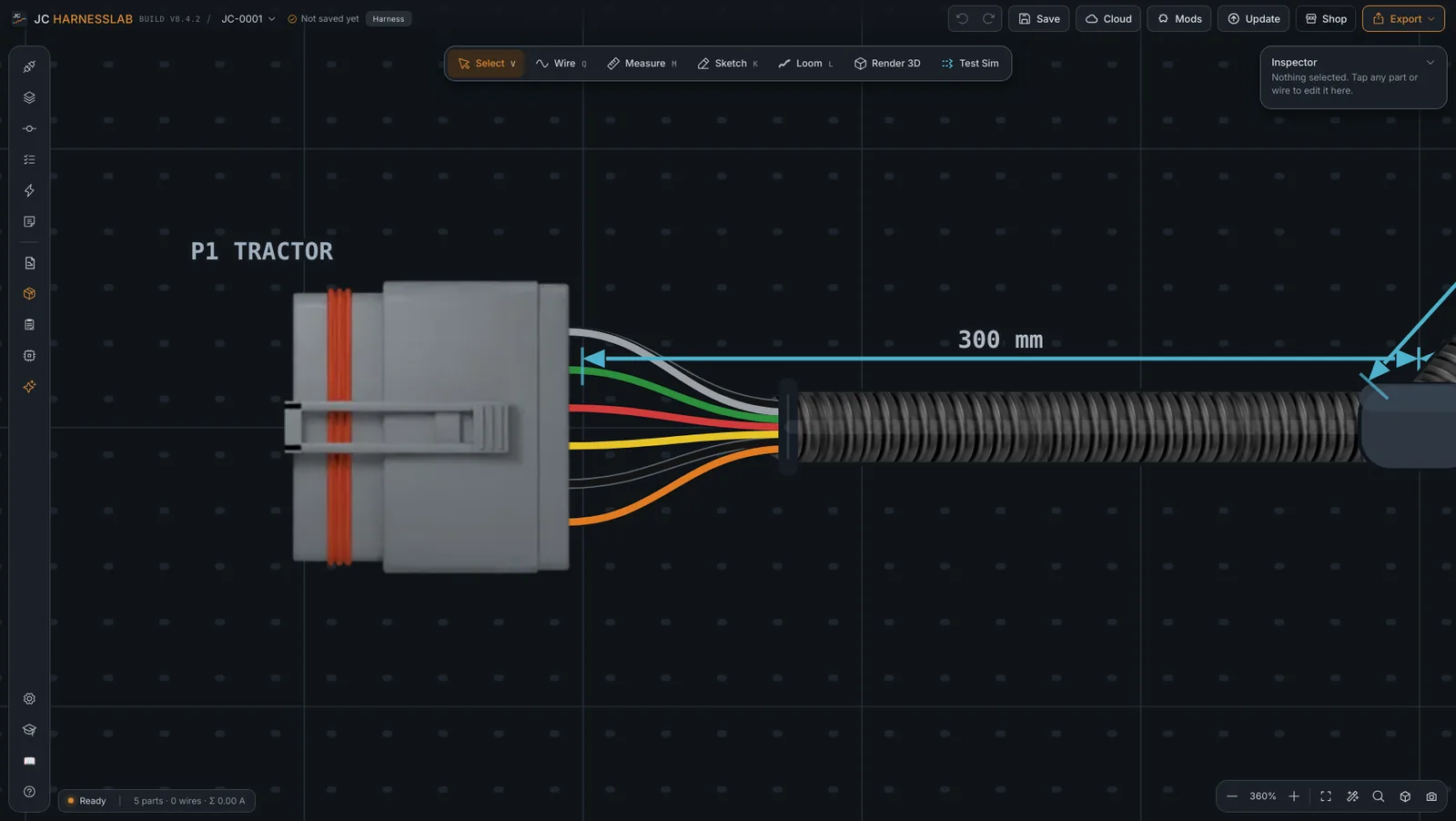
Switch any connector to its side-view picture and the drawing looks like the bench: the real housing, the real wire side, and the mating face above it with every cavity numbered where the wire lands. The Inspector puts colour, stripe, gauge, circuit and length on every wire.

  • Rendered side views and numbered mating faces for all 214 families, both halves
  • Curved, straight or orthogonal routing with labels that follow the wire
  • Suggest gauge from the load current, with ampacity warnings
Amphenol ATWeather-PackMetri-Pack 150Deutsch DTMolex Micro-Fit 3.0
Harness drawing with rendered connectors and numbered mating faces
02TWISTED PAIRS

Twist it like the real thing.

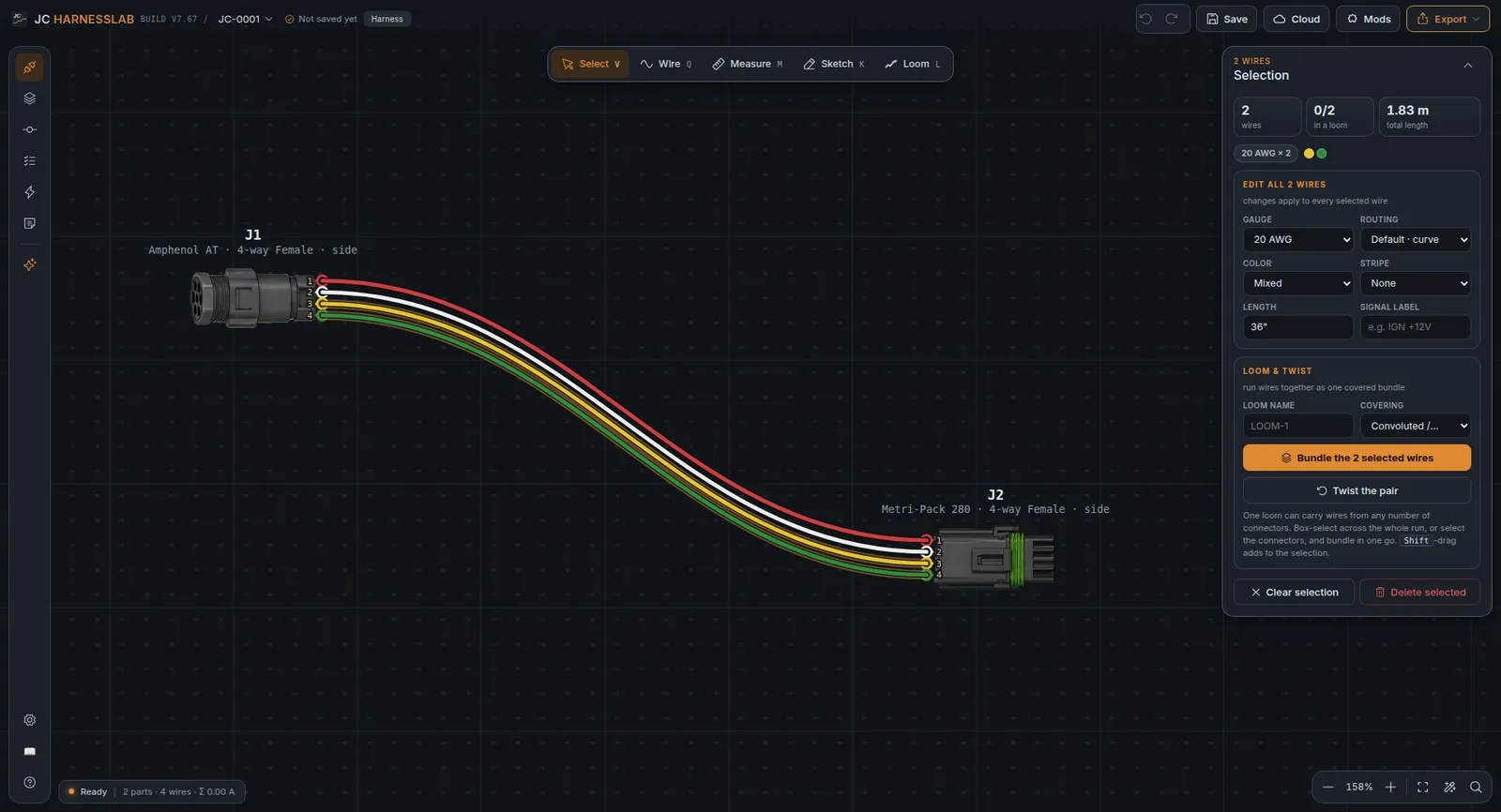
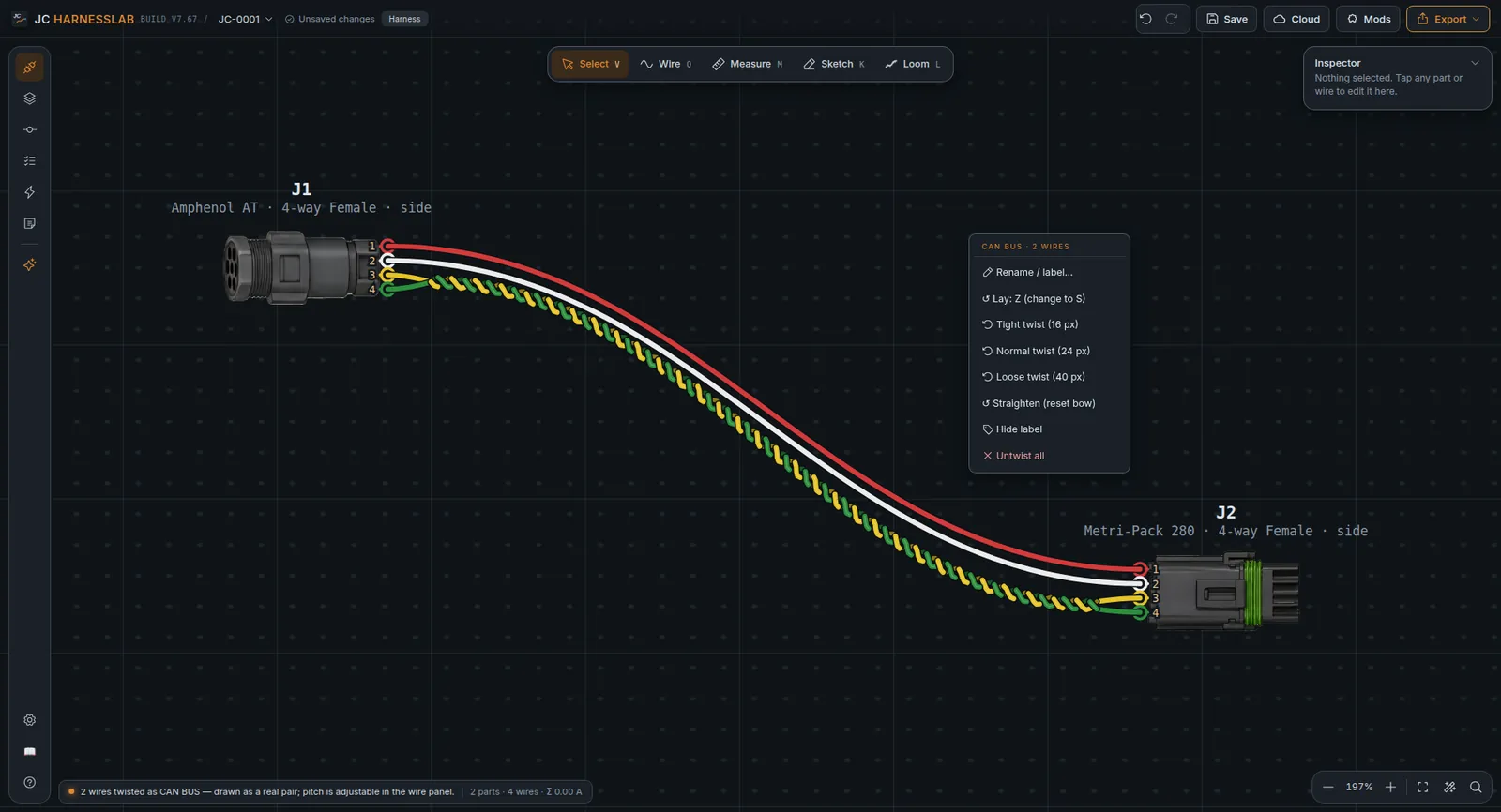
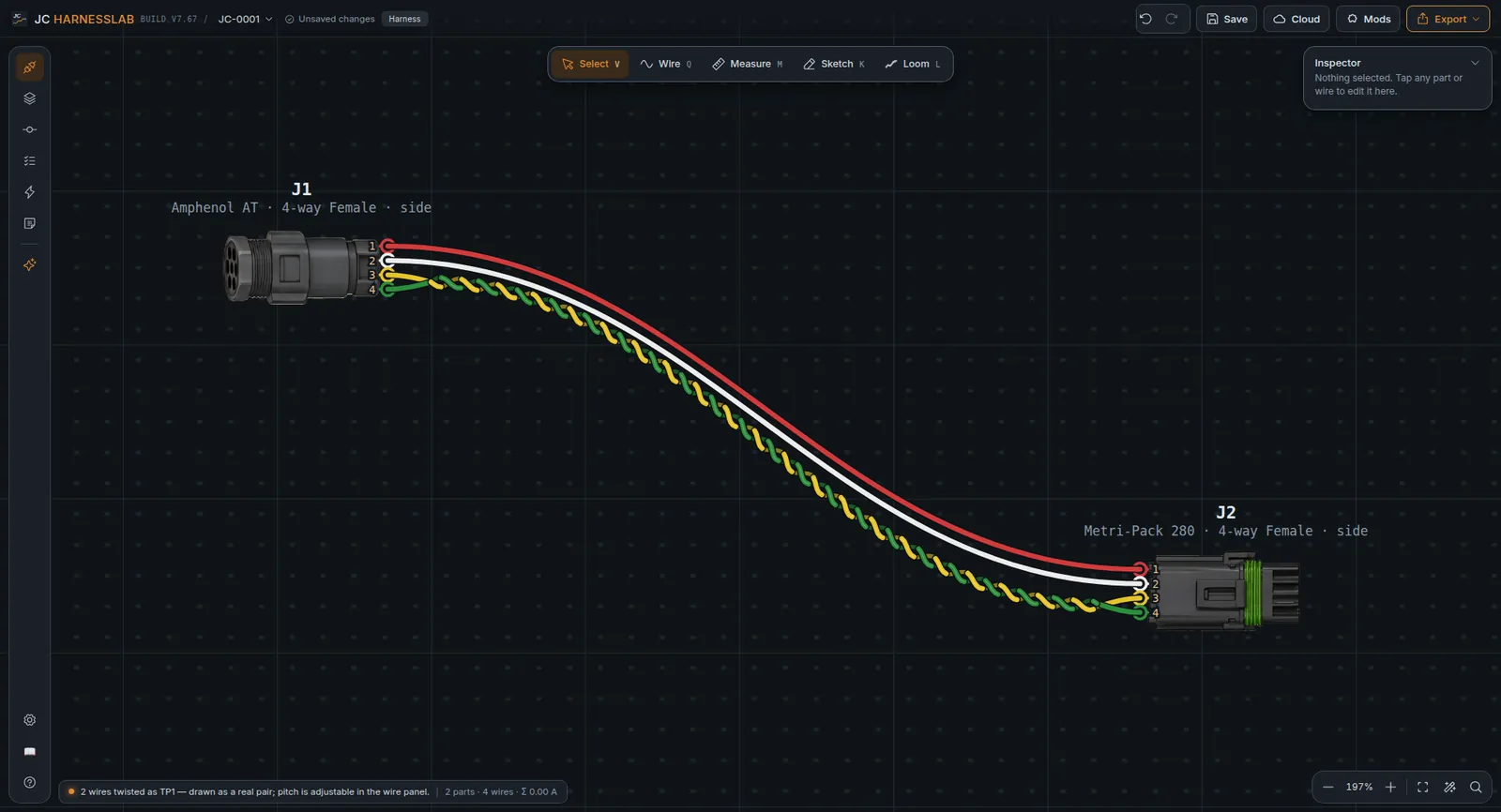
CAN, sensor and signal pairs draw as an actual twisted pair between the real connectors — tight, normal or loose pitch, Z or S lay, bowed where you drag it and tagged with its name.

LIVE — try itCAN BUS · 20 AWG · YE/GN · Z lay · normal pitch
J1 · Amphenol AT · 4-wayJ2 · Metri-Pack 280 · 4-way CAN BUS
Pitch
Lay
Two CAN wires selected with the Selection panel showing Twist the pair The CAN wires drawn as a twisted pair between photo connectors Twist menu with pitch, lay and label options
03PINS & CIRCUITS NEW

Wire the whole harness, pin to pin.

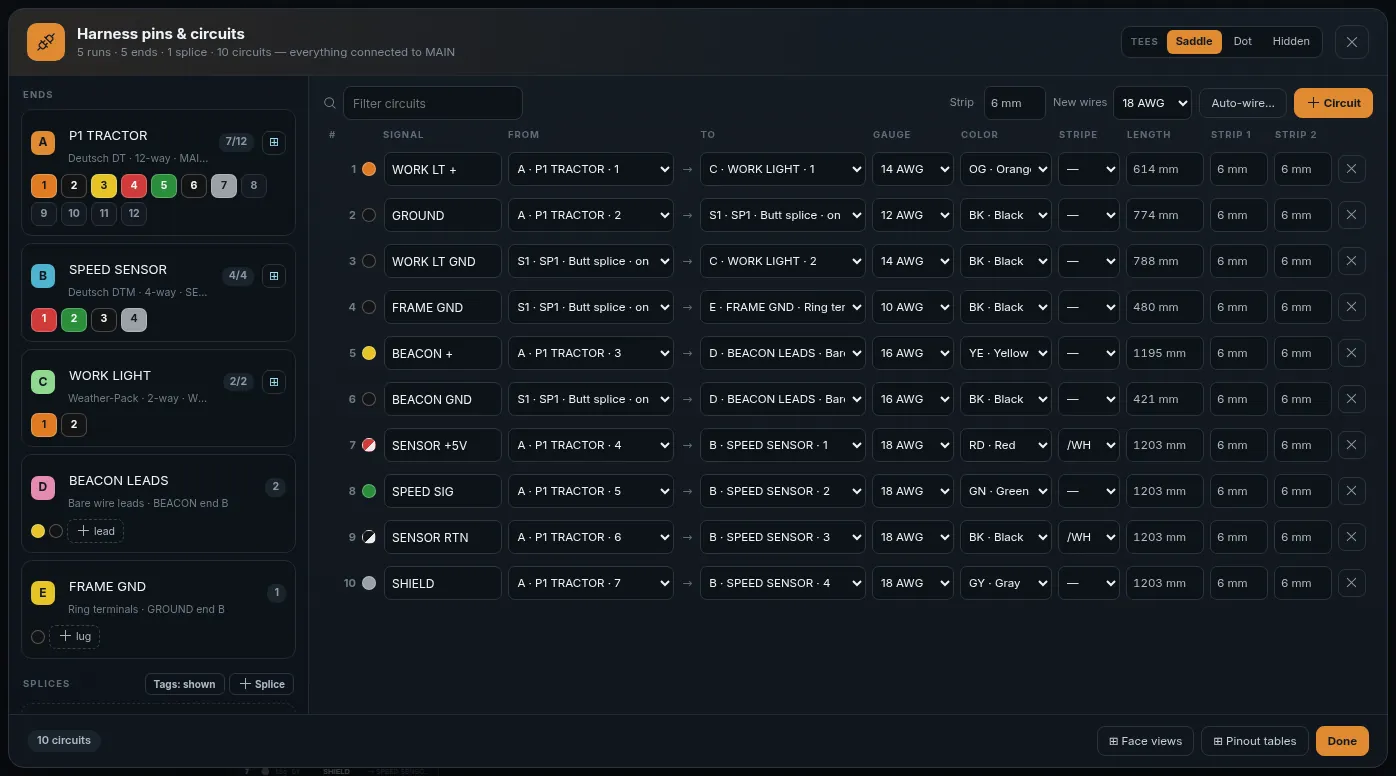
Every run that tees into another becomes one harness. Click a pin on one end, then a pin on another — the circuit is wired, measured along its real path and bought at that length on the BOM.

  • Circuit table with signal, from, to, gauge, colour, stripe and real cut length
  • Auto-wire two connectors pin-for-pin in one click
  • Flags open circuits, doubled pins and ends that aren’t connected
  • Strip lengths per end flow into cut lists, wire lists and pinout tables
Harness pins and circuits window
04LOOM STUDIO V2

Paint the cable, not just the wires.

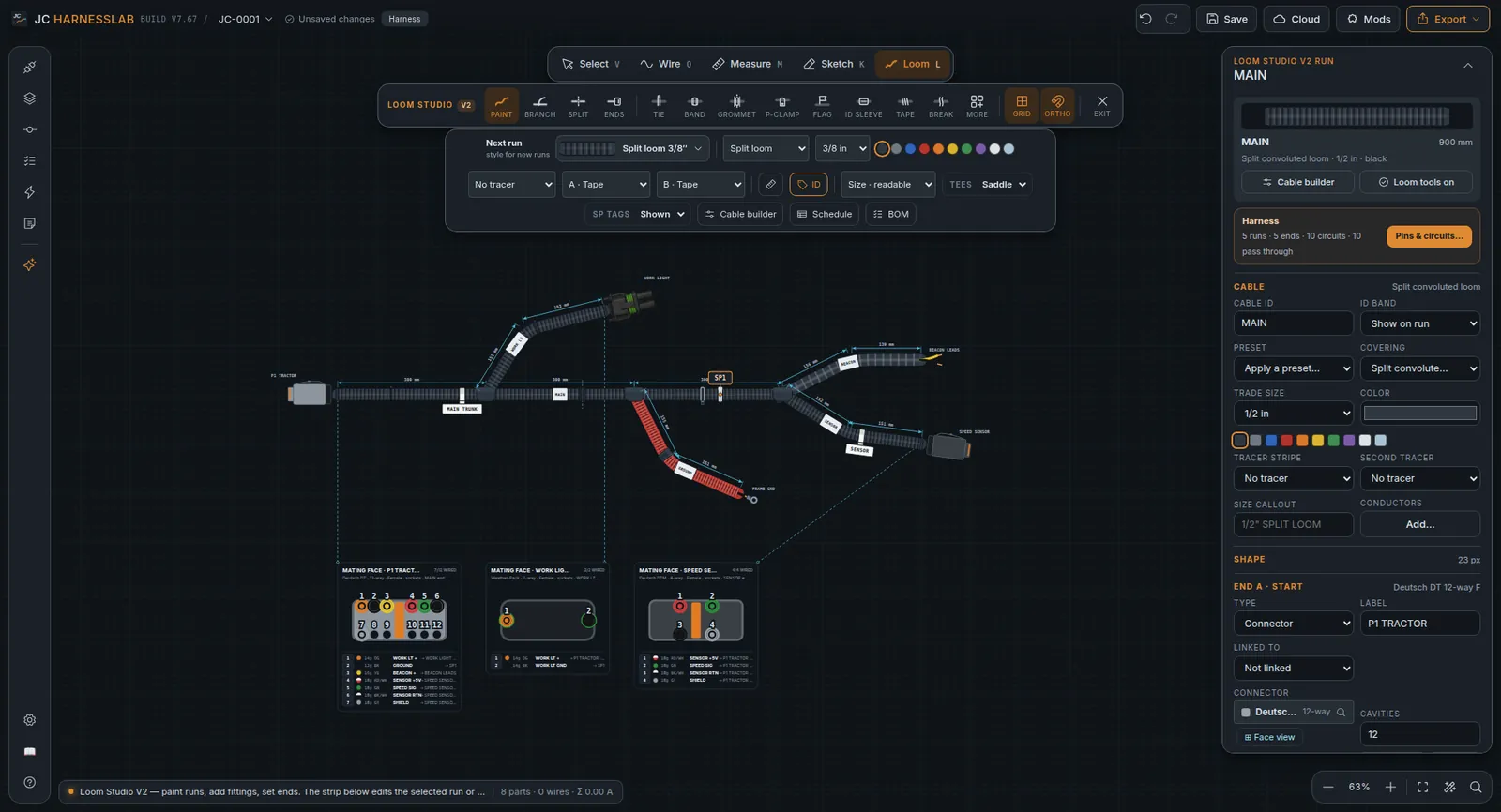
Draw split loom, braid, tape, heat-shrink or jacketed cable along any route. Branch off the trunk and the tees grow on their own — every segment measures itself.

  • Splices you drag along the run — butt, ultrasonic, solder sleeve, crimp or tap
  • Tees as a saddle, a junction dot or hidden; linked runs join separate sections
  • 68 accessories — ties, P-clamps, grommets, flag labels, fuse holders, drip loops…
  • Cable builder with presets: SOOW cord, shielded CAN pair, battery cable, 7-way trailer cord
Loom Studio V2 tool bar and run inspector
05MATING-FACE VIEWS NEW

Show the tech exactly what they’ll see.

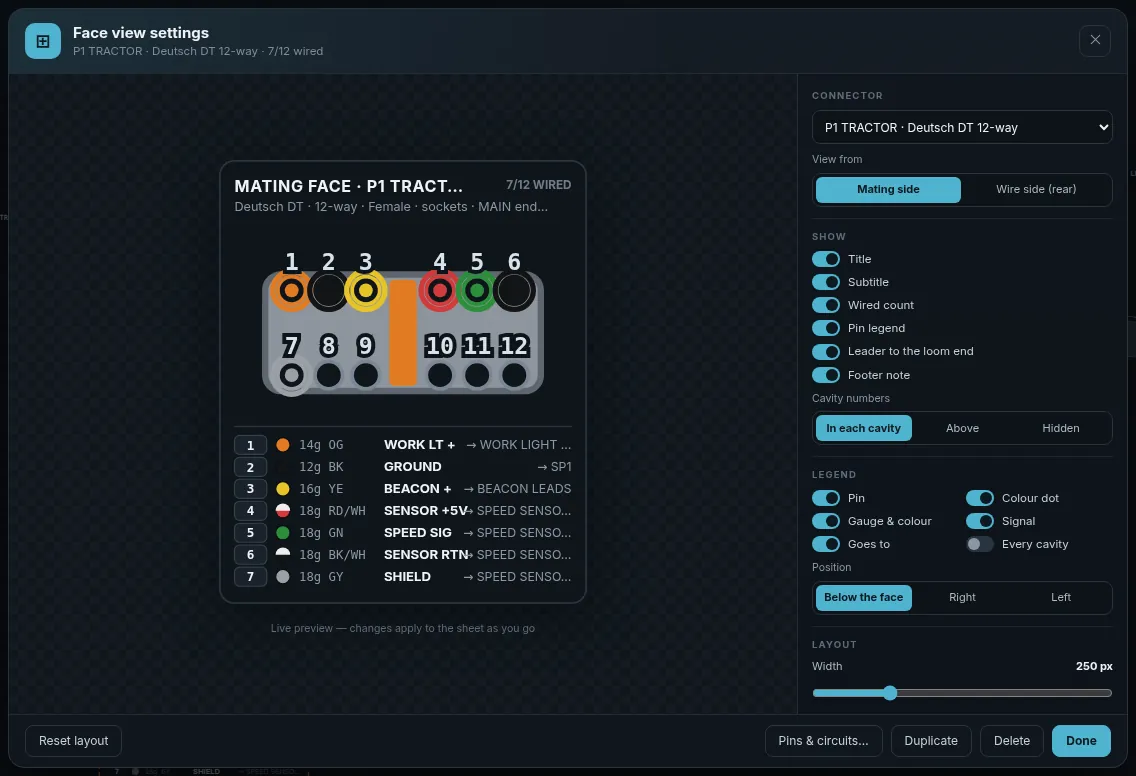
Drop a mating-face view for any loom connector — or one for every connector at once. Cavities fill with their wire colours and the legend writes itself from your circuits.

  • Pin, gauge, colour, signal and where each wire goes
  • Mating side or wire side (rear) view, legend below, left or right
  • Dark, paper (print-ready) or no-background styles
  • Rename a signal right in the view — it updates everywhere
Face view settings window with live preview
06WIRE ENDS & TERMINALS

Every end, finished properly.

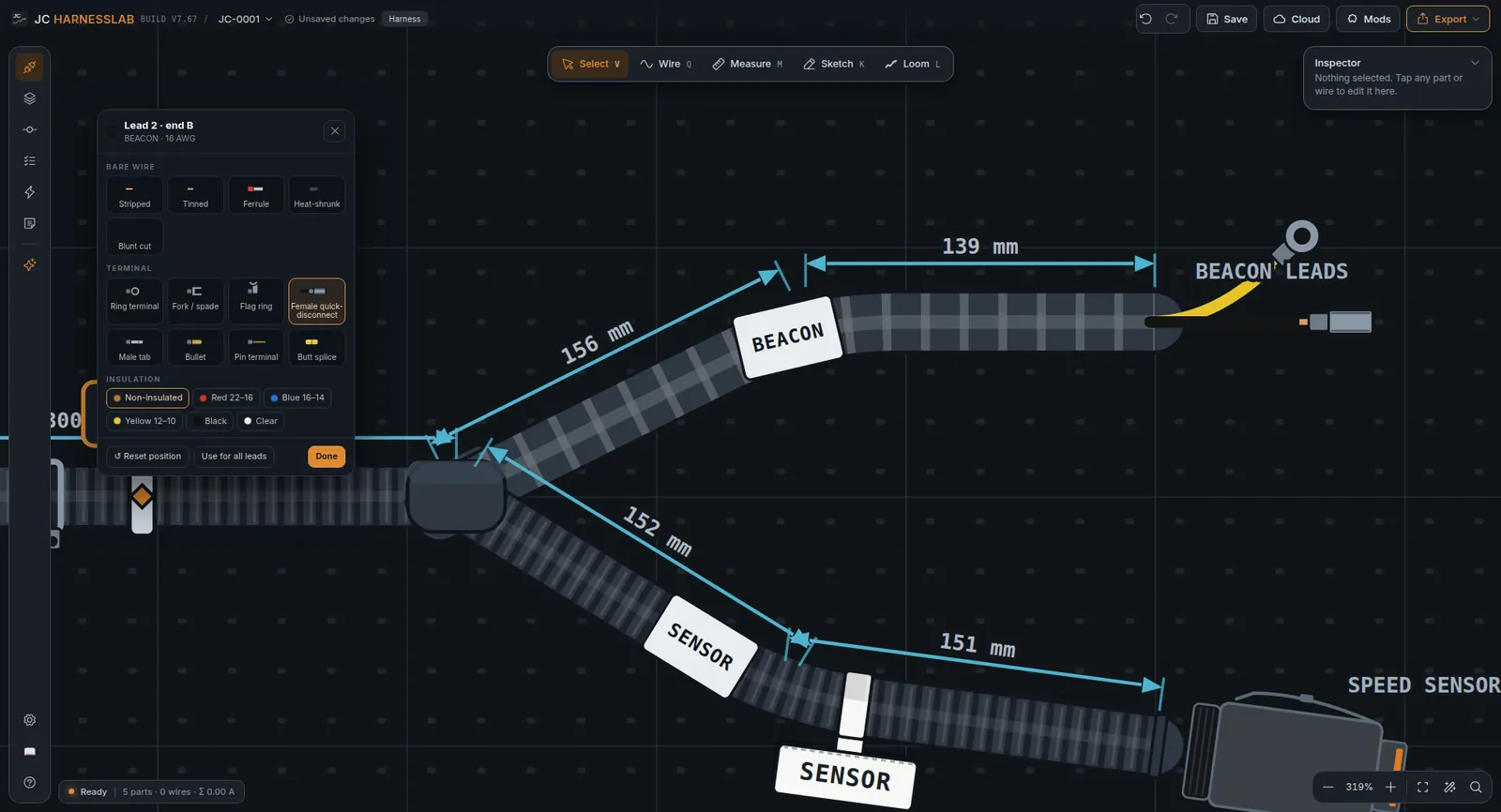
Grab any bare lead or ring terminal and drag it exactly where you want it, then choose how each lead is finished. Coverings draw at true wire thickness and ends match the wire’s colour and gauge.

StrippedTinnedFerruleHeat-shrunkBlunt cutRingFork / spadeFlag ringFemale QDMale tabBulletPinButt splice
  • Ring terminal types, insulation colours and stud sizes
  • Terminals and strip lengths land on the crimp & torque list
Lead end type picker on a beacon branch
07CONNECTOR STUDIO V2 NEW

Not in the library? Photograph it.

Snap a phone photo of any connector. The background remover runs fully offline — it clears the bench and the shadows and keeps the wires running off the edge. Click where the wires land and it’s a real part: on the sheet, at loom ends and on the BOM.

  • Erase / Keep brushes, rotate, flip, straighten and auto-crop — pin points move with the photo
  • Separate male and female photos and pin positions — mirror one from the other
  • Edit any connector you’ve made; saving updates every copy in the drawing
  • Share a team library as one .jchlib file
Connector after background removal Phone photo of the connector on a workbench PHONE PHOTOAFTER · REMOVED OFFLINE
Drag to compare — real output from the app’s remover. See the window →
08BOM, PART NUMBERS & QUOTES

The BOM builds itself — down to the cavity plugs.

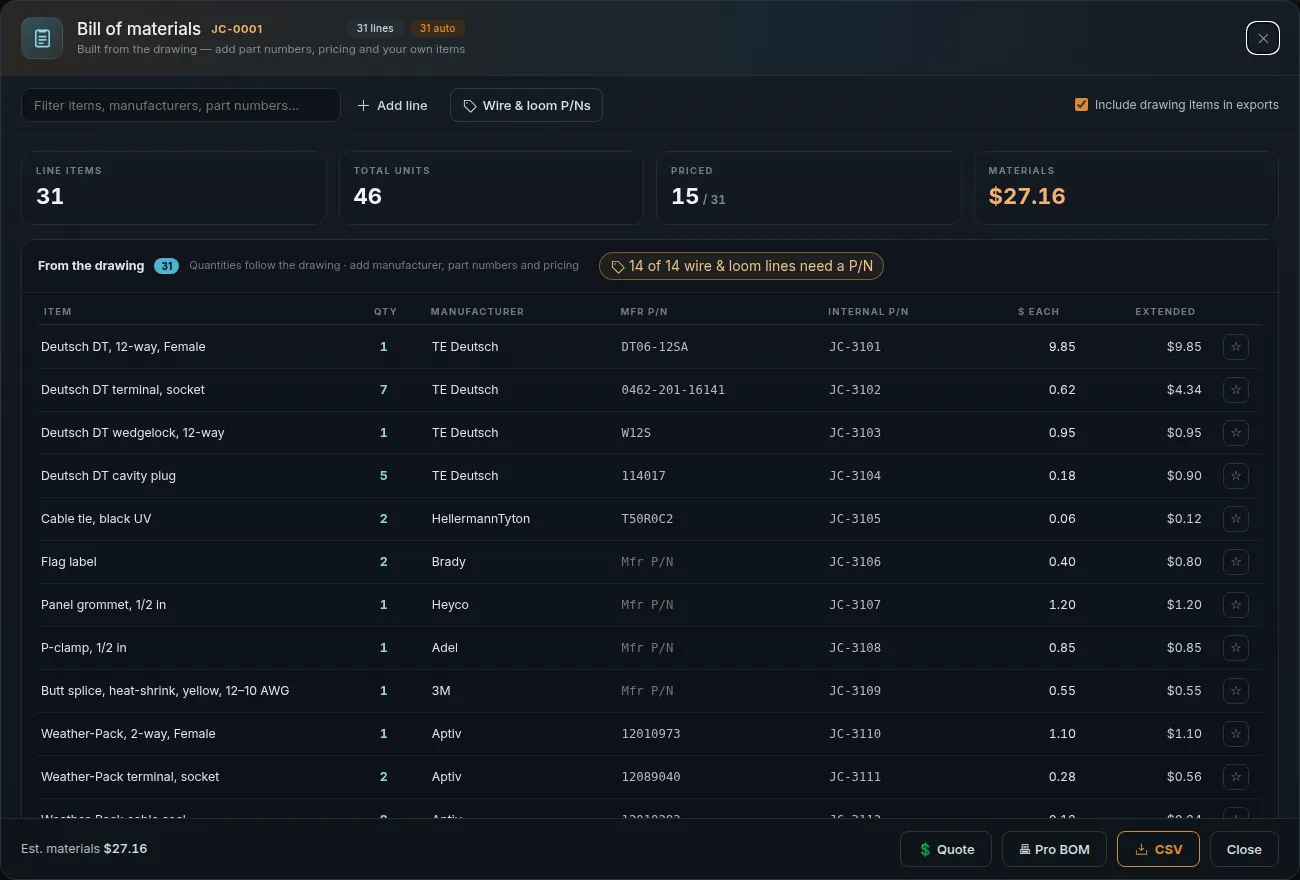
Housings, terminals, seals, wedgelocks, cavity plugs, splices, ties and wire by cut length all come straight off the drawing. Add manufacturer and internal part numbers once and save them as rules for every drawing.

  • Internal P/Ns beside manufacturer P/Ns on the BOM, Pro BOM and CSV
  • Quote Maker adds labour, markup and shipping to the parts cost
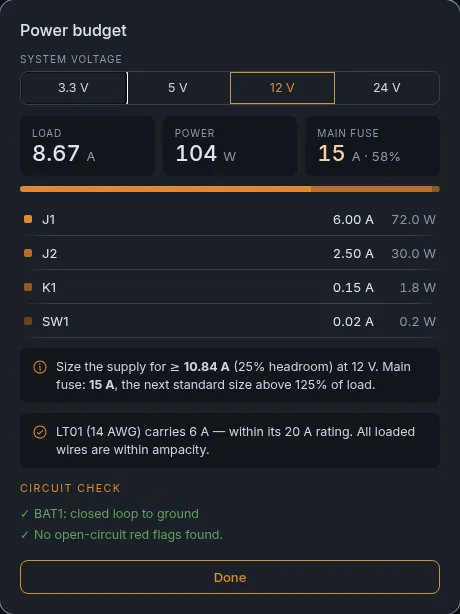
  • Power budget sizes the supply and main fuse, and flags undersized wire
Bill of materials with manufacturer and internal part numbers
Power budget
09PRINT & SHOP PACKET

One click from drawing to shop packet.

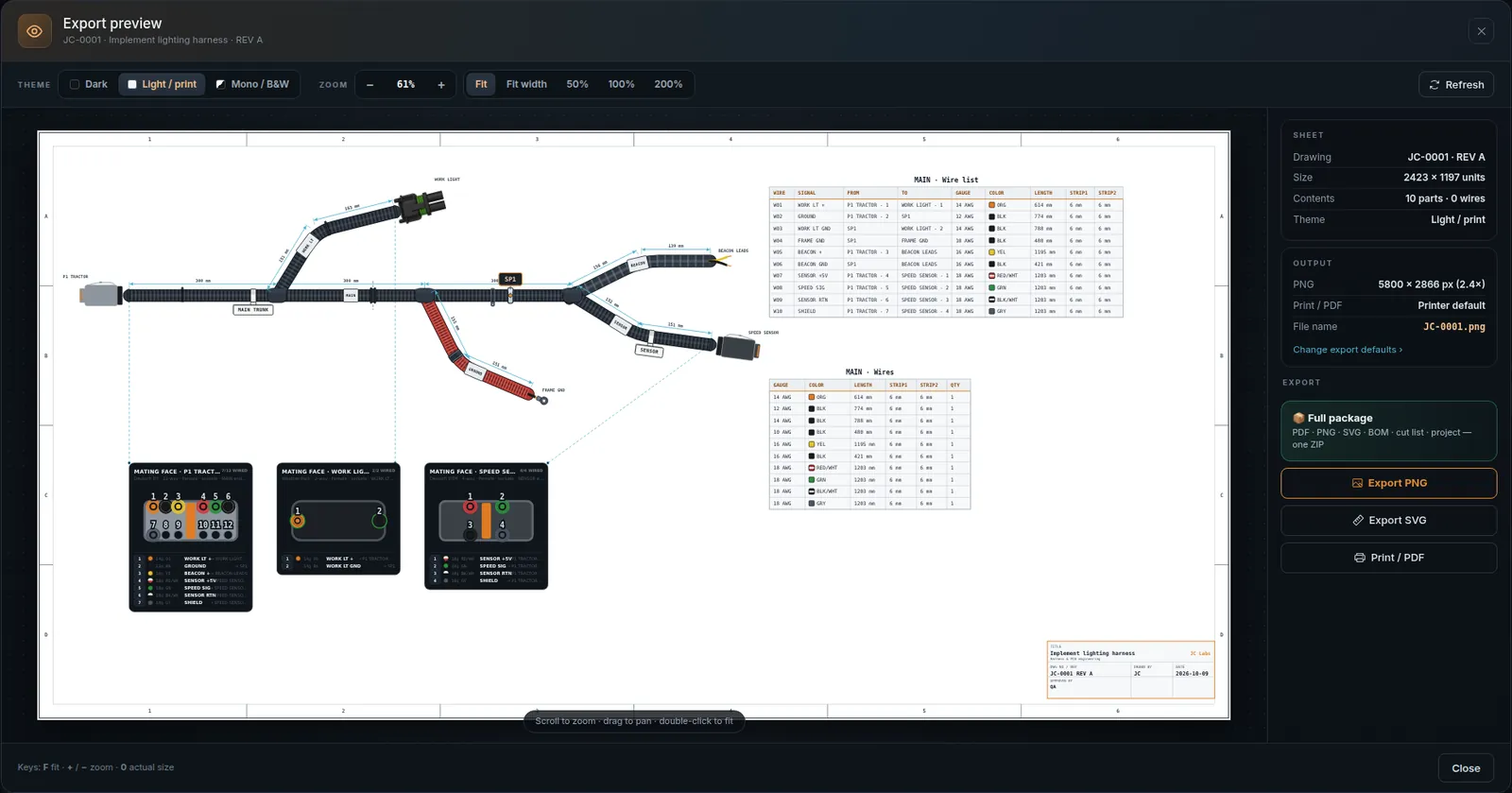
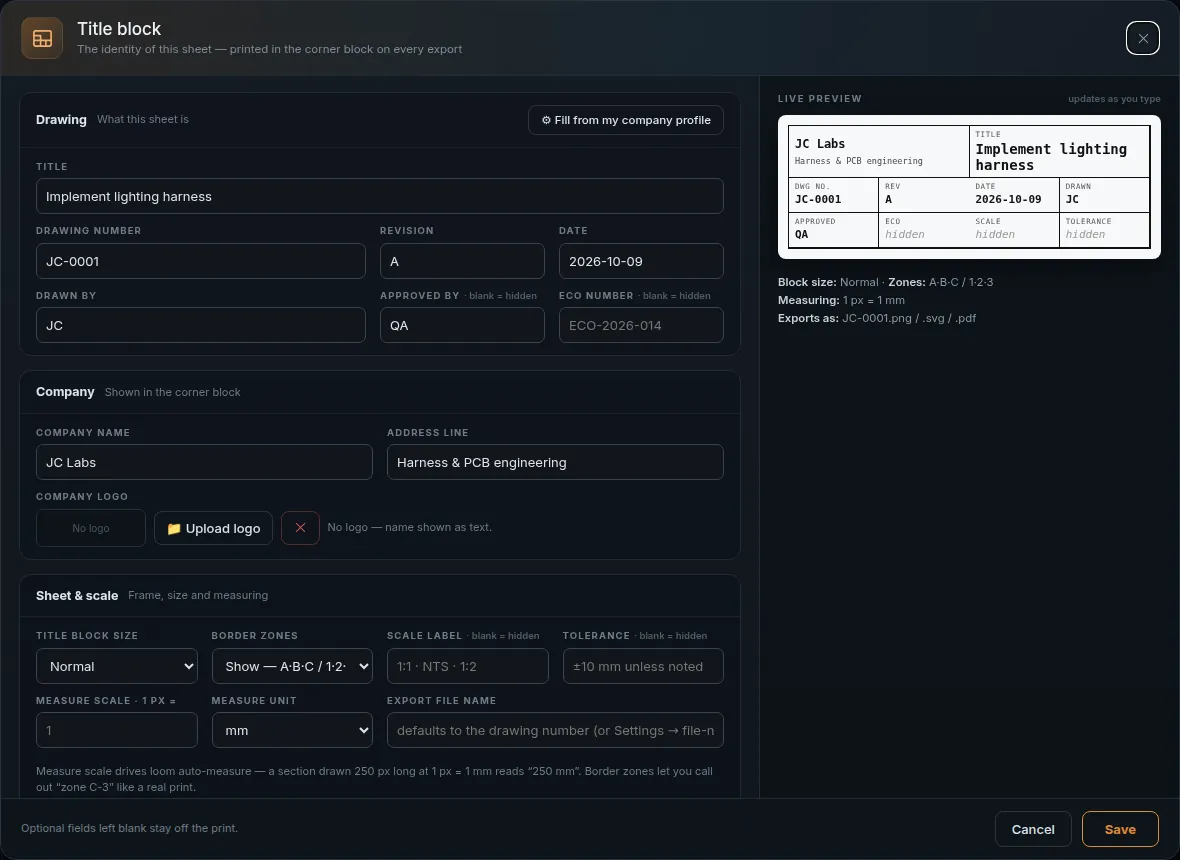
Every export is a finished, titled sheet — title block, border zones and your company profile with auto-numbered drawings. Preview it dark, light or mono, then build the whole package.

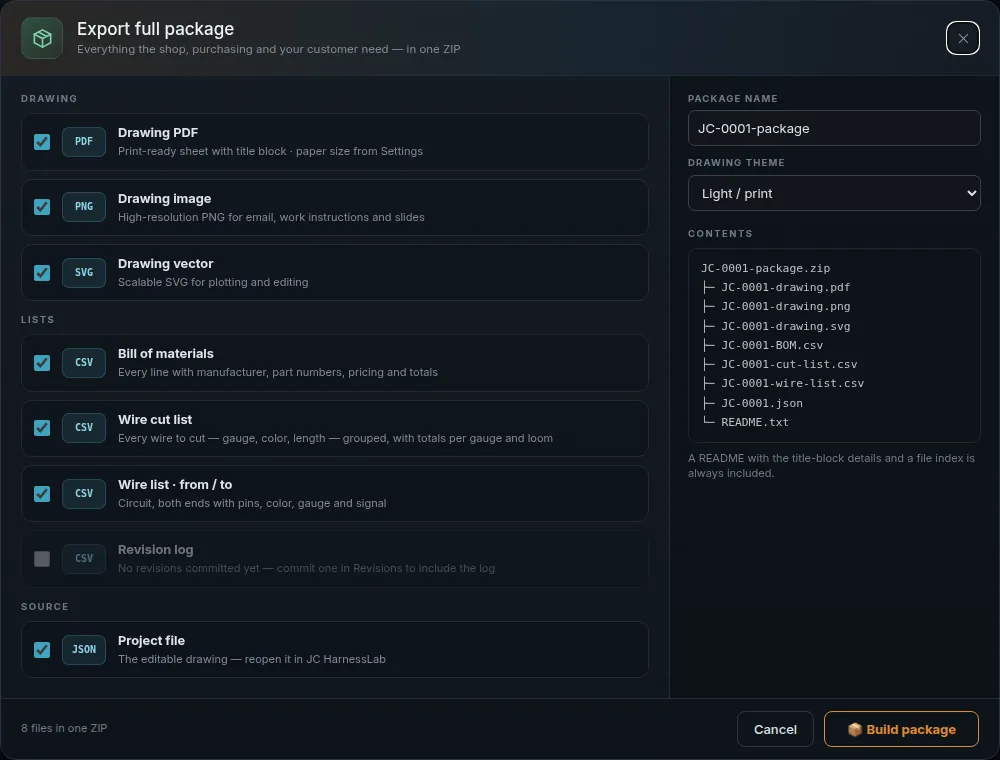
  • Full package ZIP: PDF, PNG, SVG, BOM, cut list, wire list, revision log and project file
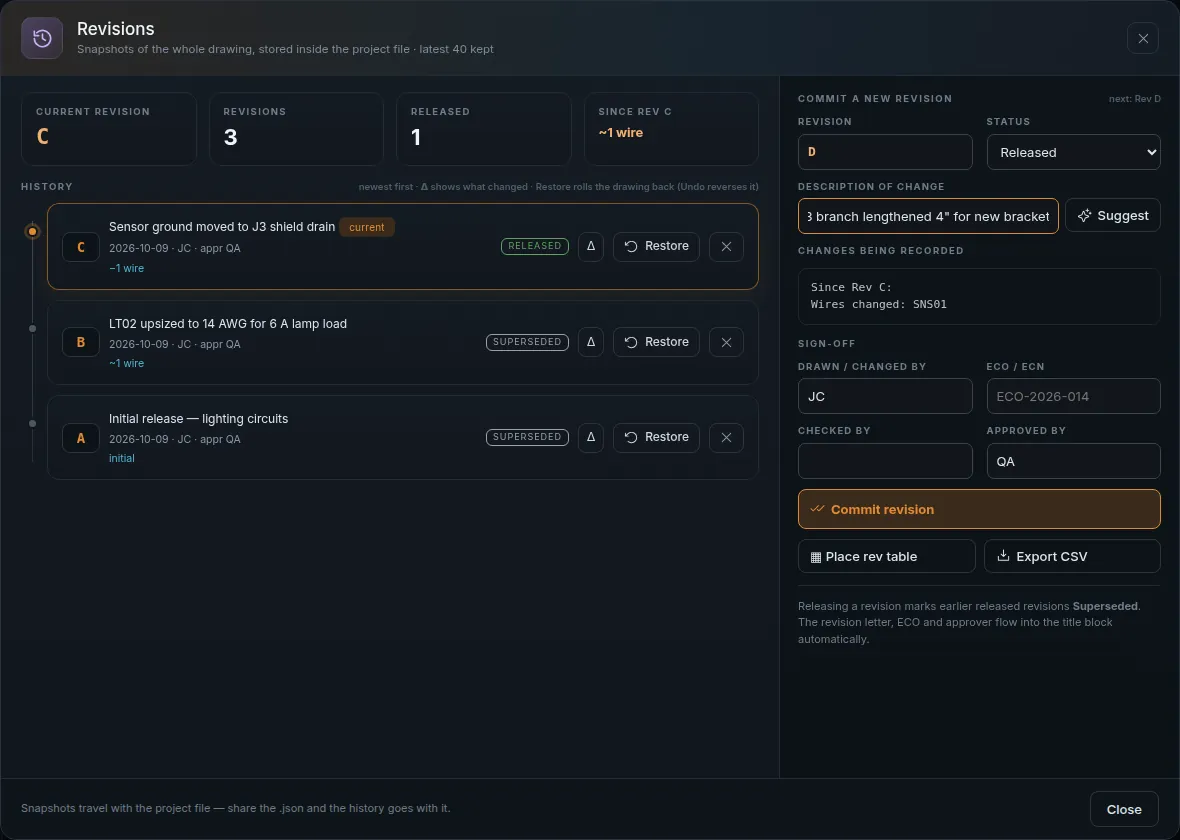
  • Revisions — commit, compare and restore on a timeline
  • Every table on the sheet has its own settings — right-click to restyle
Export preview of the harness print on a light sheet
10TEST SIM NEW

Power it up before you build it.

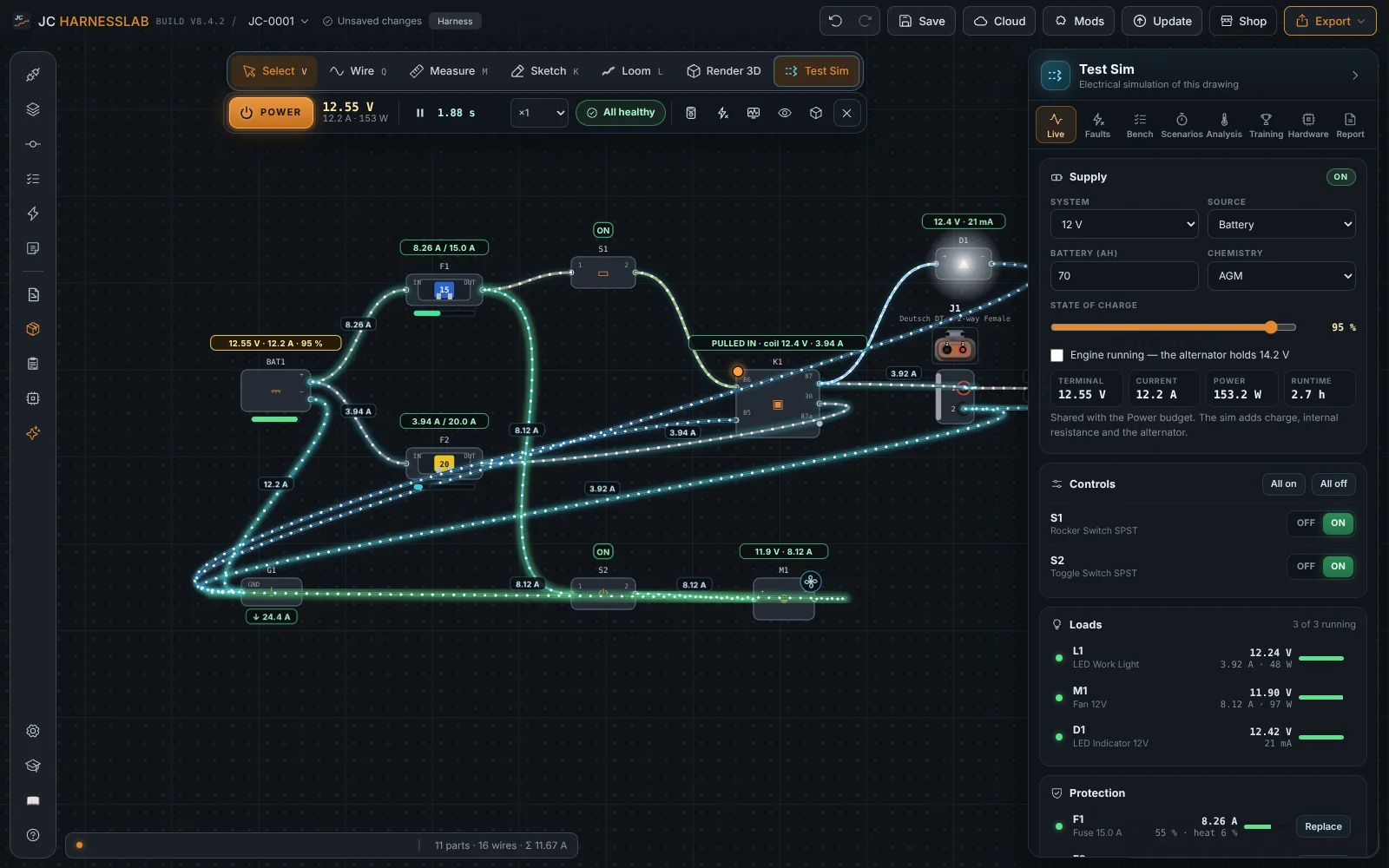
Test Sim turns the drawing into a live electrical model. Press Power and current flows along every wire, fuses heat up and blow, relays pull in and lamps glow — then break it on purpose and see exactly what fails.

  • Current flow, pin voltages, wire temperatures, a virtual multimeter and a scope you can replay
  • 27 kinds of fault with what-breaks answers and an automatic FMEA
  • Run your test program on a virtual tester and find the faults it would let through
  • Engine crank, load dump, brown-out, thermal soak and battery-drain scenarios, plus worst case
  • Find-the-fault training, a real ESP32 in the loop and end-of-line fixture exports
How Test Sim works →
Test Sim running live on a harness drawing
11THE CONNECTOR LIBRARY NEW

214 connector families, every one in 3D.

Every family in the library has a rendered picture of the real housing, a mating face with every cavity numbered and a 3D model in the Render Studio — for every pin count and both halves. Drop one on a loom end and it comes in at real size, with the wires fanning into its cavities.

  • Harness, Wire-to-board and Power & Data groups, sorted into sub-groups, each card with its picture
  • Aptiv, TE, Deutsch, Amphenol, Sumitomo, Yazaki, Bosch, Kostal, JST, Hirose and every common Molex family — Micro-Fit, Mini-Fit, Nano-Fit, KK, PicoBlade and more
  • Circular and industrial, lighting sockets, battery and RC, AC, PC power, data, AV and RF
  • Your own photo still wins — or build a part from photos in Connector Studio
Inside the connector library →
Six library connectors on a branched harness in the 3D Render Studio
12WIRES TO THE CONNECTOR NEW

Show the breakout, or cover it up.

Every Loom Studio connector end can show its wires — each one leaving the covering and running into its own cavity in its circuit colour — or run the covering right up to the connector under a boot. Whatever you set shows on the sheet and in the 3D render.

  • Wires showing or Covered to connector, per end or for every end at once
  • Breakout length in mm, or automatic from the loom size
  • The BOM follows: covering length less the breakouts, end tape and heat-shrink boots
Loom ends & breakouts →
A Deutsch DT 12-way at the end of a Loom Studio run with its wires showing in their circuit colours
WHAT YOU HAND THE SHOP

Paperwork that writes itself.

Everything below comes from the same drawing — change a wire and every list follows.

PDF · PNG · SVGHarness printTitled sheet with zones and your logo
TABLE · CSVWire cut listGrouped by gauge, colour and length
TABLE · CSVFrom / to wire listSignal, ends, gauge, colour, strips
TABLESplice listWires, far ends, method and position
TABLECrimp & torqueTerminals, quantities and where they go
TABLELoom segmentsEach run cut at tees and splices
TABLEPinout tablesPer connector, live from the circuits
TABLECable scheduleEvery covering, size and length
CSVBOMMfr & internal P/Ns, pricing, extended cost
ZIPFull packageEverything above plus the project file
ALSO IN THE HARNESS TOOLKIT

The details harness builders care about.

Ampacity warnings

Give parts a current draw and undersized wires get flagged before they get hot.

Measurement arrows

Left, right, both or none, with arrowhead styles — dimensions that read like a real print.

Wire & loom part numbers

Manufacturer and P/N for wire, braid, loom and any Auto BOM line.

My Shapes

Save any assembly — a fuse block, a lamp pigtail — and drop it into the next job.

Revisions

Commit, compare and restore. The revision log exports to CSV and rides along in the package.

Live tables

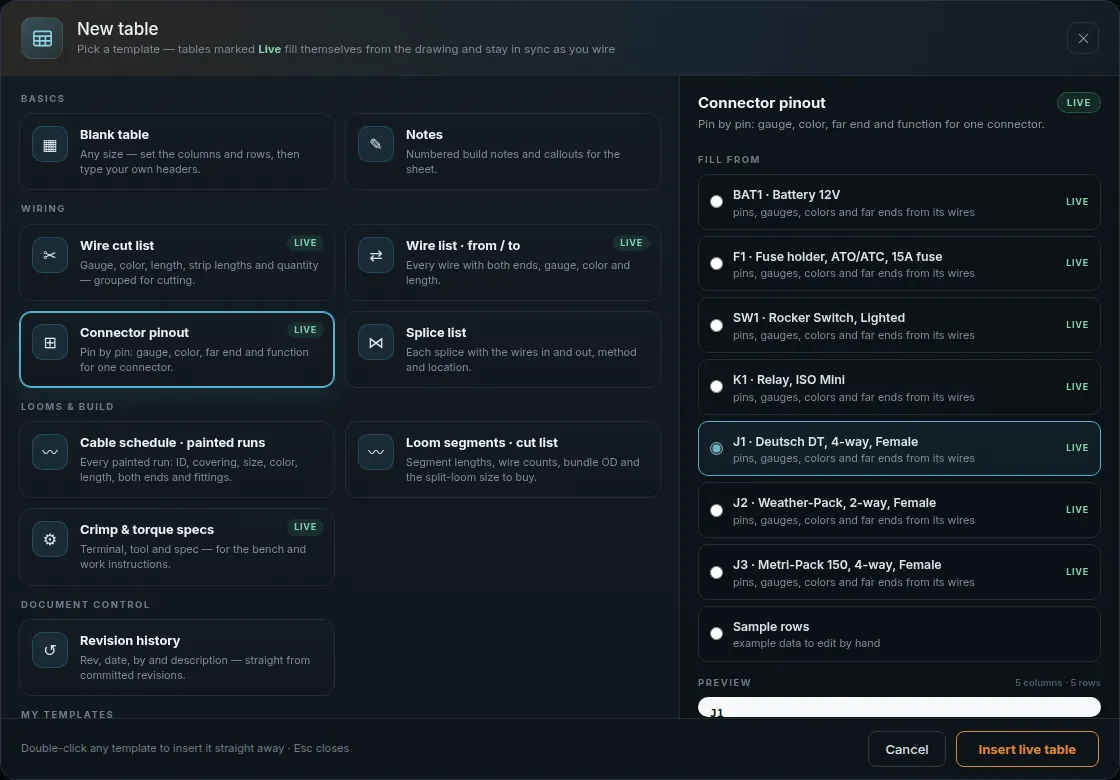
Cut list, from/to, splices, segments and crimp tables that follow the harness as it changes.

Cable builder

Covering, trade size, tracers, shield, conductors and both ends — save your own presets.

Mods

Low-code .jchlmod add-ons for exports, BOM lines, design rules and more.

FOR PCB & SCHEMATICS

From schematic to fab-ready board.

Draw the circuit with real symbols and named dev-board pins, push it to a board, route it and check it, spin it in 3D — then send Gerbers and a drill file straight to the fab house.

Controller & sensor boardsESP32 & IoTBreakout & adapter boardsTest fixturesMakers & hobbyistsClassrooms & labs
275schematic & PCB symbols
36dev boards with named, colour-coded pins
105modules, sensors & drivers
7Gerber layers + Excellon drill in one ZIP
2copper layers with vias, zones and silk
275 symbols & 36 dev boards — passives to transceivers, Arduino to Raspberry Pi.

Lay out, route and check — in the same app.

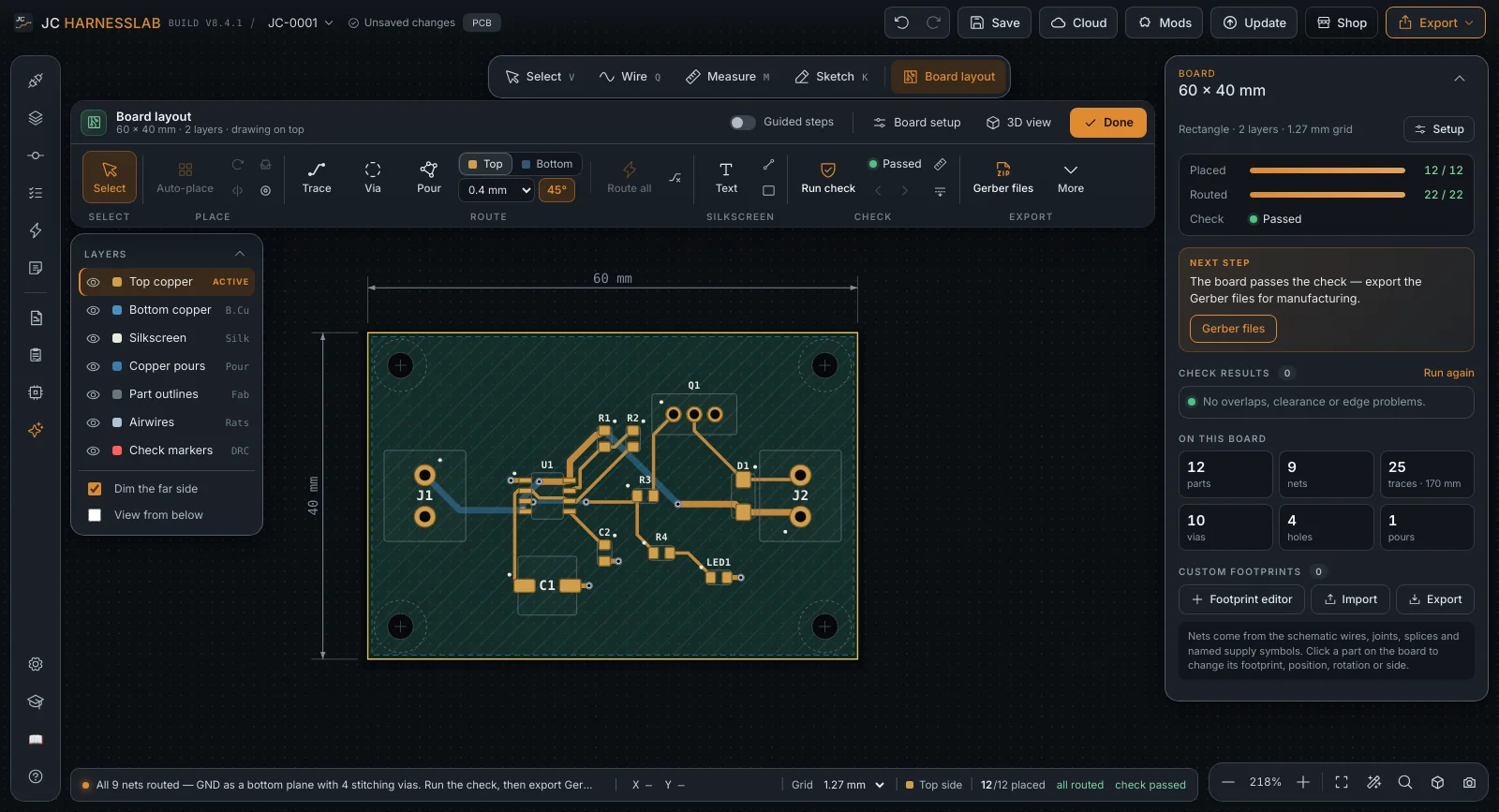
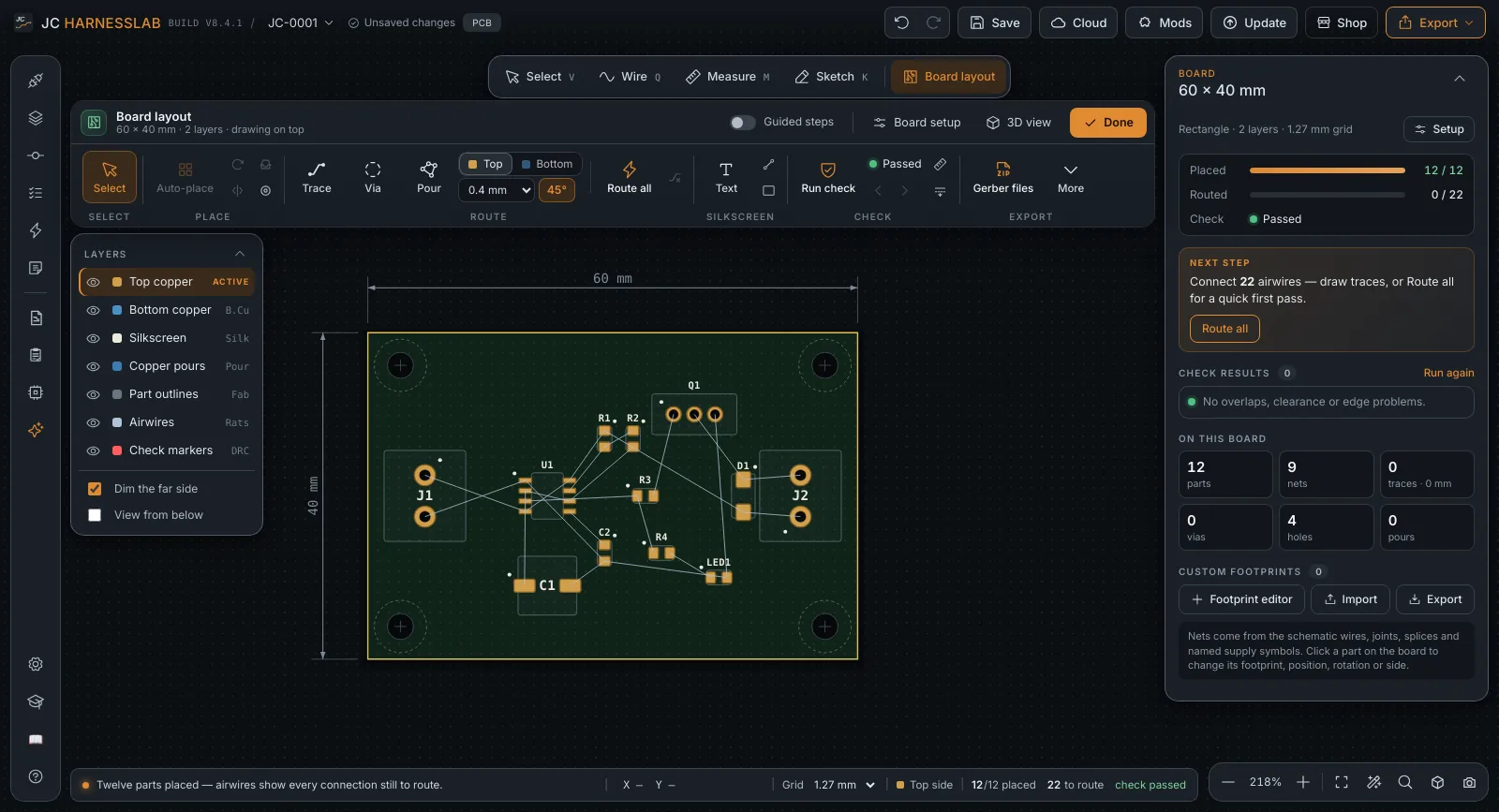
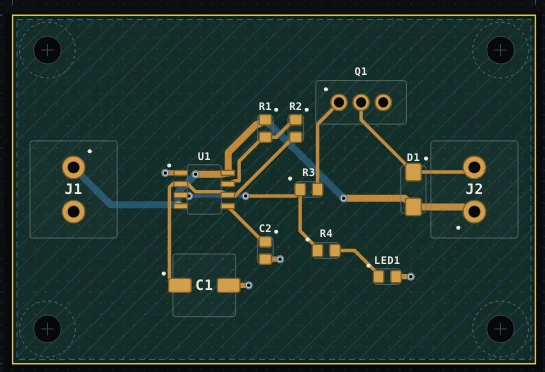
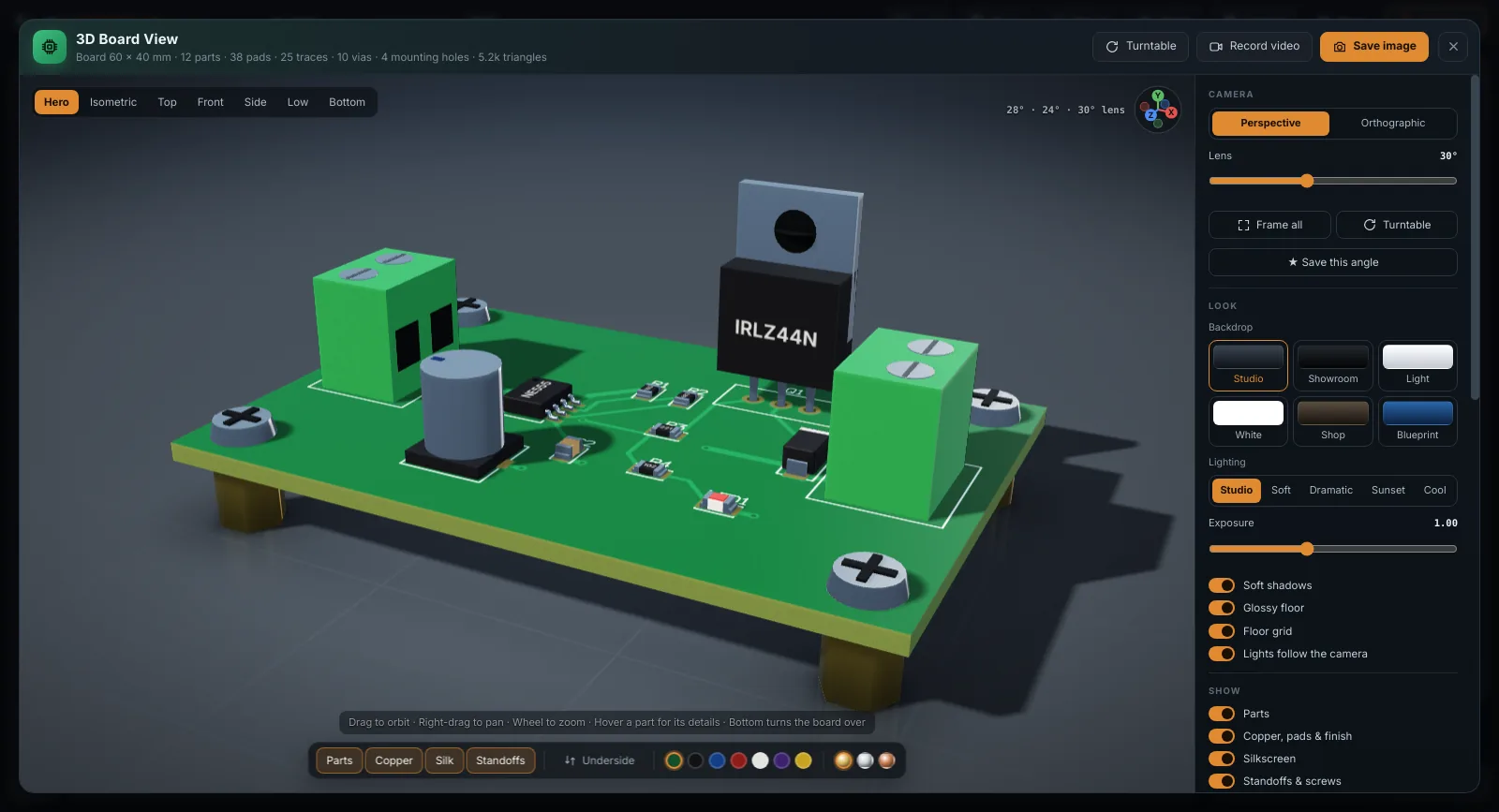
A 555 flasher / load driver on a 60 × 40 mm board: smart-placed, routed on two layers with a GND plane, ten vias and four mounting holes — check passed.

HOVER THE NUMBERS
CLICK TO ENLARGE
JC HarnessLab — Board layout
JC HarnessLab 8.4.1 board layout: the ribbon, a smart-routed 555 board with a GND plane and a passed check
Every tool in one ribbonSelect · Place · Route · Silkscreen · Check · Export, each group captioned. Prefer one step at a time? Switch on “Guided steps”.
Smart place & routeAuto-place puts connectors on the edges and the chip beside its parts; Route all uses both layers and vias, with wider power nets.
Check: passedClearance on the real pad shapes, board edges, holes and unrouted nets — every finding clicks through to the board.
Gerber files & every exportRS-274X Gerbers and Excellon drills in one ZIP; More holds KiCad PCB, placement CSV, netlist, drill table, PNG and SVG.
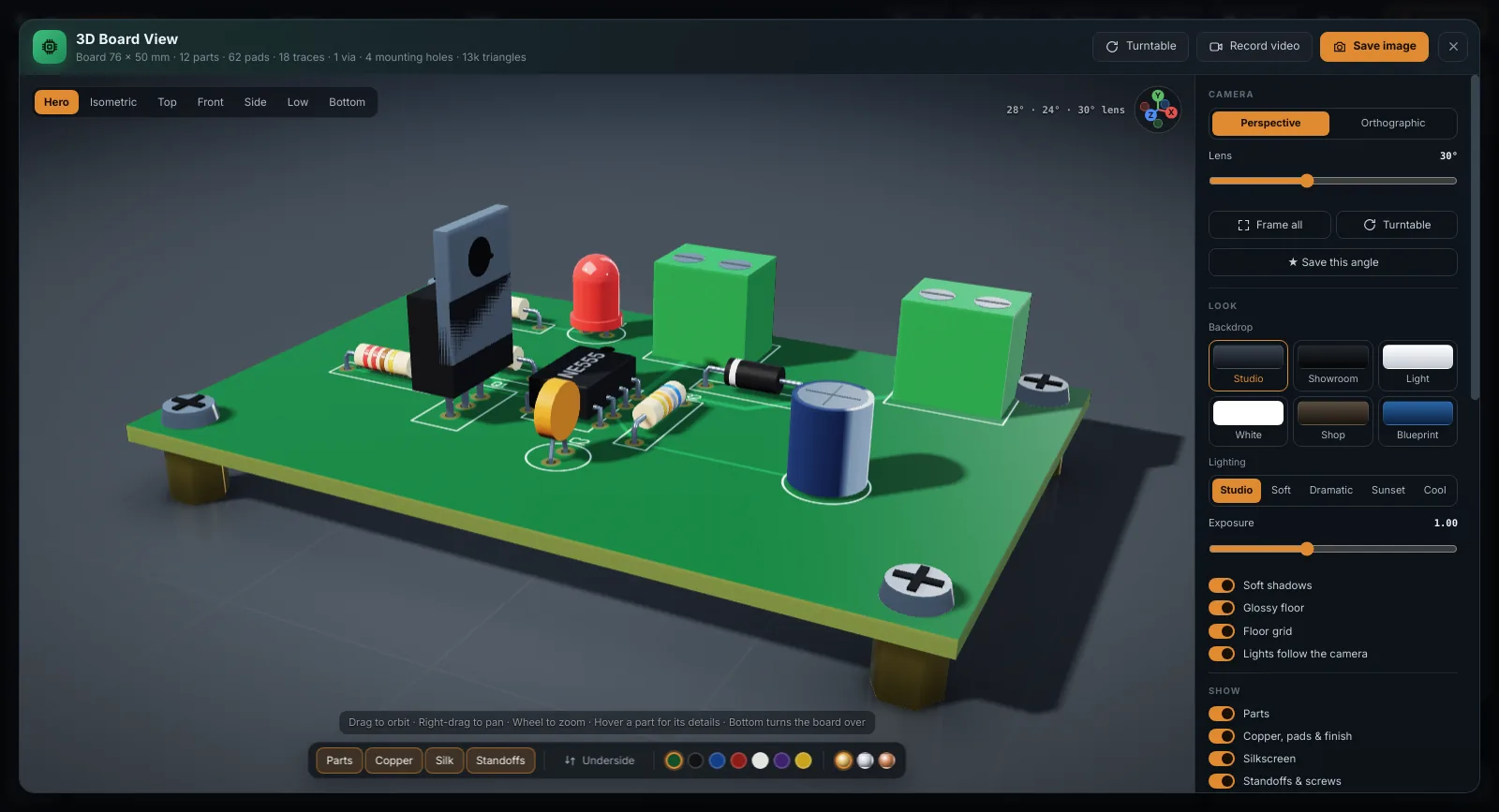
3D viewThe assembled board in the 3D Board View — real SMT and through-hole models, orbit, turntable, save an image.
Layers panelShow or hide every layer, dim the far side, or view from below to edit the bottom of the board.
Two copper layersTop in orange, bottom in blue, joined by vias. 45° snapping keeps hand-drawn traces tidy.
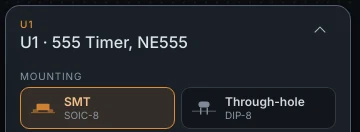
SMT or through-holeU1 is a SOIC-8 here — one click makes it a DIP-8. Switch one part or the whole board; the footprint, BOM and 3D follow.
GND planeGround is poured on the bottom layer and stitched to the top pads with vias — no ground traces to draw.
Holes, outline & rulesFour Ø3.2 holes in one click and live dimension lines; Board setup holds the shape, size and your design rules.
Board status & next stepPlaced, routed and check at a glance, counts for parts, nets, traces, vias, holes and pours — and what to do next.
◆EVERY LAYER, ACCOUNTED FOR

Pull the board apart.

This is the same 555 board, layer by layer, drawn from the app’s own geometry. Each layer leaves as its own Gerber in the fab ZIP — hover one to lift it out.

  • DrillExcellon · plated + mounting holes
  • F.SilkscreenReferences & outlines
  • F.Cu · top copperTraces, pads, vias
  • Board · Edge.Cuts60 × 40 mm outline
  • B.Cu · bottom copperSecond layer · GND plane, joined by vias
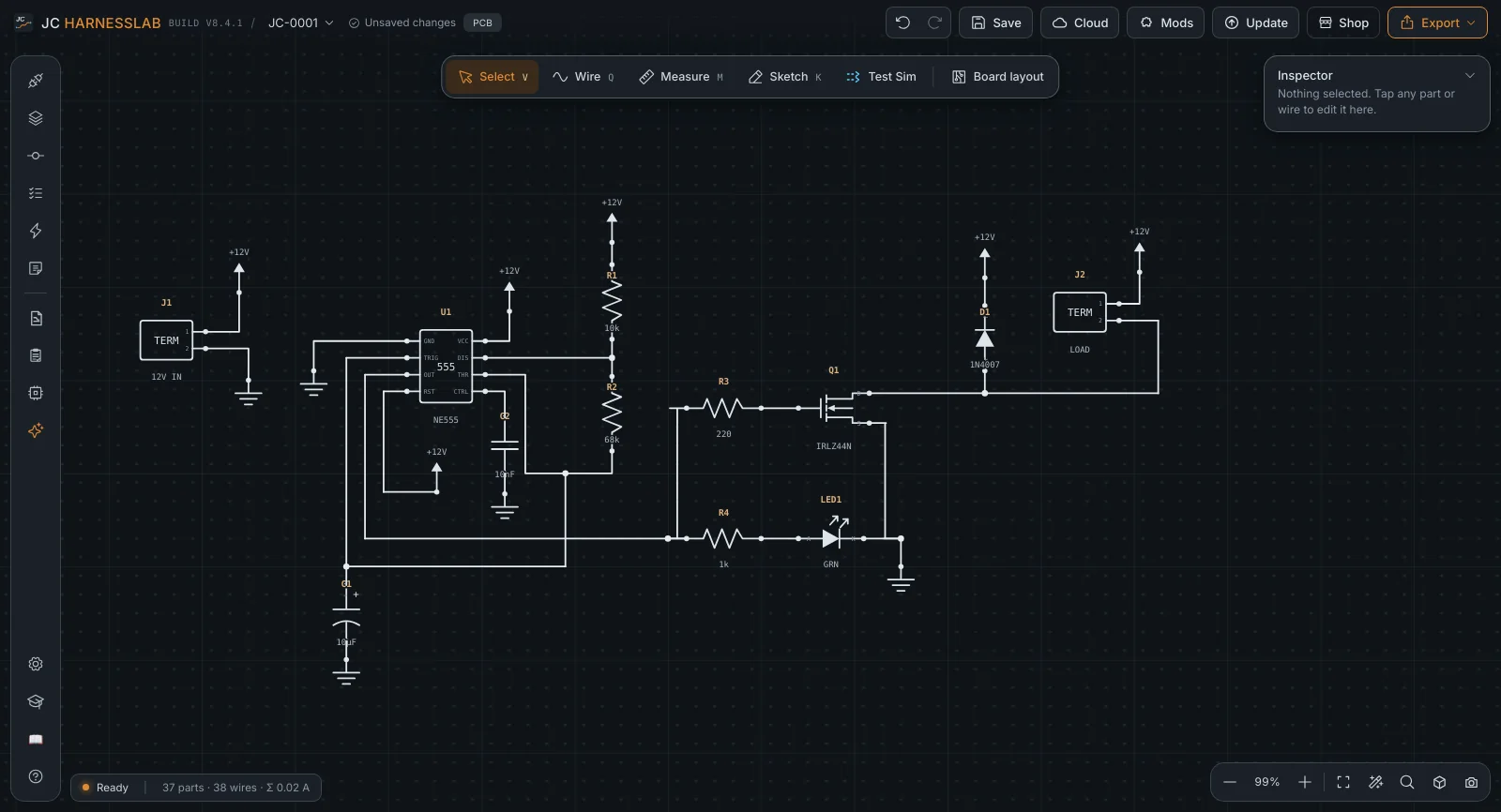
01SCHEMATIC CAPTURE

Draw the circuit with real symbols.

275 symbols, each with an SMT or through-hole package — passives, diodes, transistors and MOSFETs, logic gates and flip-flops, regulators, op-amps, the 555, CAN and RS-485 transceivers, 46 processors with their support circuit, headers and terminal blocks. Wire pin to pin in colour; references number themselves.

  • PCB mode: white, right-angle schematic lines with junction dots — on by default in the PCB workstation
  • Named supply symbols (+12V, GND) join nets without a wire
  • Values and references on every part — R1 10k, U1 NE555, Q1 IRLZ44N
  • Netlist, BOM and power budget straight from the schematic
  • Mix harness parts on the same sheet with the All workstation
555 flasher schematic in PCB mode with supply symbols
02SMART PLACE & ROUTE

From airwires to a routed board in two clicks.

Auto-place puts the connectors on the board edges and keeps the 555 with its timing parts. Route all then works both copper layers and vias, widens the power nets and pours ground on the bottom with stitching vias — and the check tells you what’s next.

  • Drag any part to refine — the airwires follow
  • Your own traces stay; Route all only redoes its own
  • A Next step card walks you from route to check to Gerber files
Twelve parts placed on the board with 22 airwires still to route
The same board after Route all
03SMT OR THROUGH-HOLE

SMT or through-hole — part by part.

Symbols made in both packages switch with one click in the Inspector: SOIC-8 or DIP-8, 0805 or axial, SMA or DO-41, DPAK or TO-220. Switch one part or the whole board — the footprint, the BOM line and both 3D views follow.

  • Board setup picks the default for new parts
  • Parts made in one package only say so
  • Real SMT and through-hole models in the 3D Board View and the Render Studio
The 555 board switched to through-hole, in the 3D Board View
The Mounting switch in the Inspector
04DEV BOARDS & MODULES

Every pin named. Every gotcha flagged.

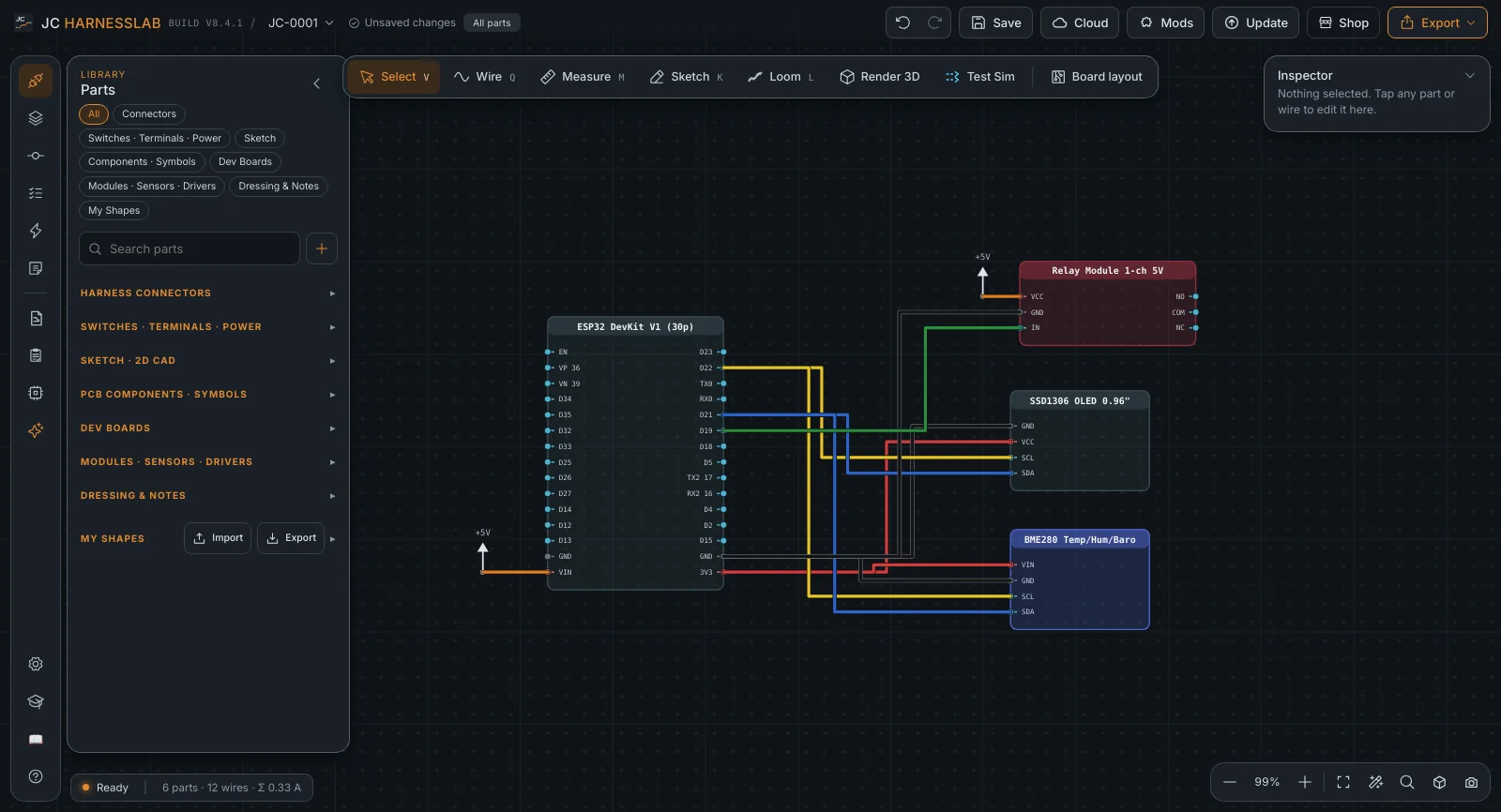
Arduino, the ESP32 family, ESP8266, Raspberry Pi and Pico, STM32 Blue Pill, Teensy and more — plus chargers, converters, IMUs, displays, relay boards, motor drivers, GPS and CAN modules.

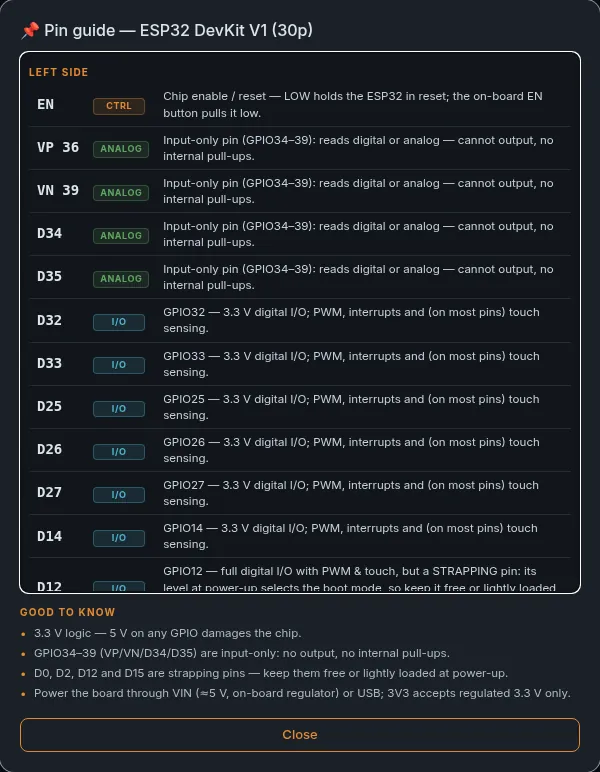
  • Right-click any board for the Pin guide: every pin colour-coded by role, in plain English
  • Knows strapping and input-only pins, 3.3 V-only rails, relay NO / COM / NC and driver limits
  • A custom ESP32 board with your own pin map
ESP32 sensor node wired to OLED, BME280 and relay modules in JC HarnessLab 8.4.1
ESP32 pin guide
053D BOARD VIEW

Spin the assembled board before you order it.

Check fit and clearance in 3D — hero, isometric, top, front, side, low and bottom views; toggle parts, copper, silk and standoffs, pick a backdrop and lighting, then save an image or record a turntable video for the customer or the build sheet.

  • Real SMT or through-hole models for every part, chosen per part
  • Underside view to check the bottom of the board
  • Board image export as PNG or SVG
The 555 board in the JC HarnessLab 8.4.1 3D Board View
3D view of an assembled HarnessLab board
06GERBERS & FAB OUTPUTS

Fab-ready in one click.

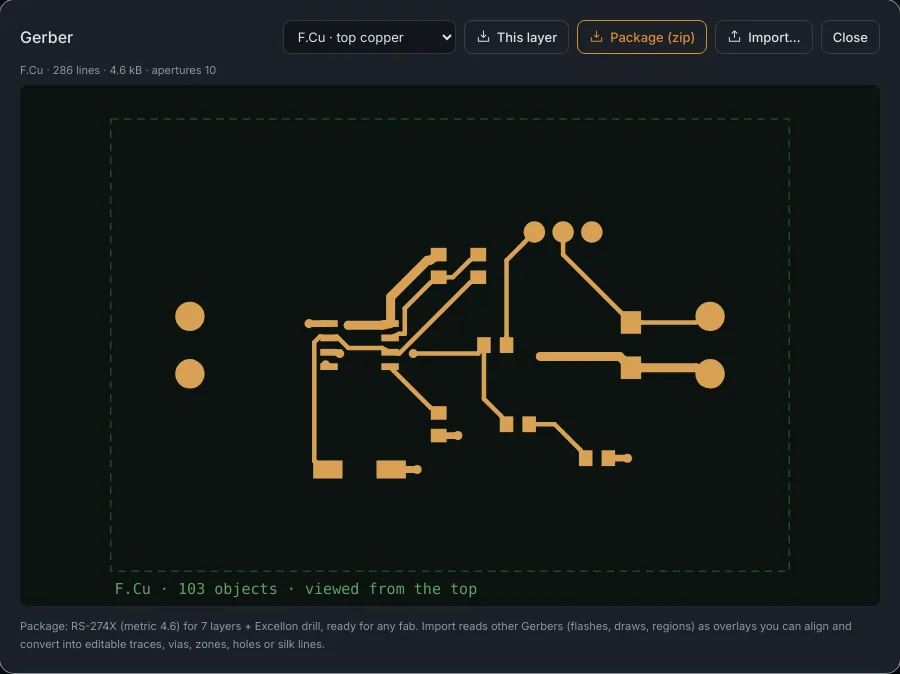
Package RS-274X Gerbers for all seven layers plus an Excellon drill file, zipped and ready for any fab house. Preview every layer before you send it.

  • KiCad PCB export — outline, footprints, traces and vias
  • Placement CSV (ref, footprint, X, Y, rotation), netlist and drill table
  • Import other Gerbers as overlays, align them and convert to editable traces, vias, zones, holes or silk
Gerber layer preview of the 555 board top copper
07AI ASSISTANT

Describe it. Get a draft.

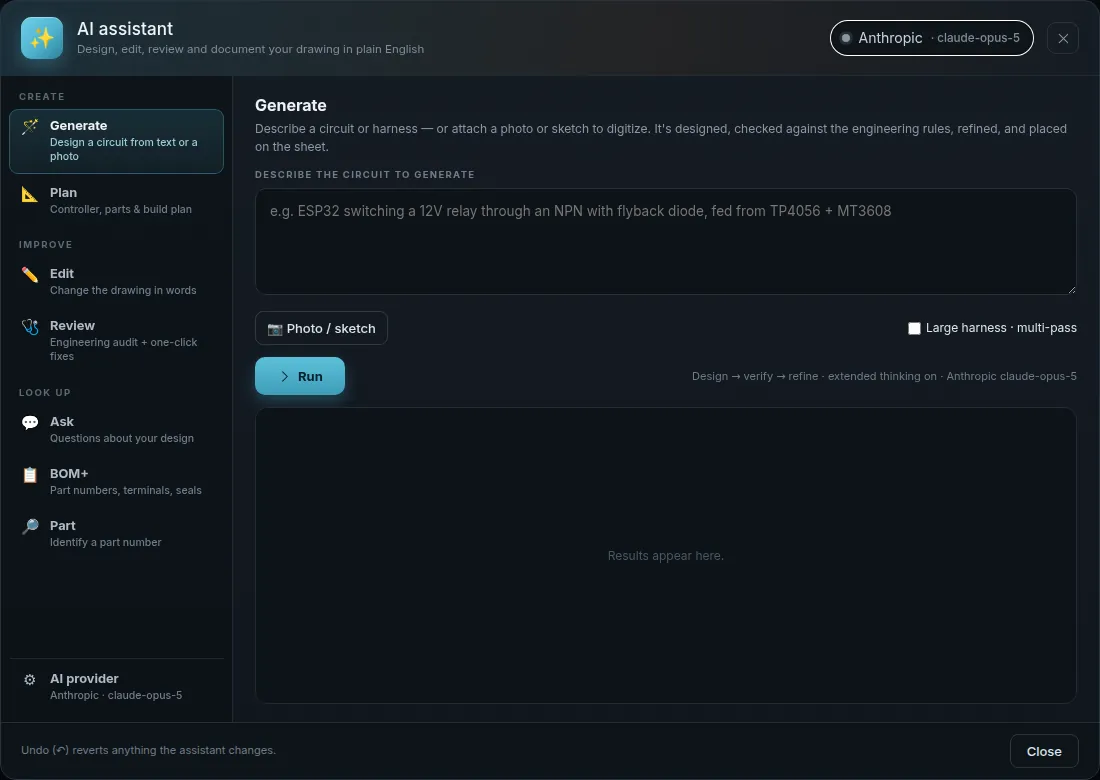
Type what you need — “ESP32 switching a 12 V relay through an NPN with a flyback diode” — and the assistant drafts the parts, the wires and an explanation. Review the plan, then add it to the canvas.

  • Generate, edit, review and ask — or start from a photo or sketch
  • Enriched BOM and firmware code you can copy or save
  • Bring your own Anthropic or OpenAI key; Undo reverts anything it changes
AI assistant window
WHAT YOU SEND THE FAB

Every file the board house asks for.

Straight from the board you just checked — no converters, no second program.

RS-274XGerbersAll 7 layers, metric 4.6
EXCELLONDrill filePlated & non-plated holes
ZIPFab packageGerbers + drill, ready to upload
.KICAD_PCBKiCad boardOutline, footprints, traces, vias
CSVPlacement listRef, footprint, X, Y, rotation
NETLISTNetlistref.pin for every net
CSVDrill tableSizes and counts
PNG · SVGBoard imageFor docs and the build sheet
PNG3D renderSpin, frame and save
PDF · CSVSchematic & BOMTitled sheet plus parts list
ALSO ON THE BOARD SIDE

The details board designers care about.

Footprint editor

Generate a starting footprint or build it pad by pad; import and export between PCs.

View from below

Flip to the bottom side to place and route there.

Layer preview

Check every Gerber layer on its own before it leaves.

Import Gerbers

Load someone else’s Gerbers as overlays, align and convert to editable objects.

Copper zones

Pour zones, add silkscreen text and graphics, place mounting holes.

Board shapes

Rectangle, rounded or custom — drag outline corners and set a corner radius.

Power-net widths

Power nets route wider automatically under your design rules.

Enriched BOM & code

Let the assistant fill in BOM detail and write the firmware to go with it.

THE WINDOWS YOU’LL LIVE IN

Built out, not bolted on.

Every dialog is designed for the job — drag or swipe through a few of them.

Export full package dialog
Full packageEverything the shop, purchasing and your customer need — one ZIP.
Revisions dialog with history
RevisionsA timeline of every change with sign-off, ECO and restore.
Title block dialog with live preview
Title blockLive corner-block preview, filled from your company profile.
New table gallery with live tables
Table galleryCut lists, pinouts, splices, crimp specs — live from the drawing.
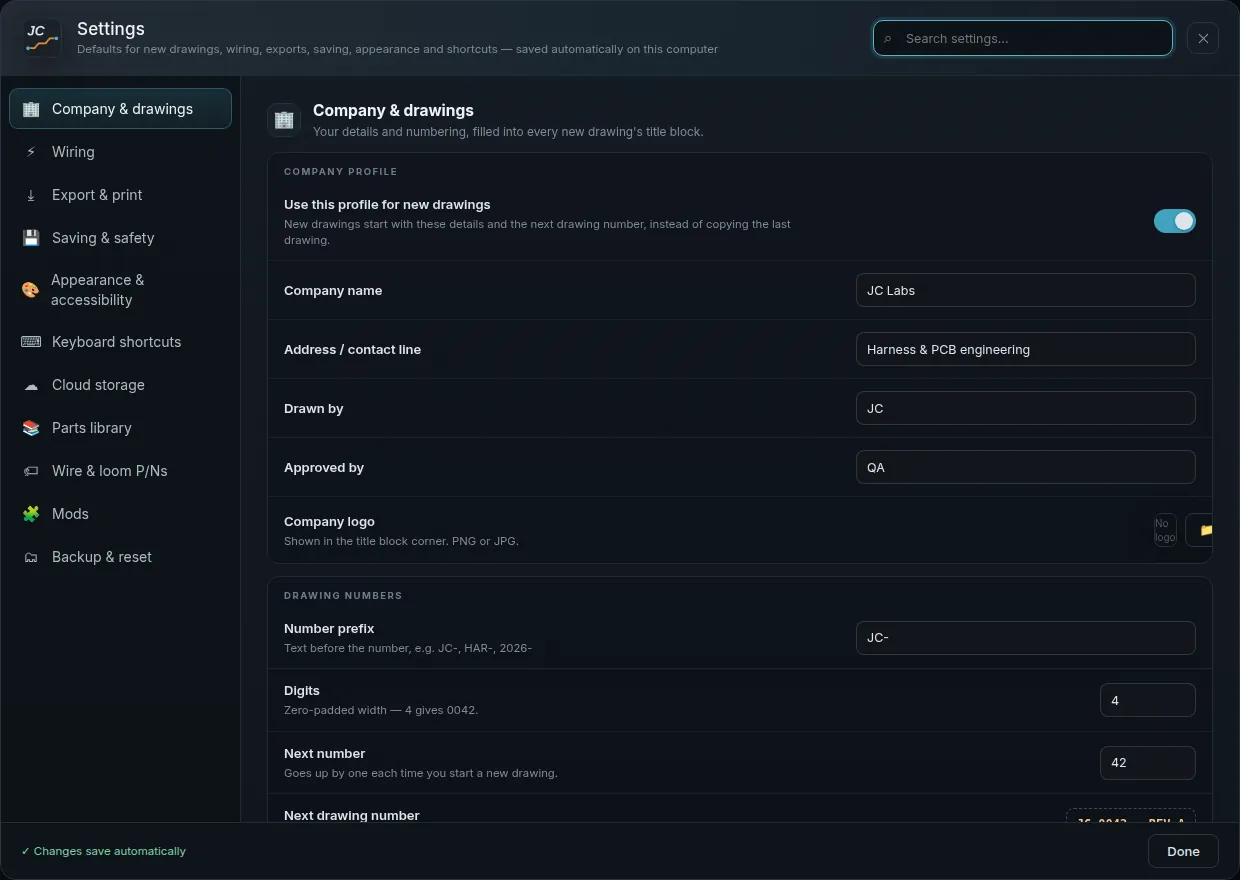
Settings window
SettingsYour company, your defaults, your shortcuts — saved automatically.
ONE FILE · BOTH TRADES

The harness and the board it plugs into.

Switch workstations and the library and tools change to suit the job — nothing on your sheet moves. Draw the controller and the harness that feeds it in one drawing, one BOM and one package.

Harness

Connectors, terminals, switches, power parts, Loom Studio V2 and cut lists.

PCB

Schematic symbols, dev boards, modules, board layout and Gerbers.

All

Everything at once for mixed jobs — one sheet, one BOM.

100% offlineYour drawings stay on your PC
Pay onceNo subscription to keep it working
RevisionsCommit, compare, restore
Company profileLogo, title block, auto-numbered drawings
Optional CloudSync and share across PCs
AI assistantWith your own Anthropic or OpenAI key

Build both. Pay once.

Installs in a minute, runs entirely on your machine — try it free with the demo first.

WORKFLOW

From idea toproduction package.

Five steps, one file, no internet required. Place the parts, wire them, dress the cable, check it and ship the packet — without ever leaving HarnessLab.

5 steps1 project file0 internet needed10+ output formats
Walk the line
STEP 01 · PLACE

Place the parts.

Start from a library built for harness work — or bring your own. Search, favorite and drop parts onto the sheet; references number themselves as you go.

  • 214 connector families with rendered pictures, faces and 3D, any cavity count, male or female
  • Terminals, splices, relays, fuses, switches, sensors and power parts
  • 36 dev boards and 105 modules for embedded and control work
  • Anything missing? Build it from a photo in Connector Studio
Read the guide: The parts library →
same step · the actual HarnessLab screen
Parts libraryTap a part to drop it
ConnectorsTerminalsBoards★ Favorites
Sheet 10 parts
REAL APP
STEP 02 · WIRE

Wire it pin to pin.

Drag from a pin to its mate, or tap-tap. Every wire carries its color, stripe, gauge, circuit ID, length and signal label, and the routing stays tidy on its own.

  • Curved, straight or right-angle routing with waypoints
  • Twisted pairs with real pitch and lay direction
  • Splices and joints — solder, crimp or T-tap
  • Circuit numbers that continue from the highest on the sheet
Read the guide: Wires — pin to pin →
same step · the actual HarnessLab screen
Wire
CIRCUIT101
SIGNALPWR +12V
GAUGE16 AWG
COLORRD
LENGTH1.20 m
REAL APP
STEP 03 · DRESS

Dress the harness.

Paint the real cable in Loom Studio: split loom, braid, tape, heat-shrink or jacketed cable, with branches, ends and fittings — and lengths that measure themselves.

  • Tees grow where branches meet the trunk
  • Connector ends with photos, ring lugs, bare-wire breakouts and boots
  • Ties, grommets, P-clamps, flags and ID sleeves along the run
  • Covering, ends and fittings flow straight into the BOM
Read the guide: The Loom tab →
same step · the actual HarnessLab screen
Loom Studio
REAL APP
STEP 04 · VERIFY

Check it before it’s built.

HarnessLab watches the electrical side while you draw, so problems turn up on screen instead of on the bench.

  • Load, wattage and main-fuse sizing with 25% headroom
  • Suggested gauge and ampacity warnings per wire
  • Every source traced to a ground return
  • Live pinout tables that always match the wiring
Read the guide: Power budget →
same step · the actual HarnessLab screen
Circuit check0 / 6 passed
Try to break it:
0of 6
  • Wire ampacity
  • Main fuse15 A — next standard size above 125% of load
  • Ground return
  • Open circuits
  • Unwired parts
  • Circuit IDs
Power budgetDrag the load
LOAD8.67 A
+25% HEADROOM10.84 A
MAIN FUSE15 A
POWER @ 12 V104 W
REAL APP
STEP 05 · EXPORT

Ship the production package.

Every output is a finished sheet: title block, border zones, your logo and an auto-numbered drawing. One click bundles everything the floor and purchasing need.

  • Preview in dark, light or mono before you export
  • Full package ZIP — PDF, PNG, SVG, BOM, cut list, wire list, revision log
  • Revisions committed inside the project, with a timeline and restore
  • Gerber, Excellon drill and KiCad files for the PCB side
Read the guide: Exporting & printing →
same step · the actual HarnessLab screen
Export
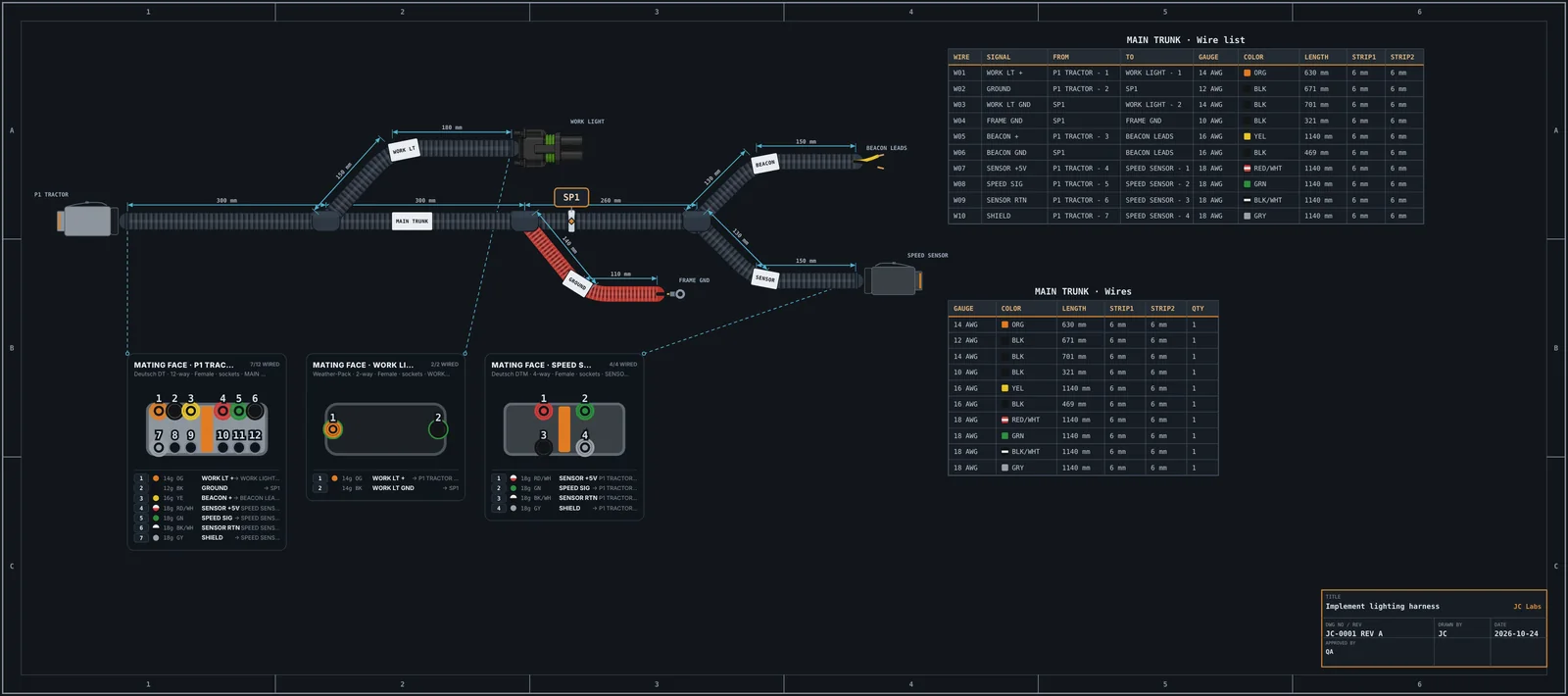
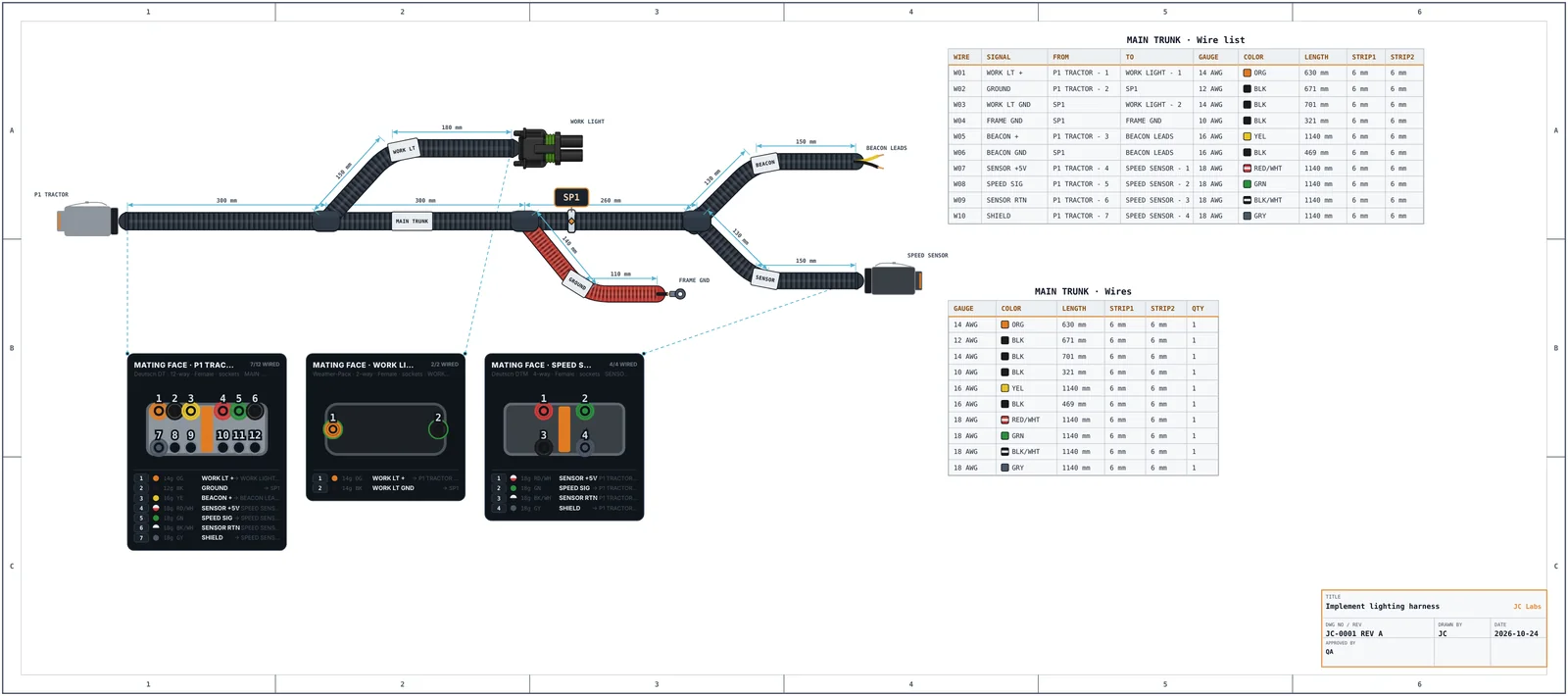
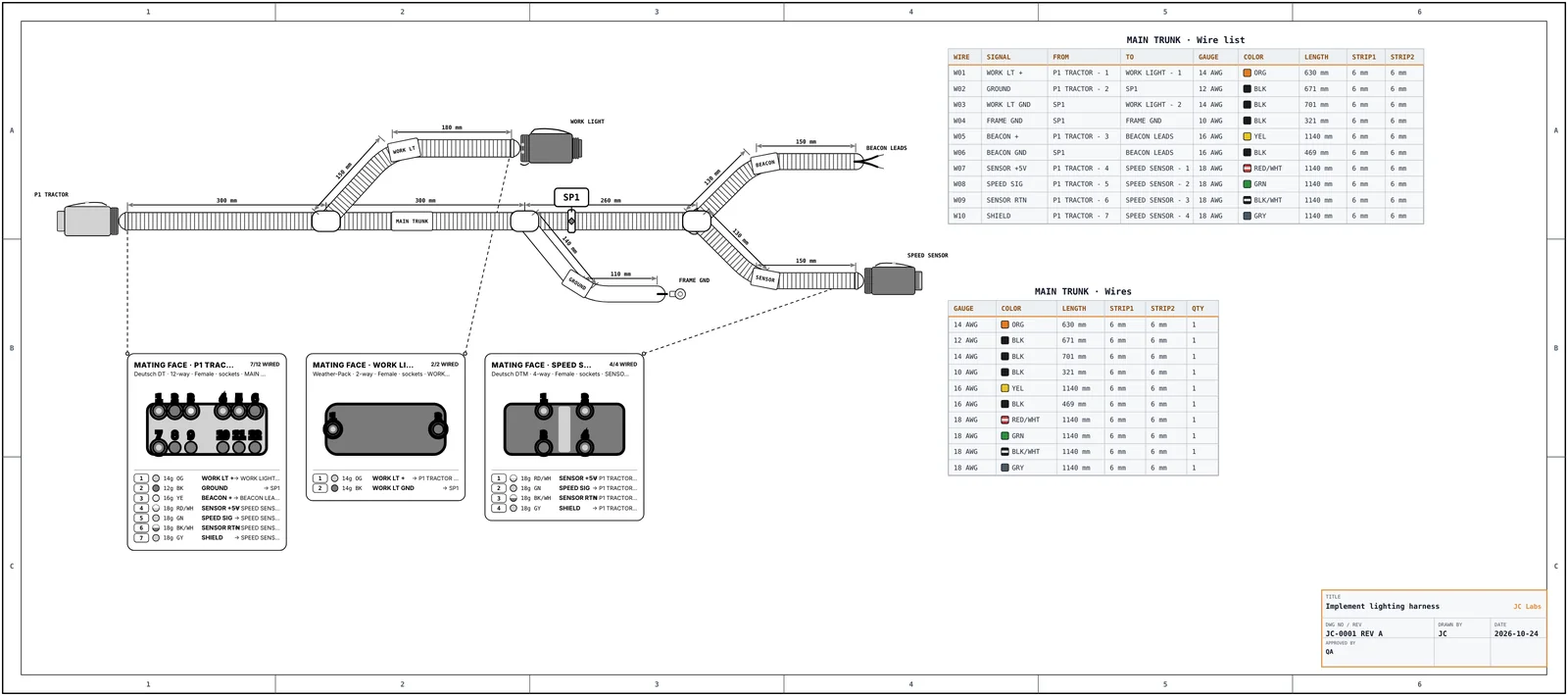
The finished harness sheet, dark themeThe finished harness sheet, light print themeThe finished harness sheet, mono black and whiteREAL EXPORT PREVIEW
Ready — 8 files
REAL APP
NO MOCKUPS

Every frame below is the real app.

Same harness, same five steps — captured straight out of JC HarnessLab v8.4.1.

OUTPUT · SAME DATA, MORE POSSIBILITY

Everything the shop needs, from one drawing.

Exported locally, named the way you set in Settings, and ready to hand off.

Works offlineRuns fully offline — nothing leaves your machine unless you use Cloud.
Your filesProjects are plain .json files you can back up and version.
One-time purchaseBuy it once. The copy you install keeps working.
YOUR NEXT JOB

Run your next job through HarnessLab.

Try the free demo, or buy once and keep it forever.

HARNESSES
MADE
SIMPLE
IDEAS
TO HARDWARE
DESIGN
VALIDATE
BUILD
REAL PARTS
REAL PROJECTS
ENGINEER
A BRIGHTER
TOMORROW
SCHEMATICS  •  HARNESSES  •  PCBS  •  REAL-WORLD READY

Professional tools. Run them your way.

Pay once and own the app — add Cloud storage, teams and HarnessLab AI whenever you need them.

JC HarnessLab
DESKTOP INSTALLER
$129.99
one-time purchase
WINDOWS 10 / 11 · 64-BIT
  • Harness and PCB design
  • Loom Studio & Connector studio
  • Live tables, BOM and quotes
  • One-click full export package
  • Works fully offline

Free HarnessLab account required — you’ll sign in first.

Installs to your PC with a Start menu shortcut. The right pick for your own workstation.

MOST FLEXIBLE
JC HarnessLab
PORTABLE EDITION
$149.99
one-time purchase
WINDOWS 10 / 11 · USB STICK
  • Everything in the installer
  • No installation, no admin rights
  • Runs on any shop or lab PC
  • Settings travel with the drive
  • Leaves nothing behind on the host

Free HarnessLab account required — you’ll sign in first.

One executable on a USB stick. Plug into a locked-down machine on the floor and work.

IN DEVELOPMENT
JC HarnessLab
MOBILE EDITION
Coming
soon
pricing announced at launch
PHONES & TABLETS
  • HarnessLab in your pocket
  • Open and review project files
  • Built for the shop floor
  • Same offline-first approach
  • Full details at launch

Want a ping the day it ships? Tap the button and leave your email.

Instant download Secure checkout Yours forever

No subscription

The app is pay once, use forever.

Cloud is optional

Add it when your team needs it.

Your files stay local

Until you choose to sync them.

OPTIONAL ADD-ON

HarnessLab Cloud

Keep projects and part libraries in sync across your PCs and share them with your team — right from the app’s ☁ Cloud button. Monthly, cancel any time. Your HarnessLab license stays yours either way.

Cloud SoloFor one engineer, every PC
$6.99/ month
  • 10 GB for projects & libraries
  • Open & save from the app on any PC
  • Last 10 versions of every file
  • 30-day trash & one-click restore
  • Upload & download from your account page

Free HarnessLab account required — you’ll sign in first.

FOR TEAMS
Cloud TeamUp to 5 people, one shared space
$19.99/ month
  • 50 GB shared by the whole team
  • Invite up to 4 teammates by email
  • Roles: admin, editor, viewer
  • Shared connector & parts libraries
  • “Who’s editing” locks & save-conflict protection
  • Team activity feed

Free HarnessLab account required — you’ll sign in first.

How it works
  1. 1
    Create your free account on this site — use the same email at checkout.
  2. 2
    Start a Cloud plan. Your cloud space switches on in your account straight away.
  3. 3
    Press ☁ Cloud in HarnessLab and sign in. Open, save and share without leaving the app.

Teammates you invite don’t need their own plan — just a free account and their own HarnessLab license. Cancel any time: your space turns read-only so you can still download everything.

How Cloud works →
NEW · OPTIONAL ADD-ON

HarnessLab AI

The ✨ assistant in HarnessLab, ready to go — no API key, no setup. Design, edit, review and document your drawing in plain English. Monthly, cancel any time.

NEW
HarnessLab AIThe built-in assistant — no API key needed
$19.99/ month
  • The ✨ assistant, switched on — no API key or provider account
  • Describe a circuit in plain English and build from there
  • Edit, review and document your drawing by asking
  • Enriched BOM CSV and firmware / code from your design
  • Uses your HarnessLab account — works on every PC
  • Cancel any time — your drawings stay yours

An add-on for JC HarnessLab (Installer or Portable Edition) — subscribe with the same email you bought HarnessLab with. You’ll sign in to your free HarnessLab account first.

✨ AI assistant · example
You

ESP32 switching a 12 V relay with a flyback diode, plus a status LED.

✨ Assistant

Here’s a plan for your sheet:

  • ESP32 dev board, 12 V relay module, flyback diode across the coil
  • NPN driver with a base resistor on a spare GPIO
  • Status LED with its resistor
  • BOM rows for every part
Review my wiringEnriched BOMWrite the firmware
Prefer your own key?The assistant still works with your own Anthropic or OpenAI API key at no extra cost — you pay your provider directly. How to set it up →
PRICING

Own your tools.
Forever.

Pay once for HarnessLab and keep it. Add Cloud or the AI assistant only if you want them — monthly, cancel any time.

One-time purchase Instant download Works fully offline Secure checkout
01

The app

Same HarnessLab, two ways to run it. Both are yours to keep.

Desktop Installer

For your own workstation
$129.99one-time

Windows 10 / 11 · 64-bit · Start menu shortcut

  • Harness & PCB design
  • Loom Studio & Connector Studio
  • Live tables, BOM & quotes
  • One-click full export package
  • Works fully offline
  • Updates within the major version

Portable Edition

Runs from a USB stick
$149.99one-time

Windows 10 / 11 · no install, no admin rights

  • Everything in the Installer
  • Run on any shop or lab PC
  • No installation or admin rights
  • Settings travel with the drive
  • Leaves nothing behind on the host
  • Updates within the major version
IN DEVELOPMENT

Mobile Edition

Phones & tablets
Coming soonpricing at launch

Open and review projects on the shop floor

We’ll email you the day it ships
  • HarnessLab in your pocket
  • Open and review project files
  • Built for the shop floor
  • Same offline-first approach

Purchases need a free HarnessLab account — you’ll sign in first so your download, license and updates land in one place. The demo needs no account.

02

Power-ups

Optional monthly add-ons that work with either edition. Cancel any time — the app stays yours.

Cloud Solo

One engineer, every PC
$6.99/mo
  • 10 GB for projects & libraries
  • Open & save from any PC
  • Last 10 versions of every file
  • 30-day trash & restore

Cloud Team

Up to 5 people, one shared space
$19.99/mo
  • 50 GB shared by the team
  • Invite up to 4 teammates
  • Admin, editor & viewer roles
  • “Who’s editing” locks

HarnessLab AI

The ✨ assistant, no API key
$19.99/mo
  • Describe a circuit, build from it
  • Review & document by asking
  • Enriched BOM & firmware
  • Works on every PC you use
03

Build your setup

Pick what you need and see exactly what you’ll pay — today and each month.

THE APP
CLOUD
AI ASSISTANT
YOUR SETUP
Due today$129.99
Then monthly$0
First year total: $129.99

Each item is its own secure checkout. Start with the app, then add plans here or from your account any time.

04

Compare everything

The app does the work. Add-ons are there when you outgrow one PC or want a co-pilot.

InstallerPortable+ Cloud+ AI
Design
Harness, schematic & PCB design
Loom Studio & Connector Studio
Live tables, BOM & quotes
One-click full export package
Running it
Works fully offline
No install or admin rightswith Portablewith Portable
Updates within the major version
Cloud & teams
Sync projects & libraries across PCs
Version history & 30-day trash
Shared team space & rolesTeam plan
AI assistant
✨ Assistant with your own API key
✨ Assistant with no API key needed
Price$129.99$149.99from $6.99/mo$9.99/mo
Secure checkoutPayment and sales tax handled by Lemon Squeezy. We never see your card.
Instant downloadYour download appears in your account the moment you pay.
Yours foreverNo seat check-ins, no subscription for the app. Your files stay on your disk.
05

Questions, answered

Is HarnessLab a subscription?

No. The Installer and Portable Edition are one-time purchases — pay once and keep using them. Only the optional Cloud and AI add-ons are monthly, and you can cancel those any time.

Installer or Portable — which should I get?

Same application, different delivery. The Installer sets HarnessLab up on your own PC with a Start menu shortcut. The Portable Edition is a single program you run from a USB stick on any shop or lab PC, with no install and no admin rights.

Why do I need an account to buy?

Your free HarnessLab account is where your download, license, updates and any Cloud or AI plan live. Signing in first means everything lines up with the same email. The free demo needs no account.

What happens if I cancel Cloud?

Your cloud space turns read-only, so you can still download everything. Your HarnessLab license and the files on your PC aren’t affected.

Do I need HarnessLab AI to use the assistant?

No. The assistant also works with your own Anthropic or OpenAI API key at no extra cost — you pay your provider directly. HarnessLab AI is for people who don’t want to set up a key.

Are updates included?

Yes — your purchase includes updates within the current major version.

Start building today.

Try the free demo, or get HarnessLab and keep it for good.

ORDER COMPLETE

Thank you — your copy is on the way.

Your receipt is in your inbox now, and your download link follows by email shortly. Here’s how to get running.

1

Watch your inbox

Your payment receipt arrives right away. We send your download link for JC-HarnessLab-Setup.exe by email shortly after — usually within a few hours. Check spam if you don’t see it, and make sure the email you paid with is one you can reach.

2

Install it, or unpack it

Installer: double-click JC-HarnessLab-Setup.exe and follow the prompts.
Portable: unzip the folder to your USB stick and run the .exe inside. Windows SmartScreen may ask first — choose More info › Run anyway.

3

Launch and start drawing

Launch it from the Start menu, the desktop shortcut, or straight off the stick. No sign-in, no internet needed — it runs entirely on your machine.

Create your free account with the email you paid with — your downloads, receipts and every update live in your account. No receipt? Check spam, then get in touch.
REVIEWS

What builders say.

Real feedback from people designing harnesses and boards with JC HarnessLab — and a place to leave your own.

No public reviews yet

Using JC HarnessLab? Be the first — your review will appear right here.

ACCOUNT

Your HarnessLab.

Purchase history, re-downloads and the latest updates — all in one place.

Forgot your password? · Create an account

Site owner? Set up admin access

YOUR ACCOUNT INCLUDES
Purchase history & receiptsEvery order on your email, with its receipt.
Re-download any timeNew PC or lost the installer? Grab it again.
Free updatesThe newest build of every edition you own, within the current major version.
Secure by designPasswords are salted and hashed — we never see or store them in plain text.

Haven’t bought yet? See pricing or try the free demo. You can create an account first — purchases made with the same email show up automatically.

COMMUNITY

HarnessLab Community

Ask questions, share your harnesses and help each other build better.

Loading the forums…
CONNECTOR STUDIO V2.3

Any connector. From one photo.

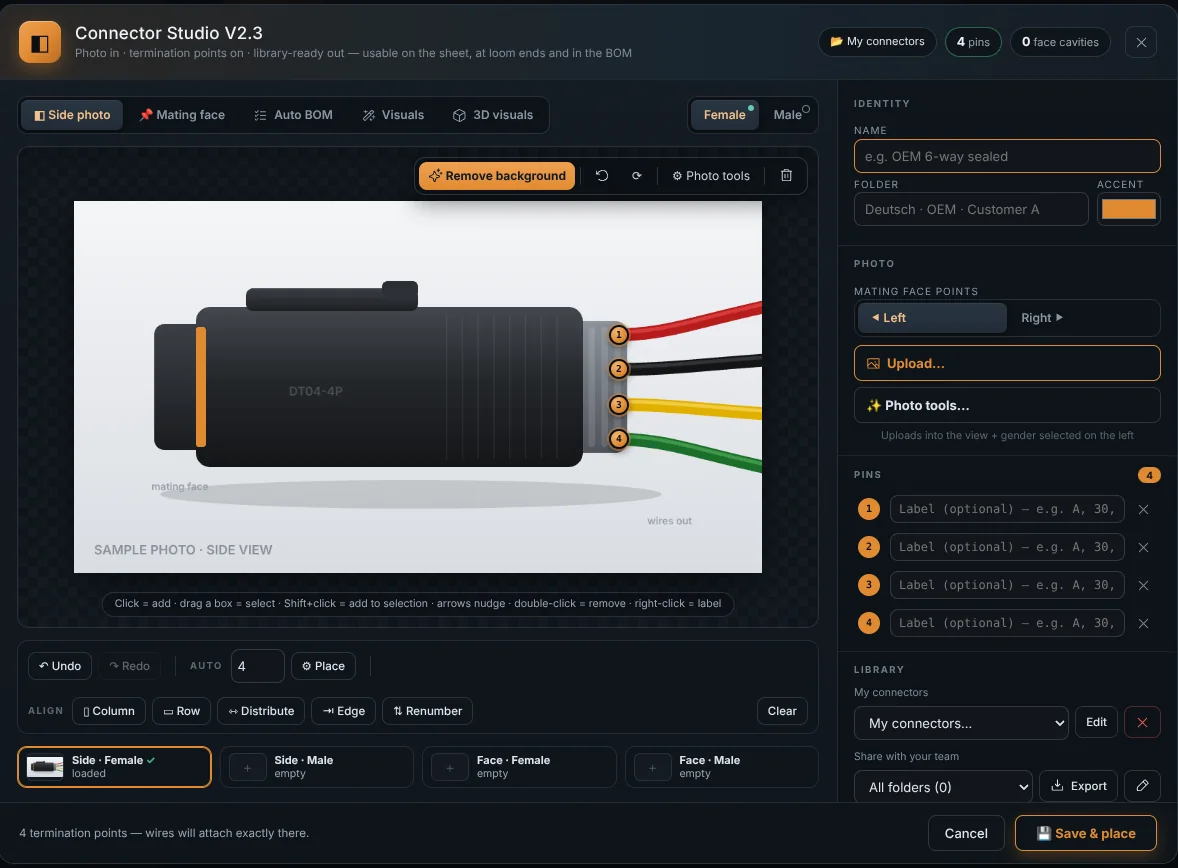
Can’t find your part in the library? Photograph it. Connector Studio turns a side photo and a mating-face photo into a real HarnessLab connector — live pins on the sheet, numbered cavities, its own bill of materials and a true 3D model.

Buy HarnessLab
Side + mating-face photosFemale & male halvesAuto BOM9 looksSTL · OBJ · GLB · glTFTeam libraries
JC HarnessLab — Connector Studio
Connector Studio V2.3 with a side photo and four numbered termination points
HarnessLab 8.4.2
4photos per connector: side and face, for both halves
9looks, from the photo as shot to blueprint and line art
43D model formats — STL, OBJ, GLB and glTF
214built-in families in the library alongside yours
01SIDE PHOTO

Click where the wires land.

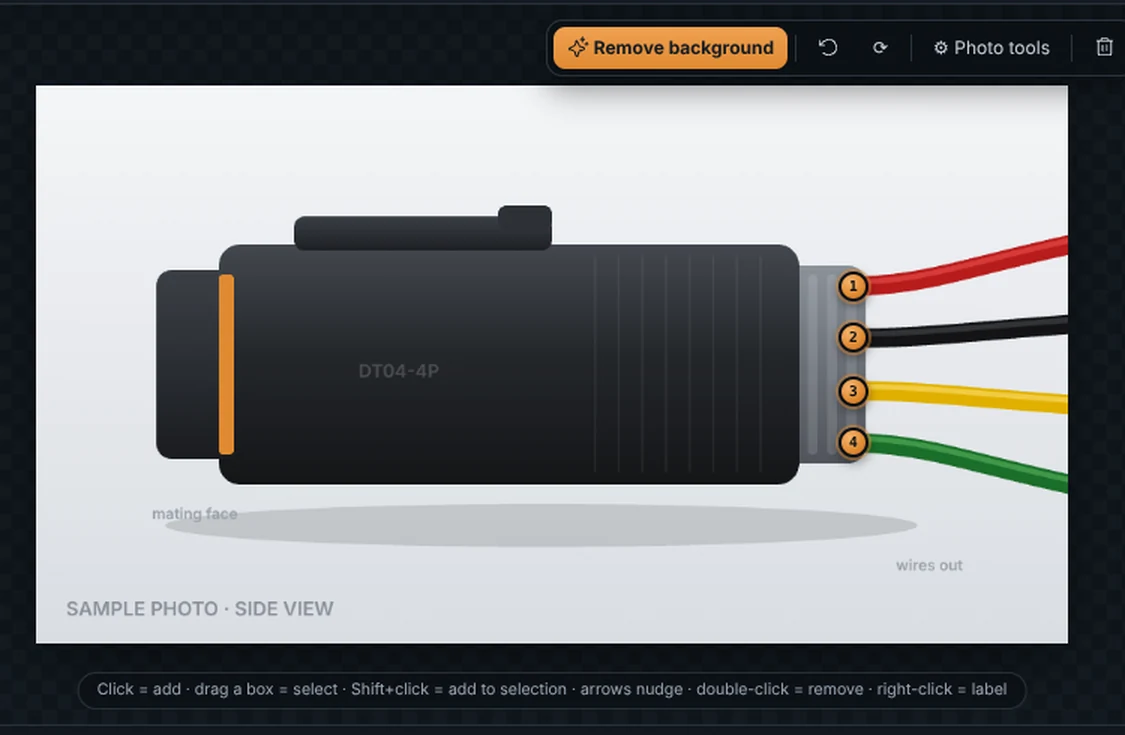
Upload a side photo — or drop it on the canvas — and tell HarnessLab which way the mating face points. Click each spot where a wire enters; those points become live pins that wires snap to on the sheet, on loom ends and in the BOM.

  • Auto points spaces them along the cable edge for you
  • Column, row, distribute and renumber tidy them in one click
  • Right-click a pin to give it a real label — A, B, 30, 87
  • Female and male photos for both halves of the pair
JC HarnessLab 8.4.2
Four numbered termination points placed where the wires leave the connector
02PHOTO TOOLS

Phone photos, cleaned up for print.

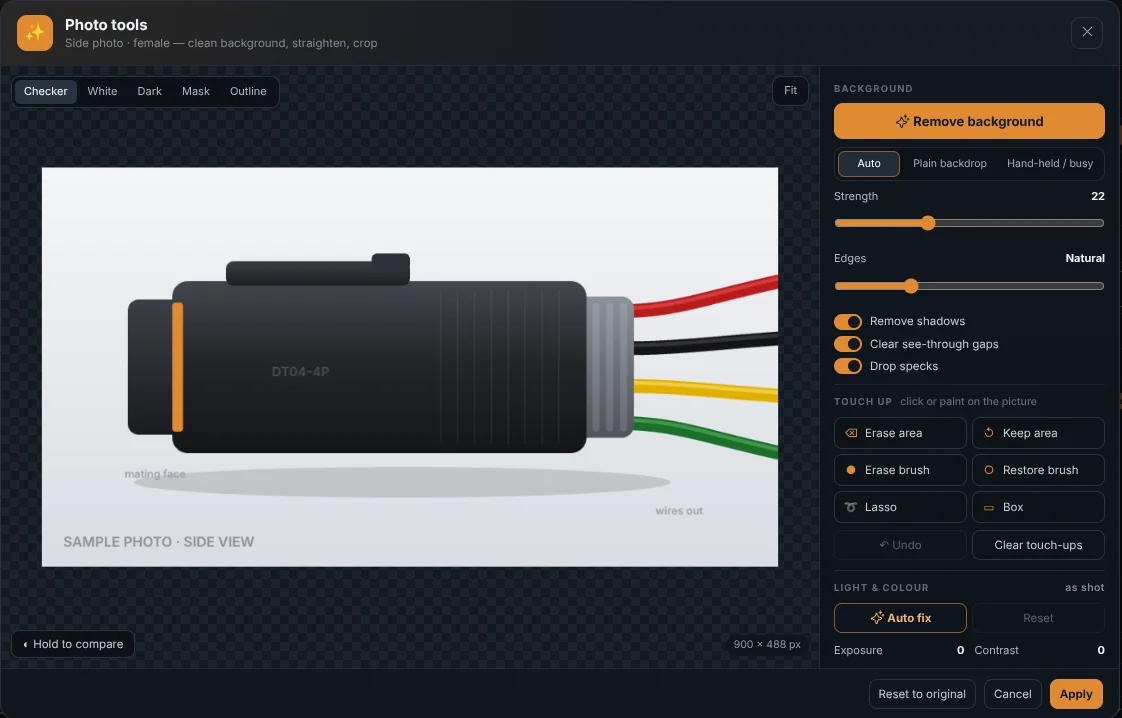
Remove background runs right on your computer, offline. It handles a part on a bench or a cutting mat, and even a part held in your hand in front of a busy workshop, then you can rotate, straighten and touch it up.

  • Plain-backdrop and hand-held / busy modes, picked for you on Auto
  • See-through gaps cleared, dark cavities kept
  • Erase and restore brushes for the last few pixels
  • Light, contrast, warmth and sharpening
JC HarnessLab 8.4.2
The Photo tools window: remove background, touch up, light and colour
03AUTO BOM

Place it once. The BOM fills itself in.

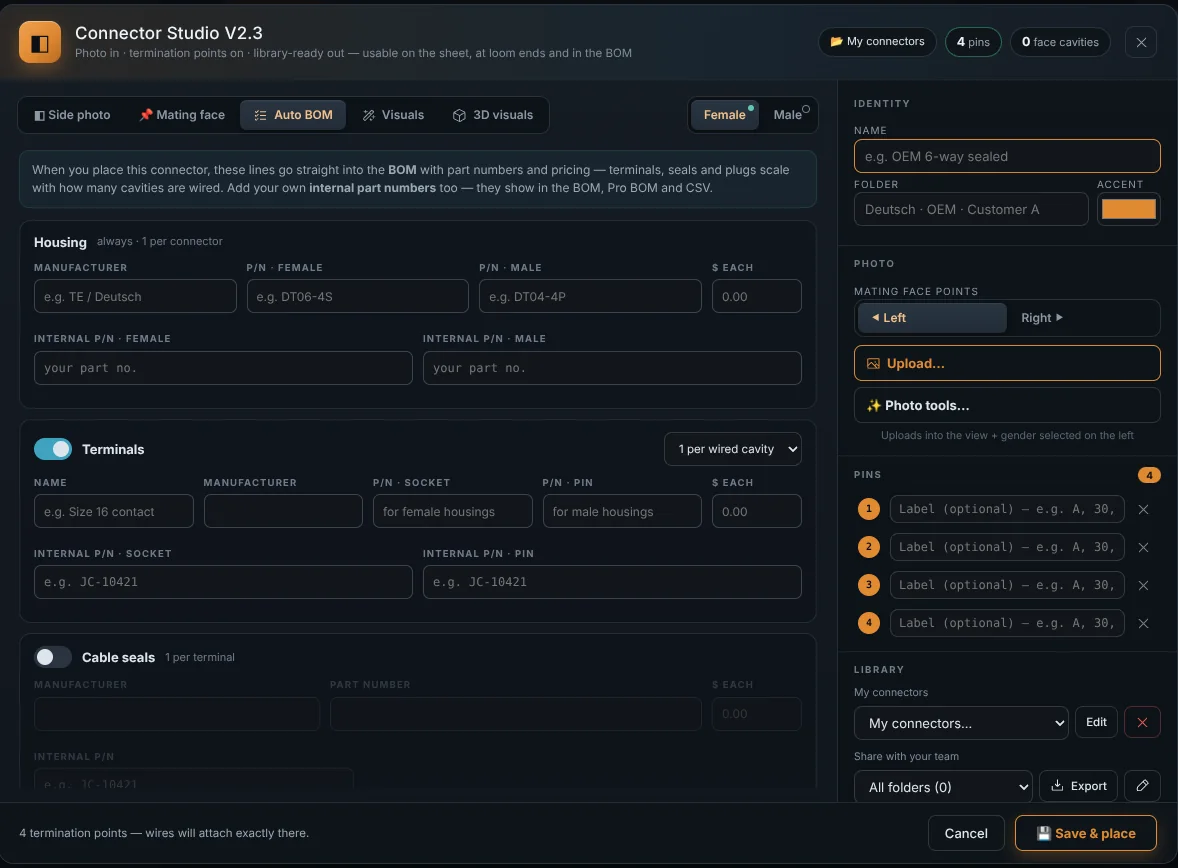
Tell the connector what it brings to the bill of materials: housing part numbers for both halves, a terminal per wired cavity, cable seals, a wedge lock, cavity plugs for the empty ones and a boot or backshell — each with manufacturer and price.

  • A live preview shows exactly the lines one connector adds
  • Counts follow the wiring: one terminal per wired cavity
  • Anything typed in the BOM window still wins
  • Works in the BOM, quotes and the shop packet
JC HarnessLab 8.4.2
Auto BOM tab with housing, terminal and seal lines
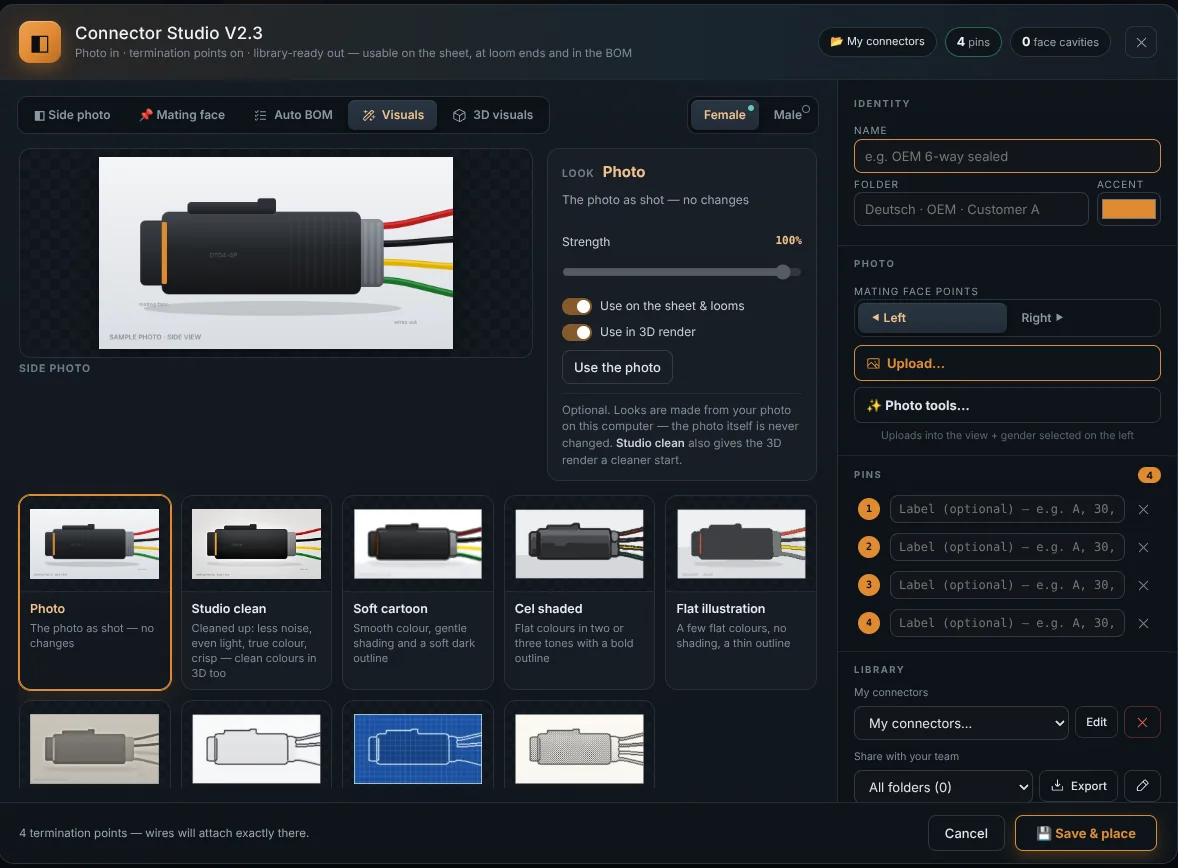
04VISUALS

Photo-real, or drawn in your style.

Keep the photo as shot, or give the connector a look that matches your prints: studio clean, soft cartoon, cel shaded, flat illustration, matte clay, line art, blueprint or pencil sketch. Pins and cavities never move.

  • Pick where each look shows — the sheet and looms, the 3D render, or both
  • Strength blends a look with the original photo
  • Saved with the connector, so every copy updates together
JC HarnessLab 8.4.2
Visuals tab showing nine looks for a connector
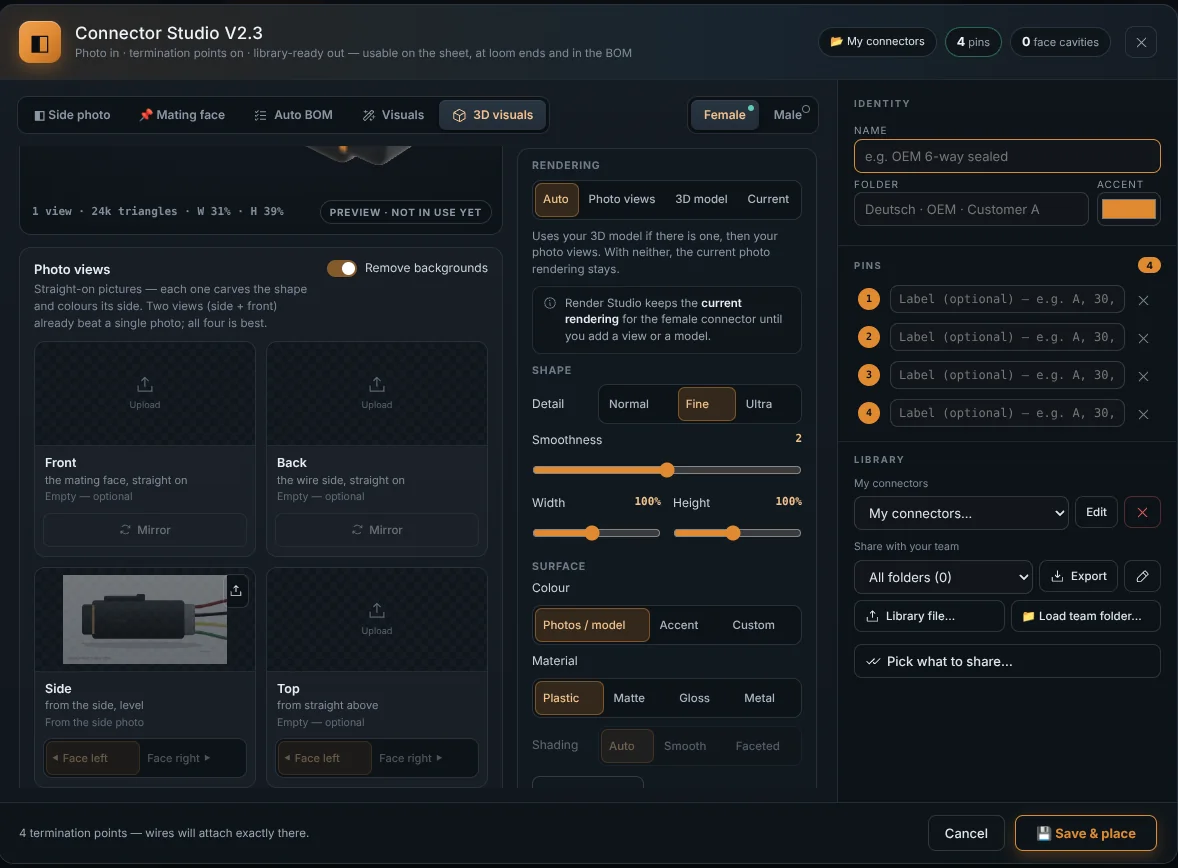
053D VISUALS

A truer 3D connector.

Add front, back, side and top photos and HarnessLab carves a real 3D shape from them — or upload the manufacturer’s 3D model. A live preview orbits it while you set the shape, colour and surface.

  • STL, OBJ with its .mtl, GLB or single-file glTF
  • Models over 40,000 triangles are simplified and stored inside the connector
  • Plastic, matte, gloss or metal surface
  • Used by the 3D Render Studio automatically
JC HarnessLab 8.4.2
3D visuals tab with photo views and a live 3D preview
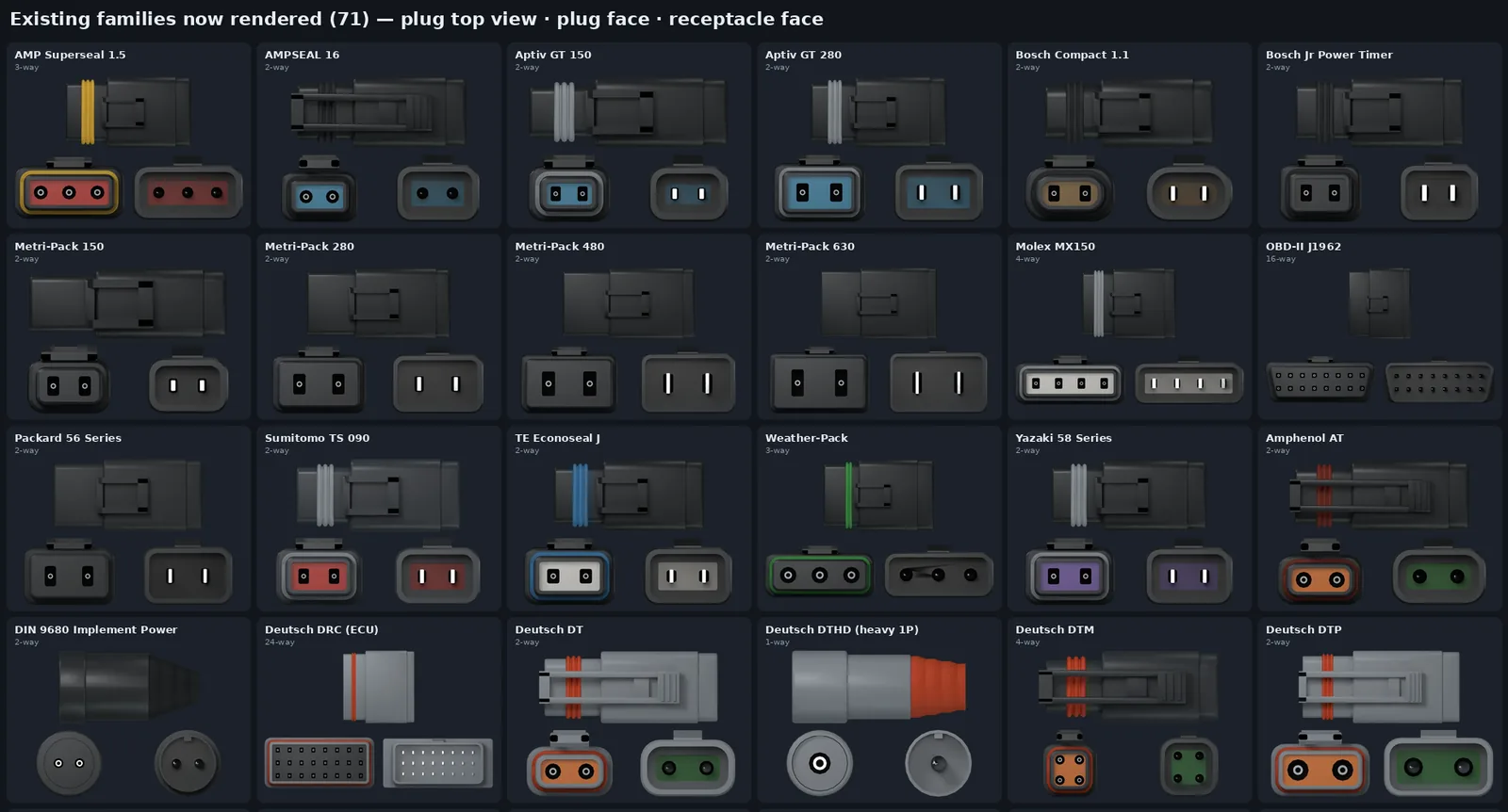
THE LIBRARY

214 connector families are already in the box.

Before you photograph anything, check the library: every family has a rendered picture, a numbered mating face and a 3D model, for each pin count and both halves — automotive, heavy-duty, wire-to-board, power and data.

JC HarnessLab 8.4.2
Rendered connector families in the HarnessLab 8.4.2 library
YOUR TEAM

Share your connectors.

Saved connectors sit in your library under their own folder. Export a folder as one .jchlib file, keep a shared folder on a network drive or OneDrive and everyone loads it with Load team folder. You can also publish them in the community Shop.

TRY IT TODAY

See Connector Studio on your own work.

The free demo is the full HarnessLab 8.4.2 editor with the whole parts library — only the clean output is held back until you buy. Install it, open the guides and try it on a real job.

See pricing
HARNESSLAB AI

Describe it. HarnessLab draws it.

The built-in AI assistant designs, edits, reviews and documents your drawing in plain English. Every result is checked against the engineering rules before it lands on your sheet, and one Undo takes it back.

Buy HarnessLab
GeneratePlanEditReviewAskBOM+PartFirmware
JC HarnessLab — HarnessLab AI
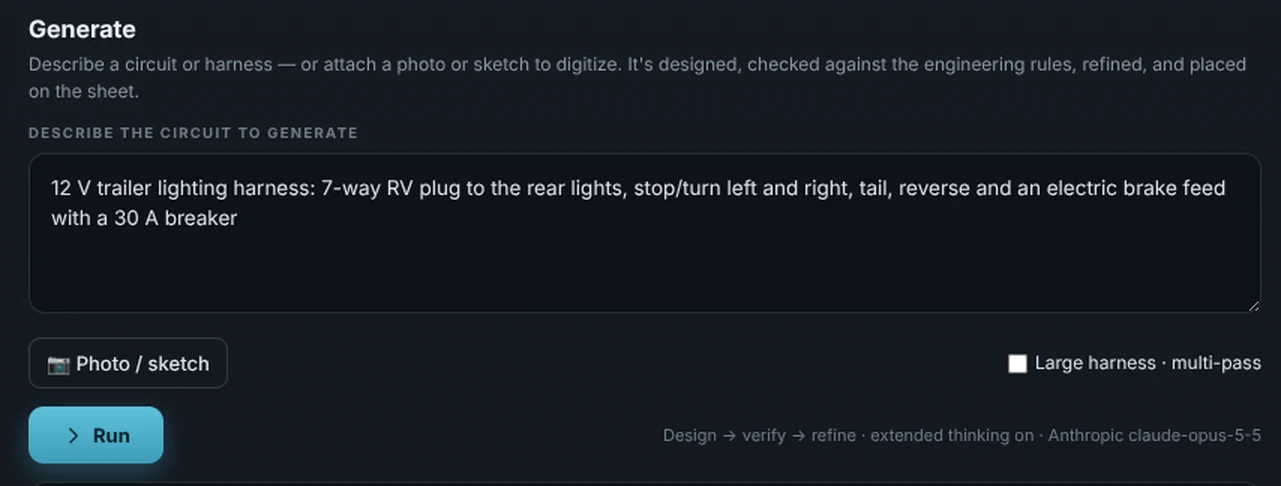
The AI assistant generating a trailer lighting harness from a description
HarnessLab 8.4.2
10modes, from Generate and Review to Import a harness
46processors it knows, with their support circuits
1Undo reverts anything the assistant changes
$19.99a month for HarnessLab AI — or use your own key
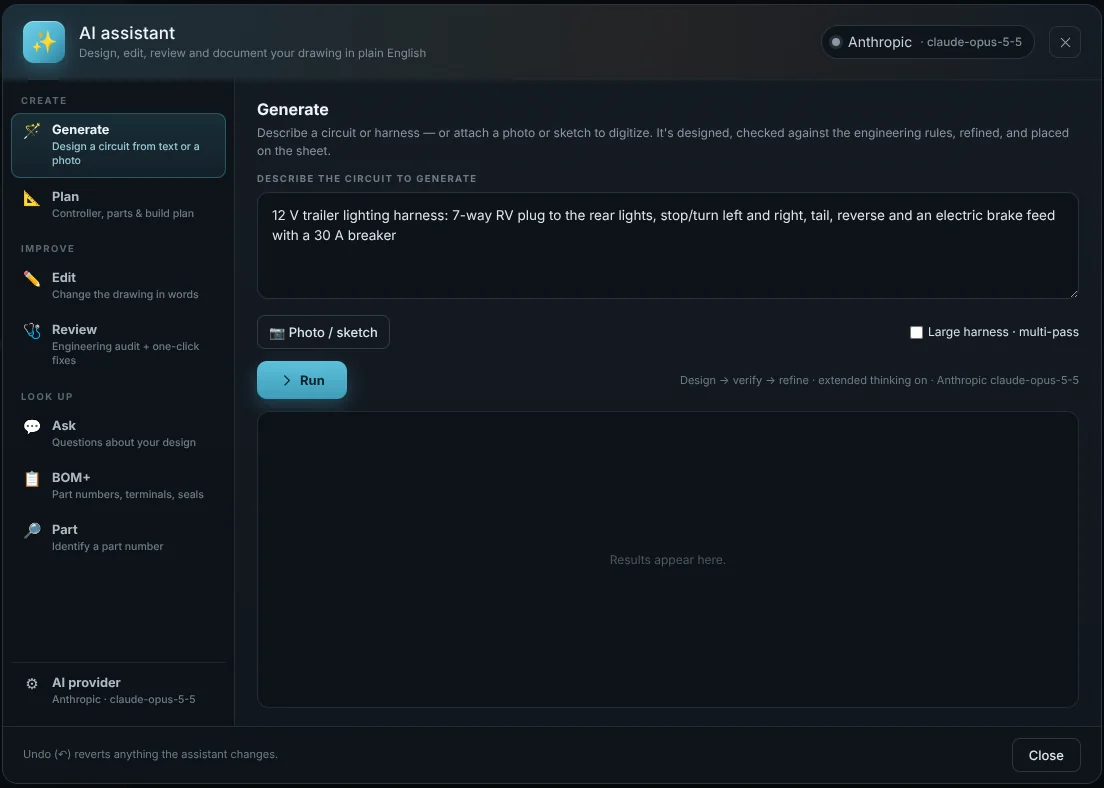
01GENERATE

From a sentence — or a photo — to a drawing.

Describe the circuit or harness, or attach a photo or sketch to digitise. The assistant designs it, checks it against the engineering rules, refines it and places it on the sheet — parts, wires and an explanation of what it did.

  • Harnesses get organised stages: supply, protection, switching, loads and grounds
  • Splices instead of stacked pins, grounds gathered together
  • Ask for a PCB and it picks packages, adds decoupling, then places and routes the board
  • “…and show it in 3D” opens the Render Studio
JC HarnessLab 8.4.2
Generate mode with a trailer lighting harness described in plain English
02REVIEW

An engineer’s audit, with one-click fixes.

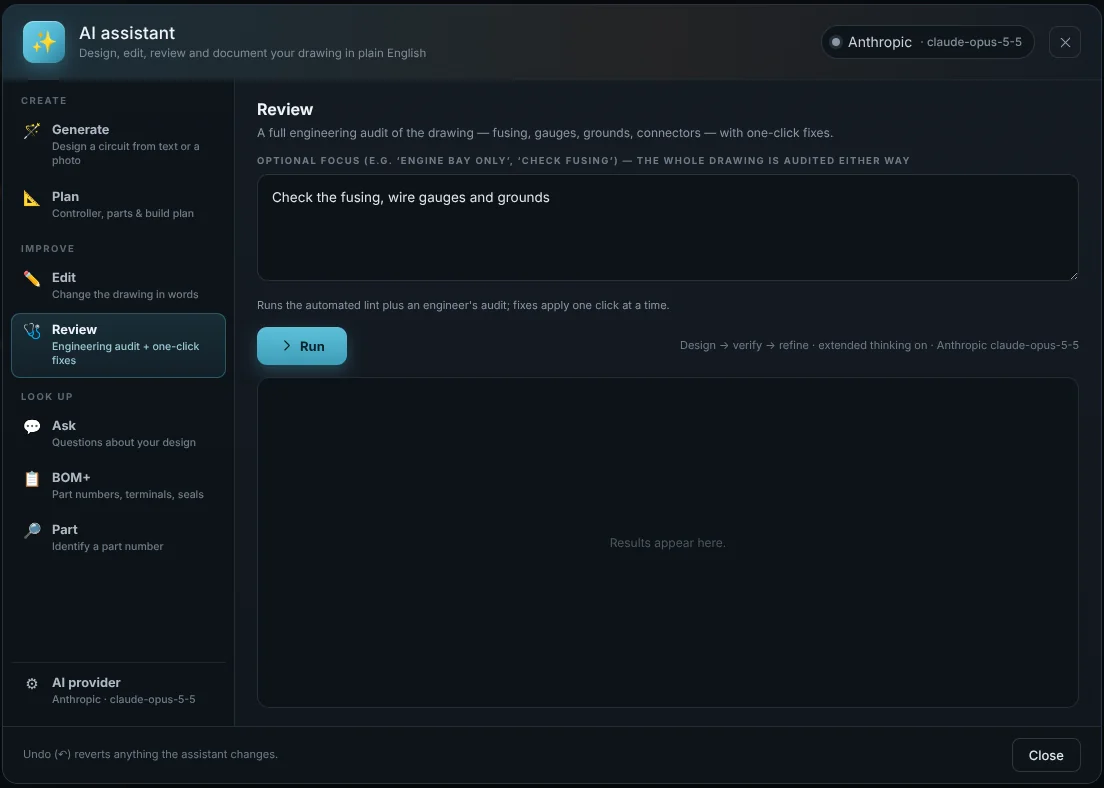
Review runs the automated checks plus a full engineering audit of the drawing — fusing, gauges, grounds and connectors — and lists what it finds. Each fix applies with one click, one at a time, so you stay in control.

  • Point it at one area: “engine bay only” or “check fusing”
  • Flags stacked pins, unpowered or ungrounded ICs and missing decoupling
  • Fixes go through the same rule checks as a new design
JC HarnessLab 8.4.2
Review mode auditing fusing, wire gauges and grounds
03ASK

Questions about your design, answered.

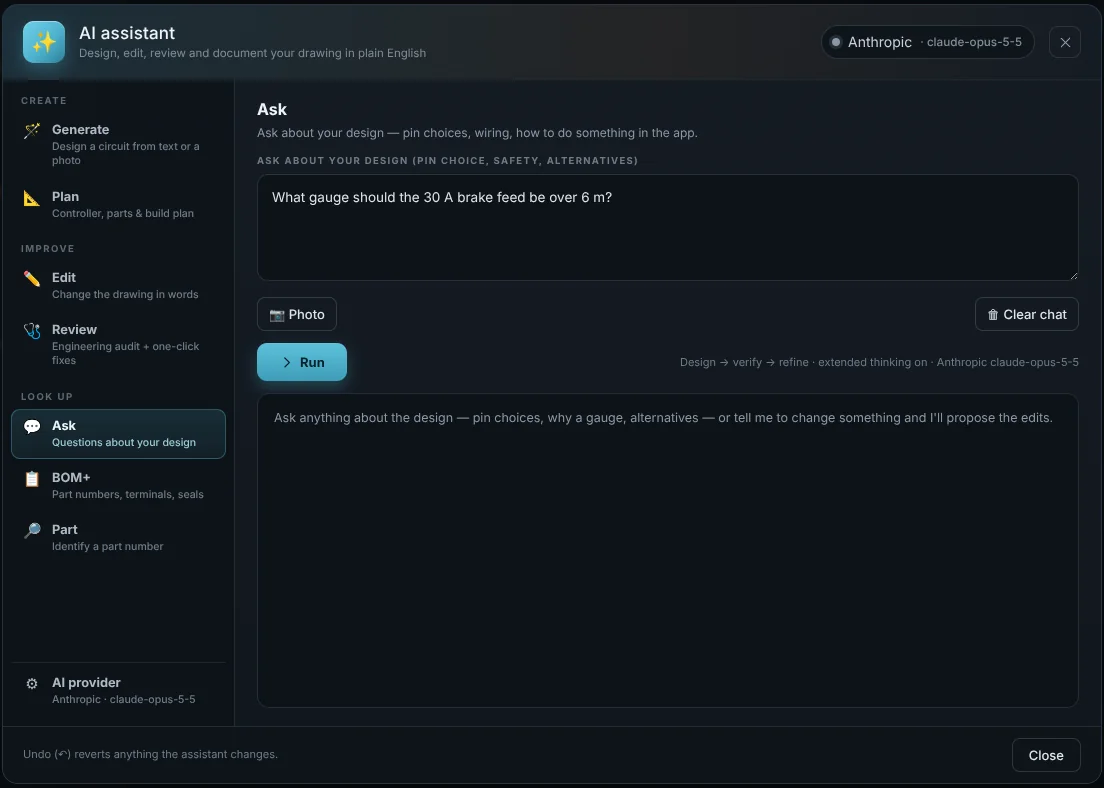
Ask about pin choices, wire sizing, safety or alternatives — or how to do something in HarnessLab. When you ask for a change, it proposes the edit and you decide whether to apply it.

  • Answers point you to the right guide in the app
  • The chat bubble is one click away on every screen (Ctrl + Shift + Space)
  • Share lets it see the open drawing — untick it for general questions
JC HarnessLab 8.4.2
Ask mode with a wire gauge question
04BOM+ & PARTS

Part numbers, terminals and seals filled in.

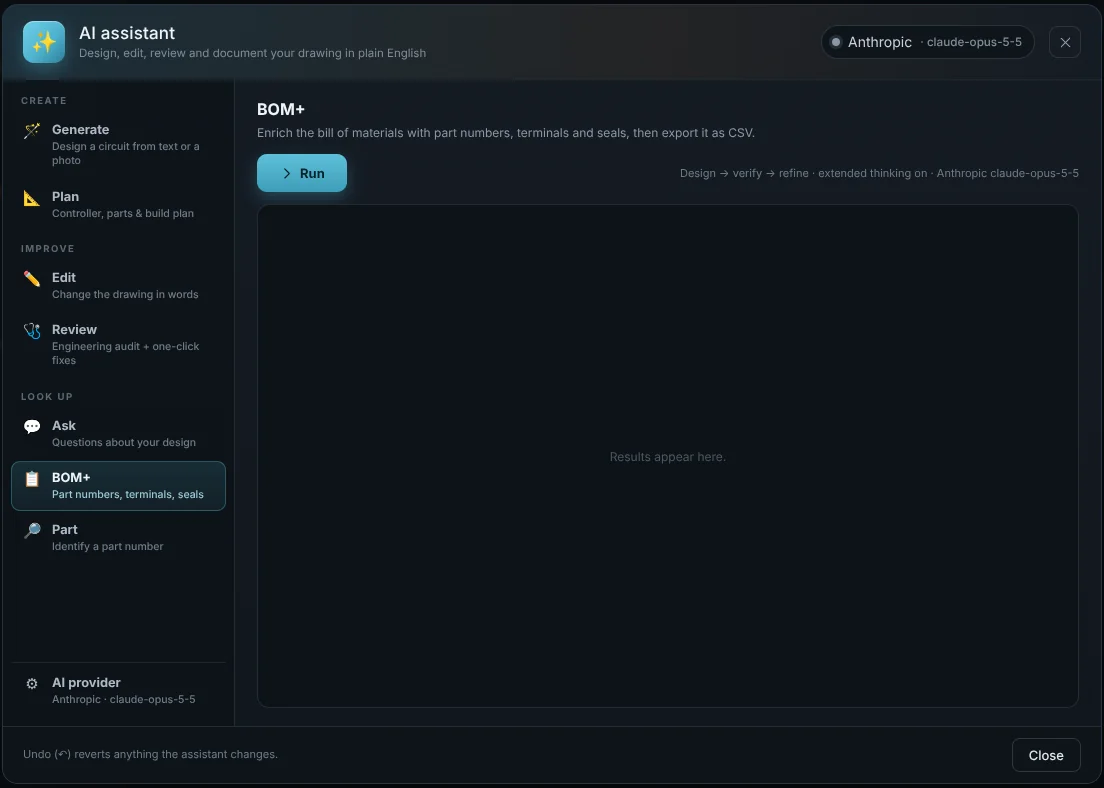
BOM+ fills in the detail a purchasing department asks for: part numbers, matching terminals and seals. Part identifies a part number for you. The enriched BOM saves as CSV.

  • Firmware for ESP32 boards from your drawing’s own pin map
  • Fix compile errors with AI from the ESP32 compiler
  • Test Sim reports can be explained in plain English
JC HarnessLab 8.4.2
BOM+ mode in the AI assistant
NO API KEY NEEDED

HarnessLab AI, or your own provider.

HarnessLab AI switches the assistant on with nothing but your jcharnesslabs.com sign-in — a monthly allowance that resets on the 1st, with Sonnet 5.5 for everyday work or Opus 5.5 for the biggest harnesses and reviews. Prefer your own Anthropic or OpenAI key? Pick it in AI provider; calls go straight from your computer to the provider you choose.

TRY IT TODAY

See HarnessLab AI on your own work.

The free demo is the full HarnessLab 8.4.2 editor with the whole parts library — only the clean output is held back until you buy. Install it, open the guides and try it on a real job.

See pricing
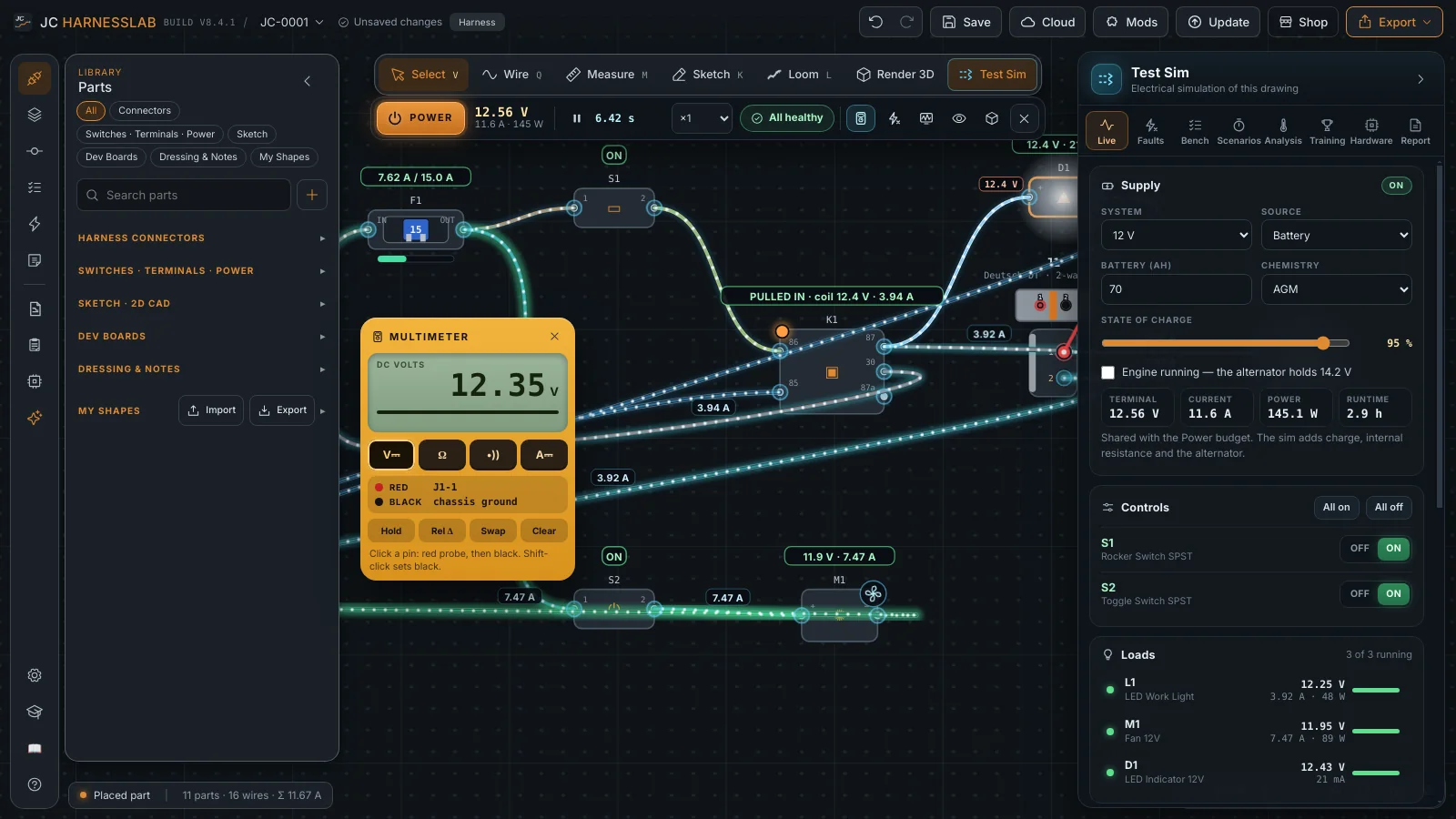
TEST SIM

Power it up. Before you build it.

Test Sim turns your drawing into a live electrical model. Batteries sag, fuses heat up and blow, relays pull in, lamps glow and wires warm up — so you can break the harness on screen, run the tester and fix it before the first crimp.

Buy HarnessLab
Live current flowVirtual multimeterFault injectionVirtual testerScenariosThermal & worst caseTrainingReports
JC HarnessLab — Test Simulator
Test Sim running a 12 V circuit with current flowing through every wire
HarnessLab 8.4.2
30+faults to inject: opens, shorts, chafes, crimps, relays, fuses
8real-world scenarios, from engine crank to load dump — plus your own
×3600clock, so a 12-hour battery drain finishes in seconds
3training levels: Apprentice, Technician and Expert
01LIVE

Watch the current flow.

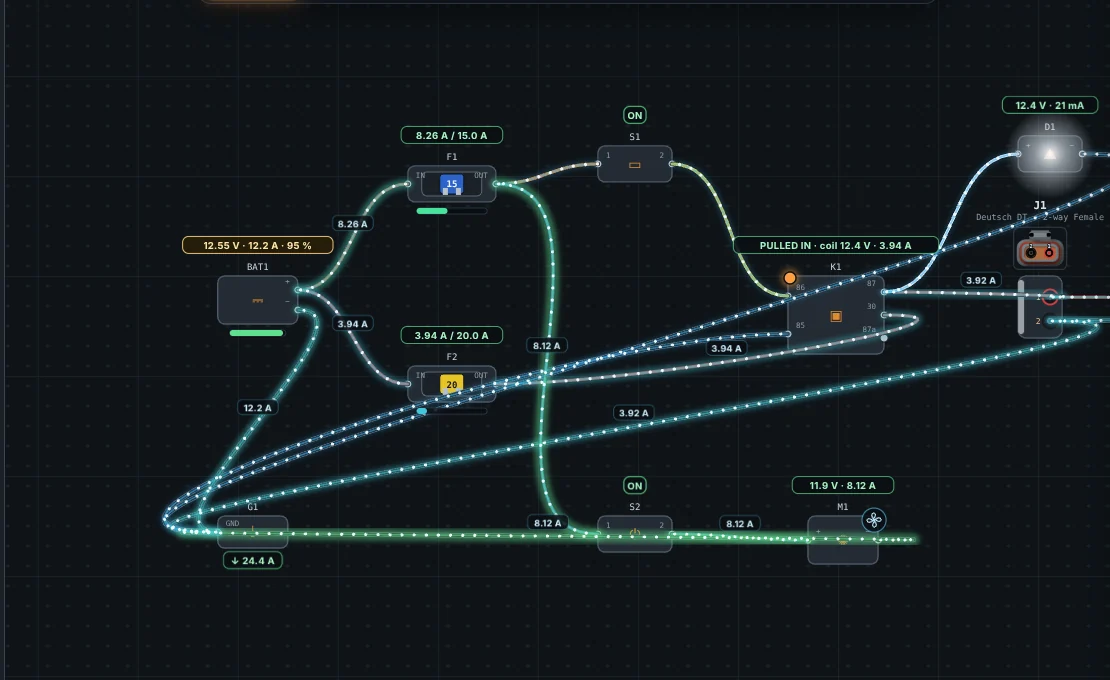
Press POWER (or F9). Moving dots run along every live wire — faster for more amps — and wires turn green, amber and red as they near their rating. Flip switches on the canvas, read every load and fuse in the Live tab, and probe any pin with the virtual multimeter.

  • Supply from the Power budget: system voltage, battery, Ah and chemistry
  • Engine running holds about 14.2 V from the alternator
  • Volts, ohms, continuity with a beep and a current clamp
  • No battery? Put a bench supply on any pin
JC HarnessLab 8.4.2
Current flowing through fuses, a relay, switches and loads in Test Sim
02FAULTS

Break it on purpose.

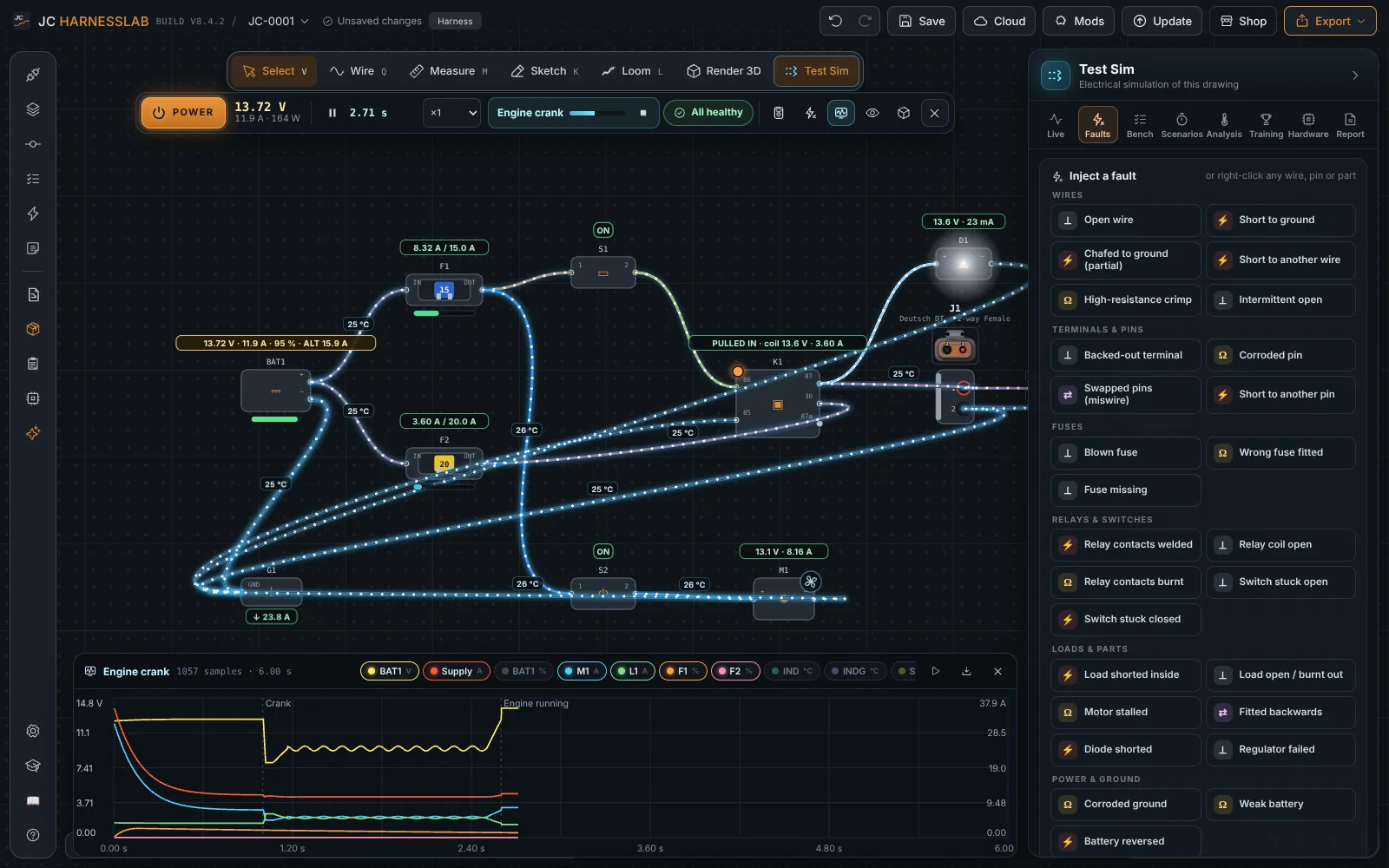
Inject an open, a short to ground, a chafe, a high-resistance crimp, a backed-out pin, a welded relay or a stalled motor, then watch exactly what stops working. Each fault’s Effect card says which loads stop, which fuse blows and how fast, with a severity from 1 to 10.

  • Right-click any wire, pin or part for its own fault menu
  • Intermittent faults drop out as often as you set
  • Run FMEA for the full failure table, highest risk first
  • Export the FMEA as CSV or put it on the sheet
JC HarnessLab 8.4.2
Faults tab listing wire, pin, fuse, relay and load faults
03VIRTUAL TESTER

Run the harness tester before the harness exists.

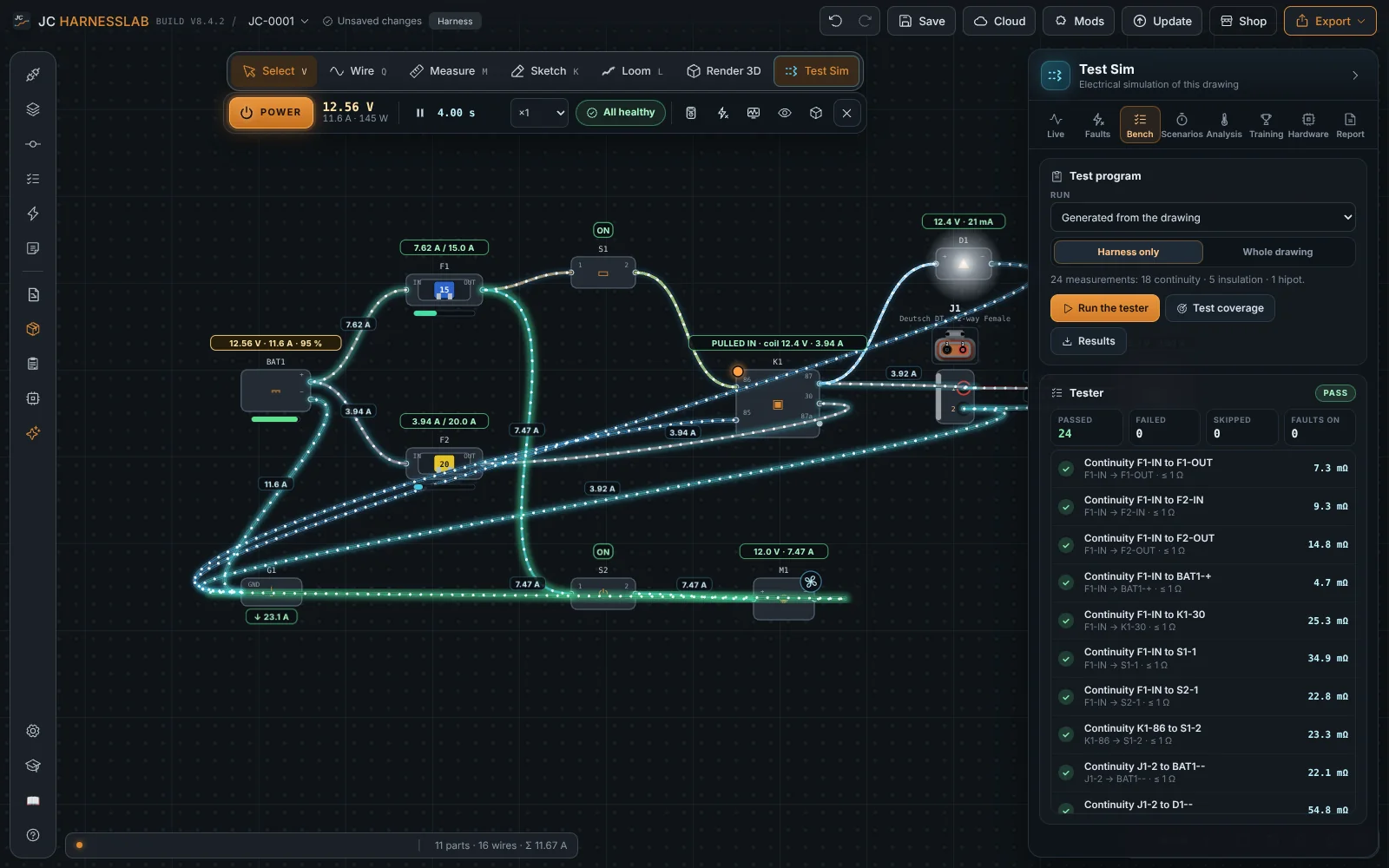
The Bench tab runs a test program the way a harness tester would — continuity for every net, insulation between nets and a hipot step — and lists every reading PASS or FAIL. Test coverage then tries every realistic fault and shows which ones your test would let ship.

  • Generated from the drawing, or run one of your Test Instructions
  • Harness only, or the whole drawing with every part fitted
  • Add the steps writes the missing checks into your test instruction
JC HarnessLab 8.4.2
Bench tab with 24 tester steps passing
04SCENARIOS

Crank the engine. Dump the load.

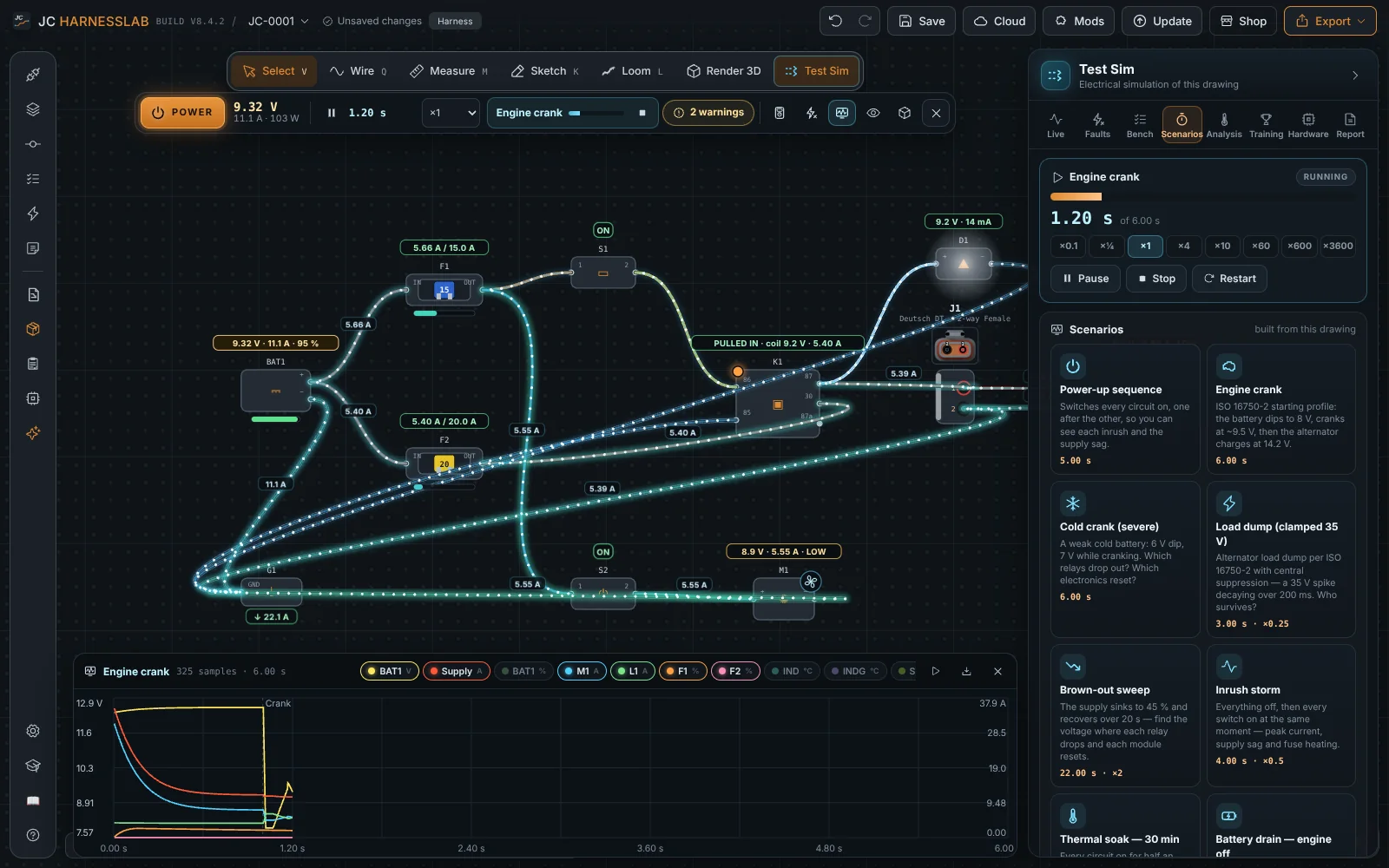
Scenarios play real-world events through the circuit and record everything on the scope: power-up, ISO 16750-2 style engine crank and cold crank, load dump, brown-out, inrush, a 30-minute thermal soak and a 12-hour battery drain. Build your own timeline too.

  • See which relays drop out and which electronics reset
  • The Result card shows supply min and max, peak current and fuses opened
  • Drag across the scope to replay any moment on the canvas
JC HarnessLab 8.4.2
Engine crank scenario with the scope showing the battery dip
05ANALYSIS

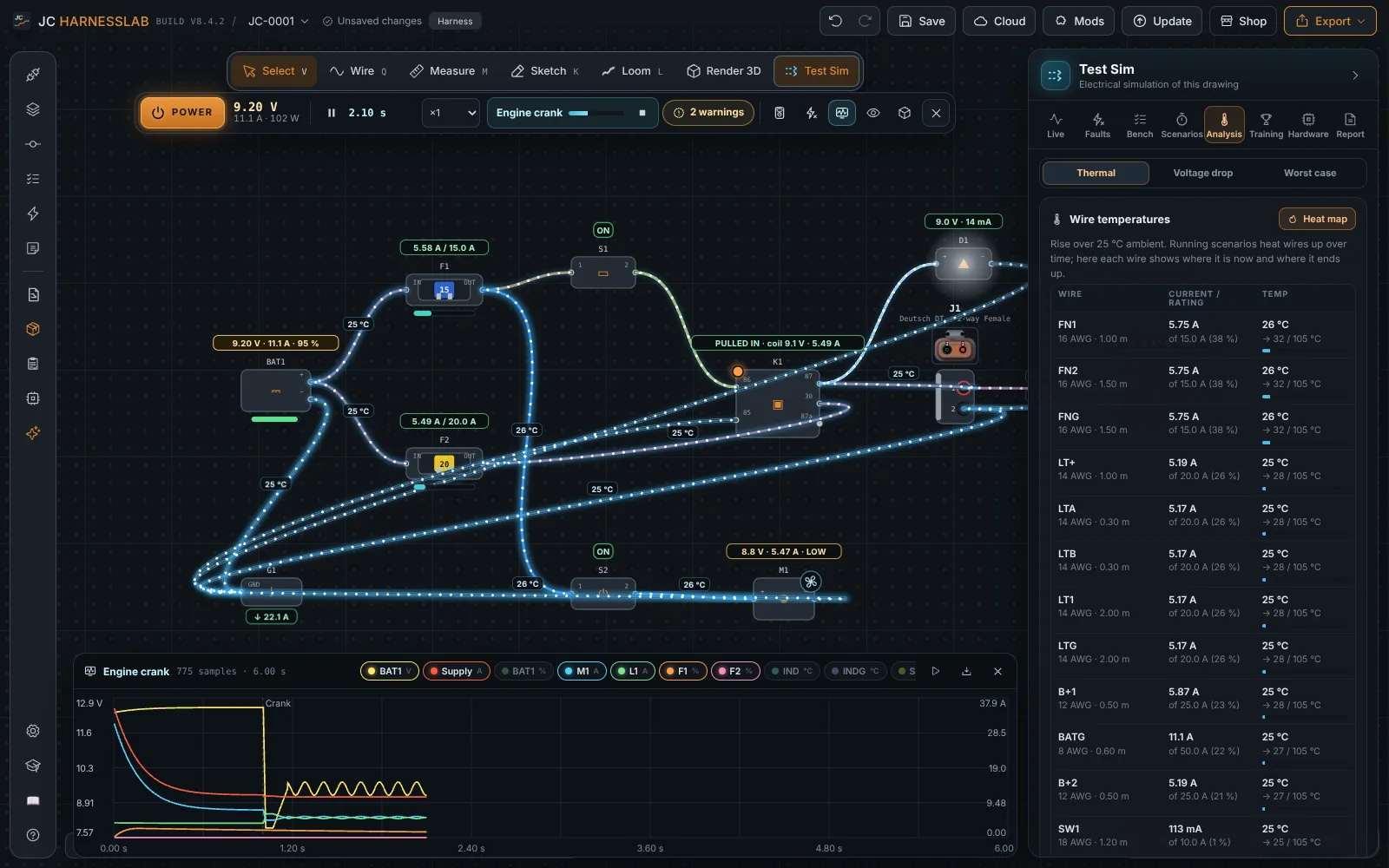
Hot wires and voltage drop, before they bite.

Thermal shows every wire’s steady temperature from its gauge, the ambient and its bundle, against the insulation rating. Voltage drop finds the wires that starve each load, and Worst case sweeps supply, temperature, length, crimps and tolerances across hundreds of builds.

  • Heat map colours the drawing by temperature
  • Monte Carlo histograms per load
  • An engineering estimate to compare designs — not a substitute for testing the real harness
JC HarnessLab 8.4.2
Thermal analysis listing every wire temperature
LOOM STUDIO HARNESSES

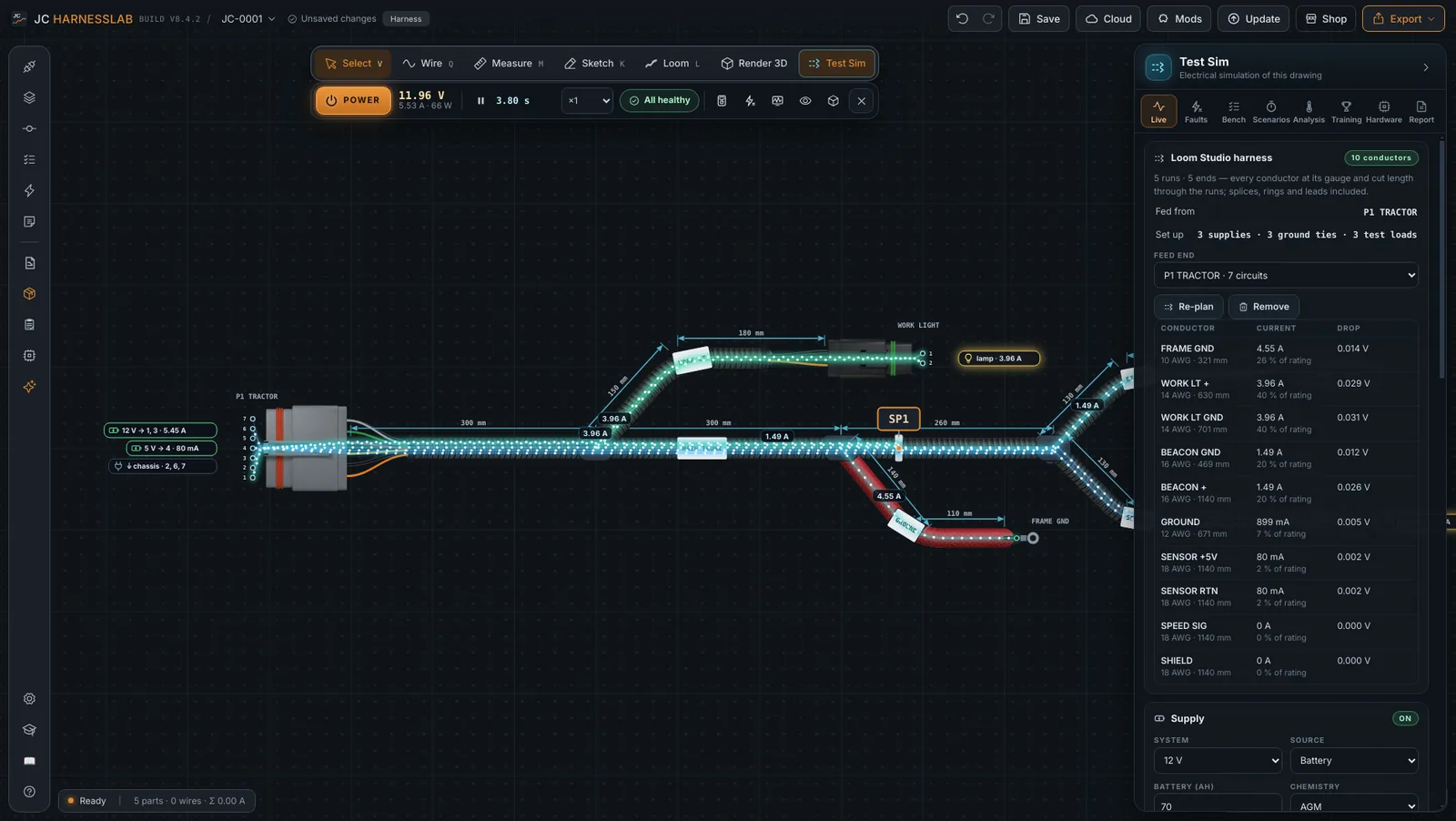
Harnesses drawn in Loom Studio simulate too.

Everything you paint in Loom Studio V2 is a real conductor: harness circuits, cable cores and wire runs. Open Test Sim on a harness with no battery and HarnessLab powers it for you — a supply on every feed circuit, grounds tied to chassis and a test load at each far end.

JC HarnessLab 8.4.2
A Loom Studio harness powered in Test Sim
REPORTS & TRAINING

Print it, or turn it into a lesson.

The Report tab prints or saves a PDF of the whole simulation — supply, loads, protection, tester results, coverage, scenarios and FMEA. Training hides a fault behind a customer complaint and scores the trainee on time, meter readings and hints. Hardware mode even runs real firmware on a real ESP32 against the simulated harness.

TRY IT TODAY

See Test Simulator on your own work.

The free demo is the full HarnessLab 8.4.2 editor with the whole parts library — only the clean output is held back until you buy. Install it, open the guides and try it on a real job.

See pricing
3D RENDER STUDIO

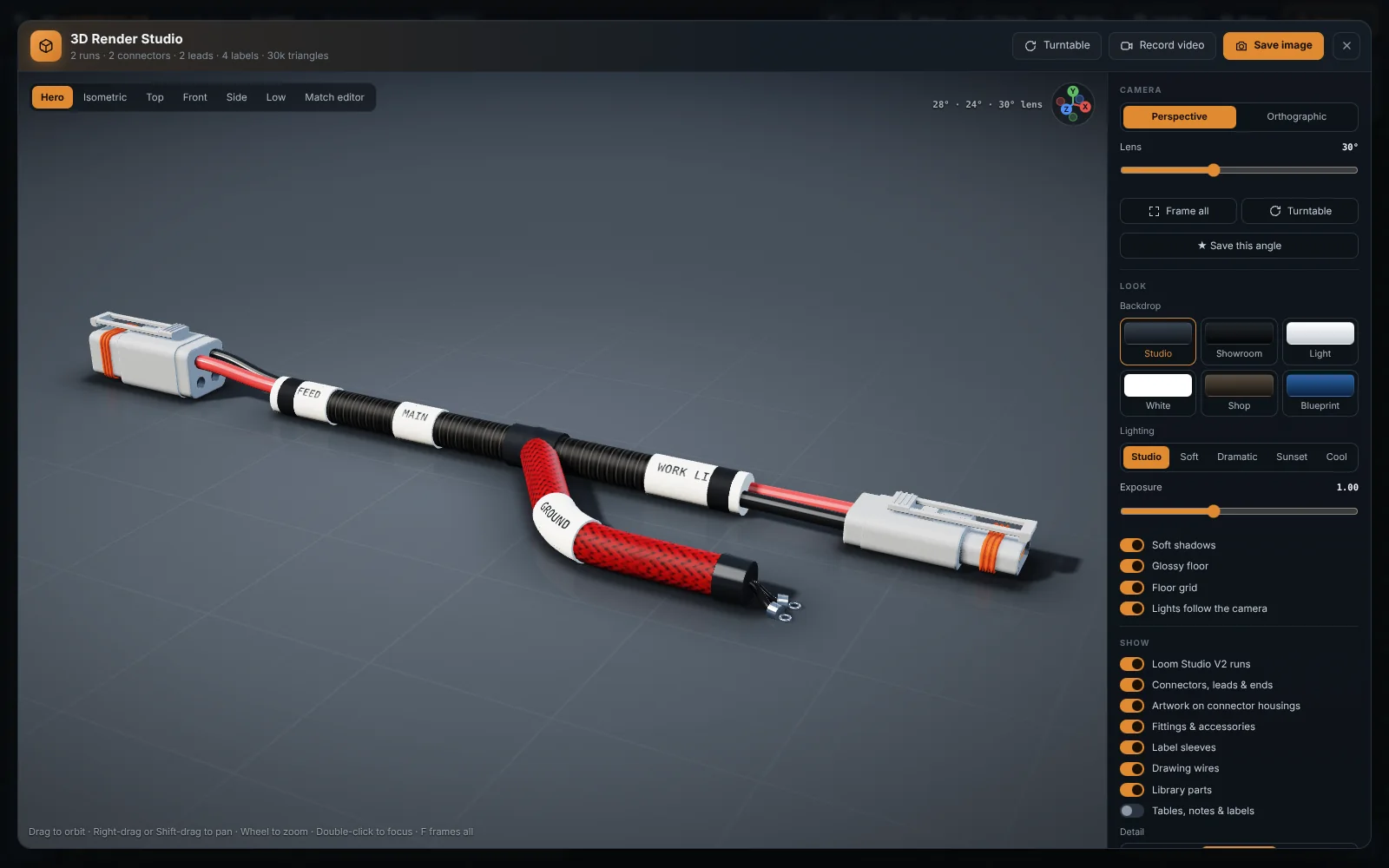
Your harness, rendered for real.

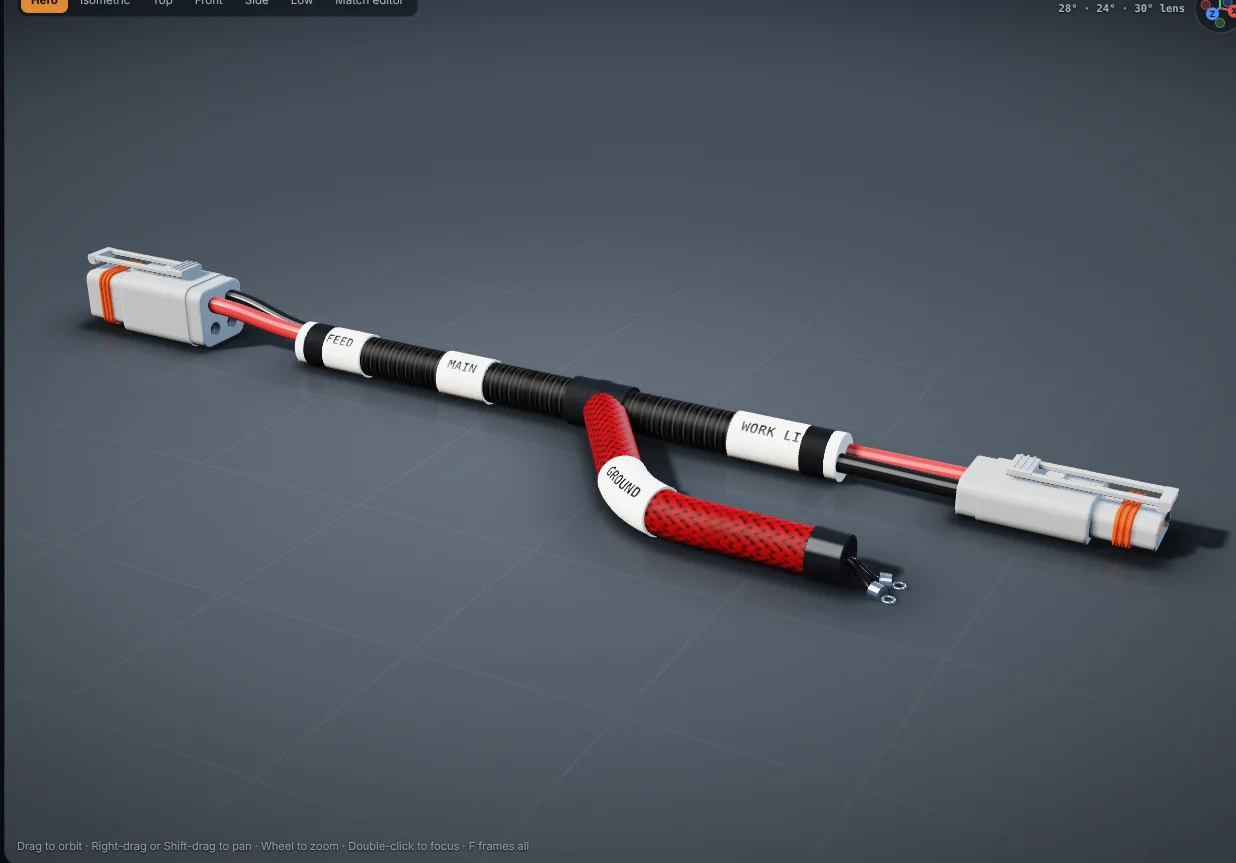
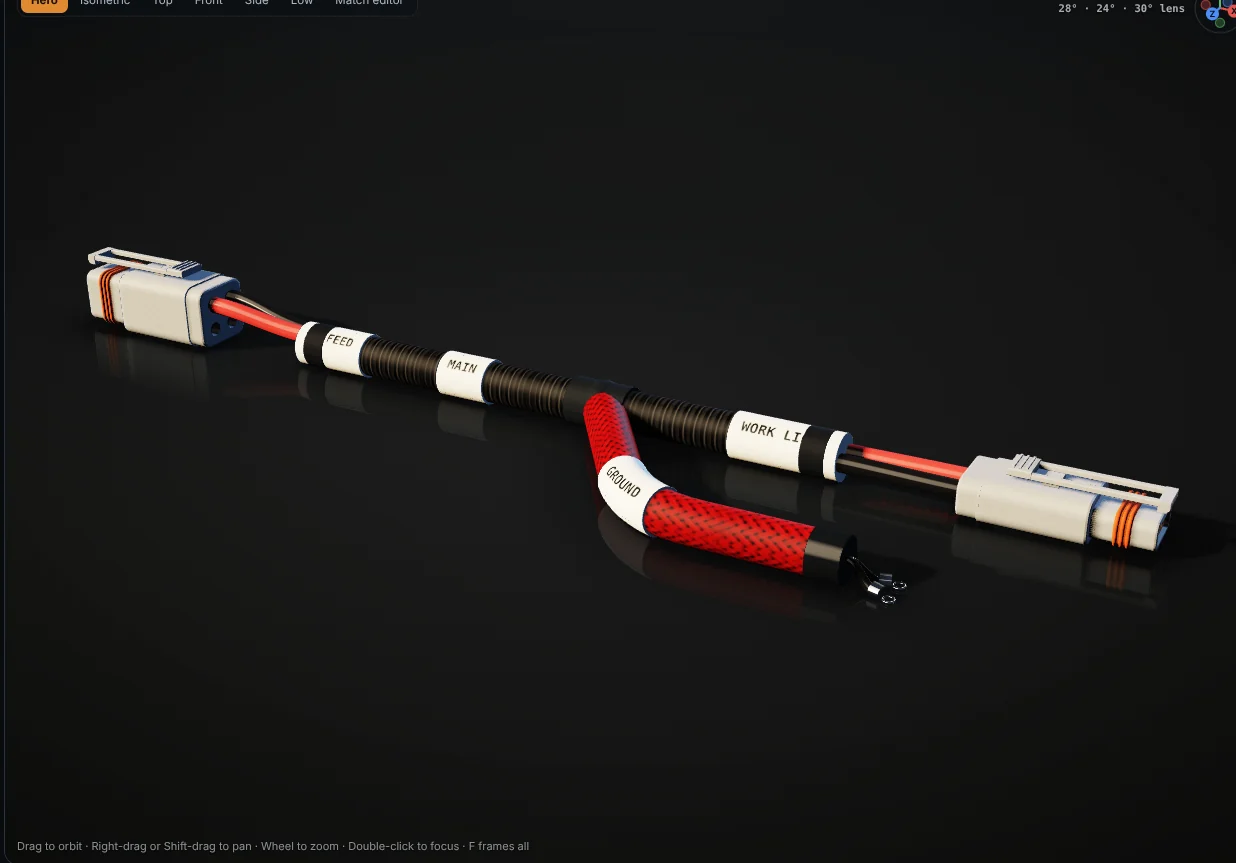
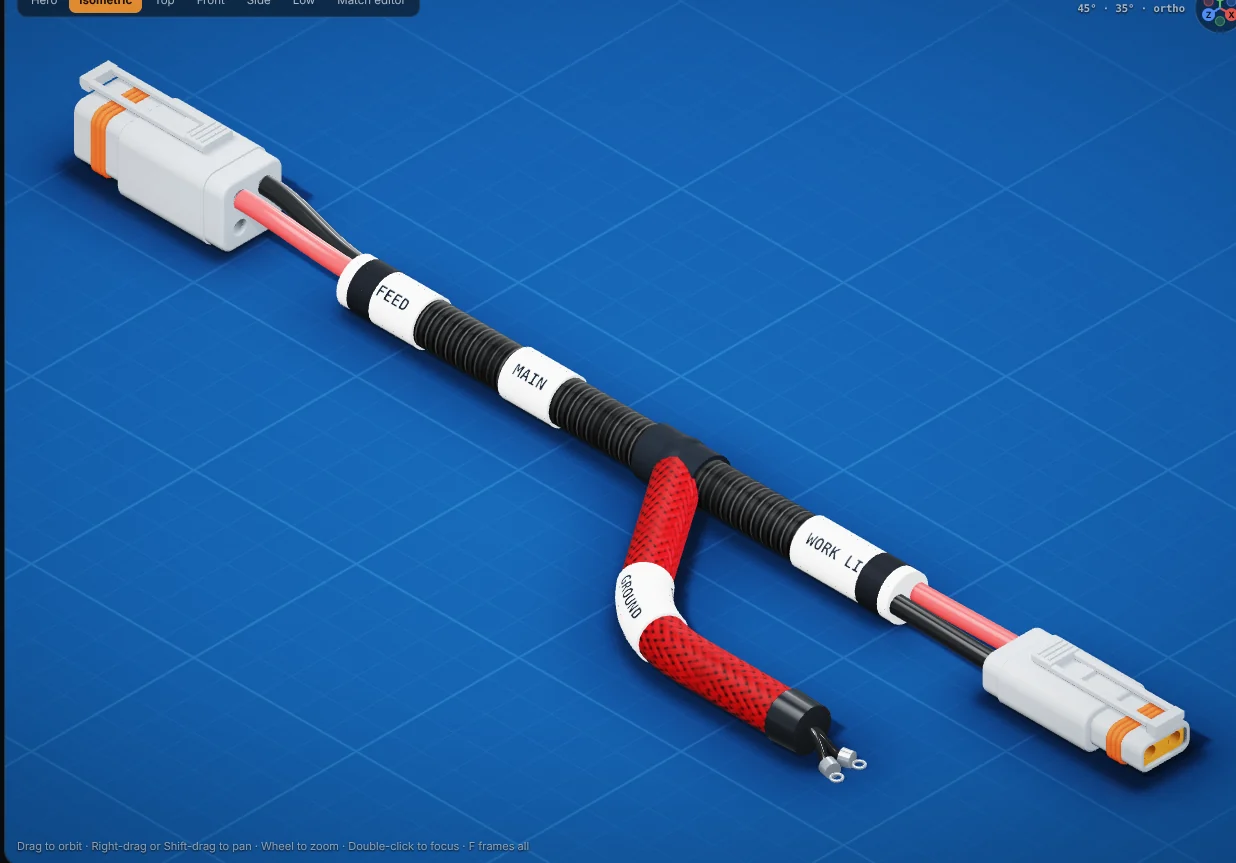
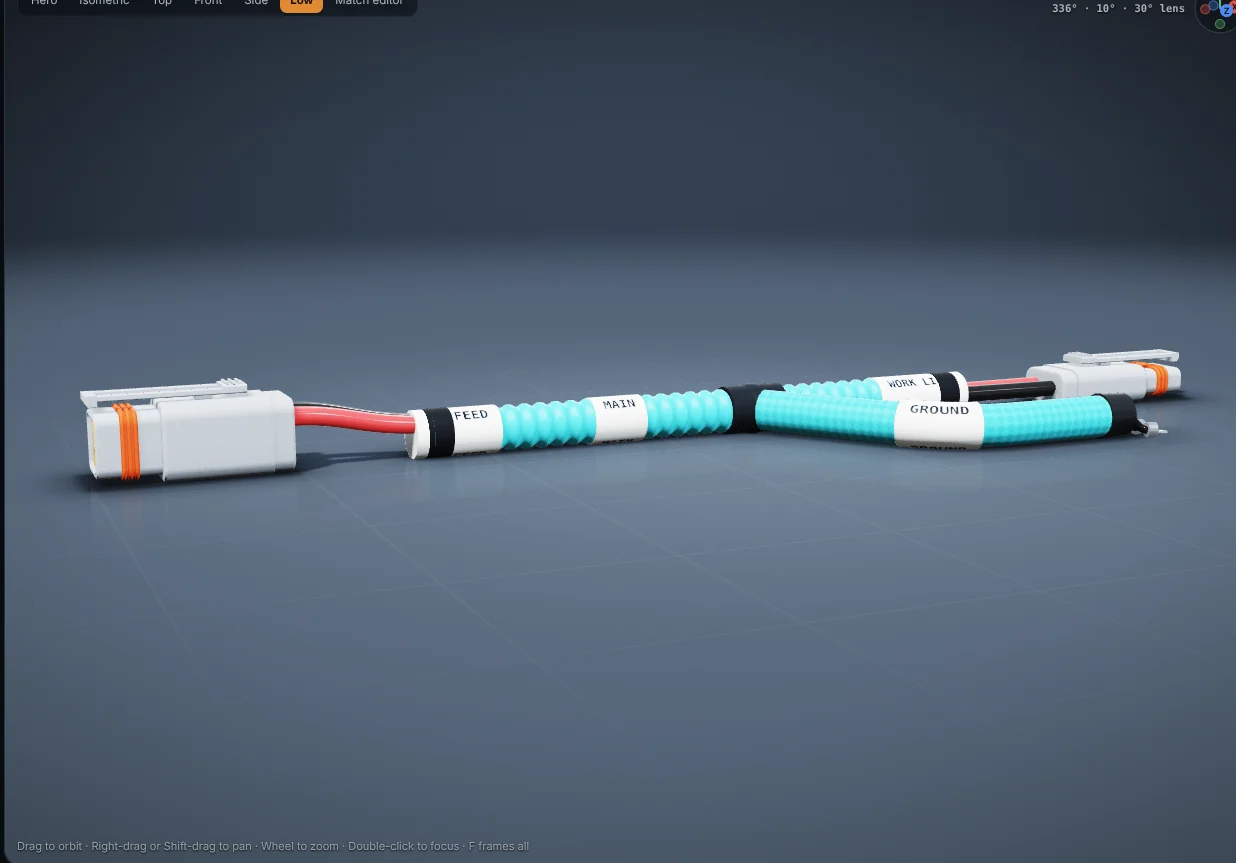
The Render Studio builds a real 3D model straight from your drawing — ribbed loom, braid and tape, connectors with true mating faces, label sleeves and fittings — for build sheets, quotes, brochures and your website.

Buy HarnessLab
Loom, braid & tapeConnectors in true 3D6 backdrops5 lighting setupsImages up to 4×Turntable video3D Board View
JC HarnessLab — 3D Render Studio
3D Render Studio showing a branched harness with DT connectors and braided sleeve
HarnessLab 8.4.2
214connector families modelled in 3D, both halves
6backdrops: Studio, Showroom, Light, White, Shop, Blueprint
4×image size, with a transparent background if you like
15 sturntable videos, ready for YouTube and your website
01MODELLED FROM THE DRAWING

Nothing to model. It’s already drawn.

Loom Studio runs become real tubes — convoluted covers ribbed, braid and tape patterned, tapers kept — with your own textures wrapped round them. Named runs and connectors get printed label sleeves, and ring terminals, splices, ties, clamps and grommets are modelled too.

  • Split loom and braided sleeve come textured from real photos
  • Wires showing into each cavity, or covered right to the connector
  • Every Parts library item is a real 3D part
  • Hover anything to see what it is
JC HarnessLab 8.4.2
A rendered harness with split loom, braided sleeve and labels
02CONNECTORS

Connectors with real mating faces.

Every library connector is built at real size against the loom, with the wires fanning from the loom into each cavity in their circuit colours. Your own Connector Studio parts are built from their photos, views or 3D model.

  • Cavities, sockets, wire-colour seals and pins on the mating face
  • Round connectors are round; latches and seals stand out
  • Studio connectors use their face photo for the true cross-section
JC HarnessLab 8.4.2
Rendered harness with Molex, Deutsch and Weather Pack style connectors
03LOOK

Studio, showroom or blueprint.

Pick a backdrop and a lighting setup — Studio, Soft, Dramatic, Sunset or Cool — then add soft shadows, a glossy floor or a measuring grid. Lights can follow the camera like a real turntable, so the side you look at is always lit.

  • Hero, Isometric, Top, Front, Side and Low views, or save your own angle
  • Perspective or orthographic, 12° to 60° lens
  • Draft, High and Ultra detail
JC HarnessLab 8.4.2
The same harness on the Showroom backdrop with dramatic lighting
04OUTPUT

Images and turntable videos in one click.

Save a PNG in the shape you need — 16:9, 4:3, square, 4:5 or 3:2 — up to 4× size, with a transparent background and a title caption if you like, or copy it straight to the clipboard. Record a 6, 10 or 15-second turntable video for YouTube and the web.

  • Catalogue shots: White backdrop, Soft light, transparent background
  • Title caption with drawing number and revision
  • WebM video (MP4 where the computer records it)
JC HarnessLab 8.4.2
Isometric render on the Blueprint backdrop
TEST SIM IN 3D

Live current, glowing in 3D.

Open the Render Studio while Test Sim is running and every run glows in the colour of the load it carries — a quick way to show a customer where the current goes.

JC HarnessLab 8.4.2
A harness glowing with its live load colours from Test Sim
BOARDS TOO

The 3D Board View.

In Board layout the same studio opens as the 3D Board View: solder mask over the copper, silkscreen, plated holes, standoffs and every footprint as a real part. Choose the mask colour and pad finish, flip it over, and save images and videos just like a harness.

JC HarnessLab 8.4.2
3D Board View of a routed PCB
TRY IT TODAY

See 3D Render Studio on your own work.

The free demo is the full HarnessLab 8.4.2 editor with the whole parts library — only the clean output is held back until you buy. Install it, open the guides and try it on a real job.

See pricing
Roadmap

Where HarnessLab is headed.

What we’ve shipped, what we’re building now, and what’s next. Vote for the ideas you want most, or suggest your own. Every purchase includes updates within the current major version.

Plans can change. Items in Planned and In progress are targets, not promises, and dates are shown once something ships.

Suggest a feature

Tell us what would help.

The best ideas come from people wiring real jobs. We review every suggestion, and the ones that fit go on the board as Ideas so others can vote.

Your idea

One idea per suggestion works best. You need a free account so others can see it’s a real request.

How the roadmap works

  1. SuggestPost an idea here, signed in with your free account.
  2. VoteSign in to vote. One vote per idea, and you can take it back.
  3. PlanWe review suggestions, add them to Ideas, and move the ones we’ll build to Planned.
  4. ShipNew versions arrive right inside the app, with notes in What’s new.

Want to talk it through? Reach Sales and Service from the Contact Support page.

See what’s already in the app.

Read the full release notes, or try the free demo with the full editor.

What’s new
Education

Teach wiring the way industry builds it.

HarnessLab for schools, instructors, students and robotics teams. Real connectors, print-ready drawings, and a simulator that lets students find faults without live power.

Ask about education pricing
Runs offlineNo student accountsPortable Edition for lab PCs
The Guide center in HarnessLab
Guide center
Fault injection in the Test Simulator
Test Simulator
Free demo, full editorStudents can start today
Who it’s for

From the first lesson to the first job.

One app that works for a student at home, a teacher at the front of the room, and a whole lab of computers.

Students

Learn the tool you’ll see on the job, on your own laptop.

  • Start free with the demo and its full editor
  • More than 50 guided tours inside the app
  • Build a portfolio of real harness drawings

Instructors

Teach wiring with real connectors and drawings that look like industry’s.

  • Demo every step on a projector
  • Set fault-finding labs in the Test Simulator
  • Grade from a printed build sheet

Schools & labs

Install once on lab PCs, or carry the Portable Edition on a USB stick.

  • Runs offline: no accounts for students
  • Projects are plain files you control
  • Classroom licensing for a whole lab

Robotics teams & clubs

Plan the robot’s wiring and boards before build season gets busy.

  • ESP32, Arduino and Raspberry Pi pin guides
  • Harness and PCB in the same app
  • Printable sheets for the pit crew
Why it works in a classroom

Built for learning by doing.

01 · GUIDE CENTER

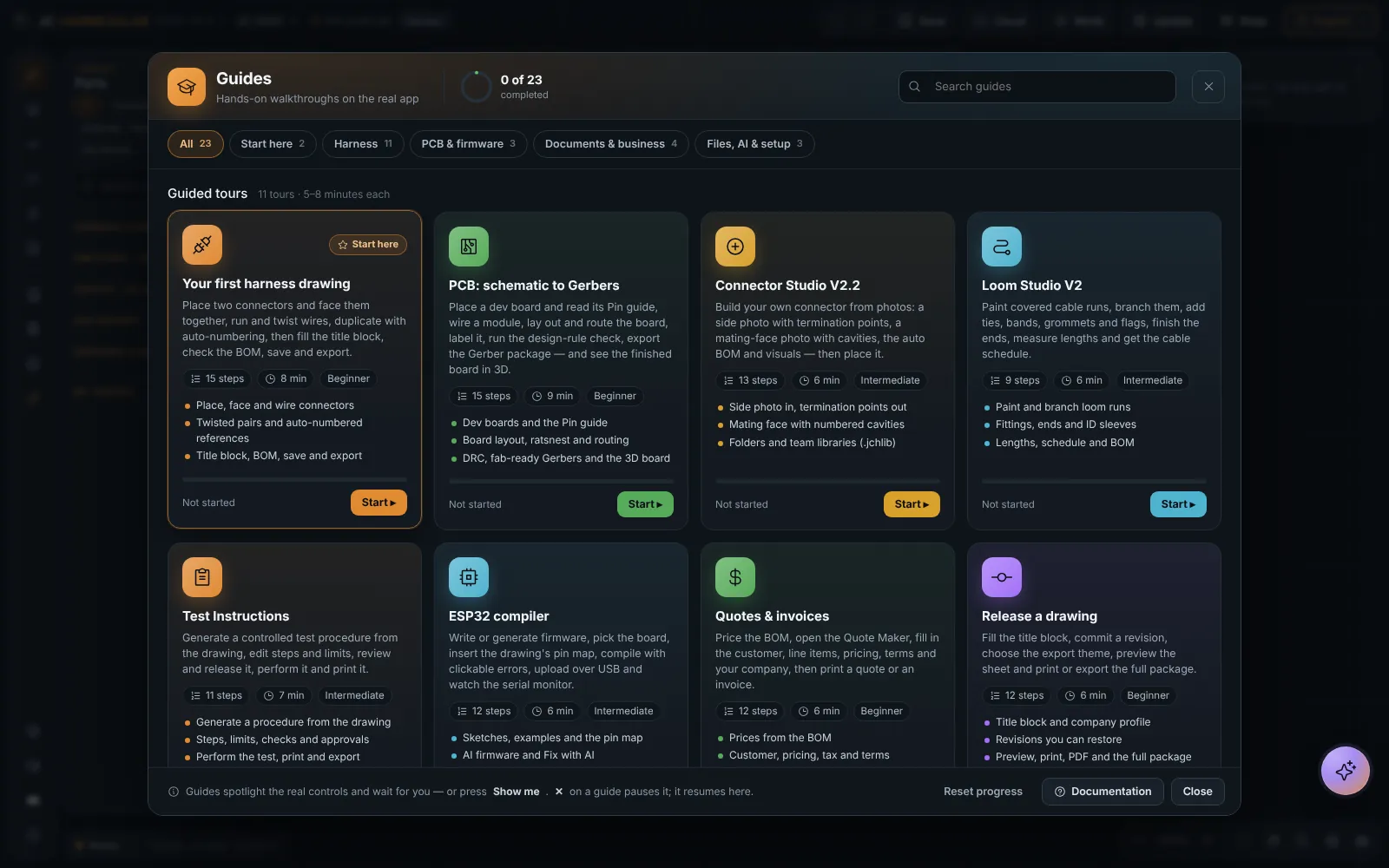
Lessons built into the app.

More than 50 guided tours and quick guides spotlight the real controls, mark where to click and wait for the student to do it.

  • Start at zero: draw a first harness in minutes
  • Guides for harness, PCB, Test Sim, 3D and AI
  • Students can repeat any guide on their own
Guide center in HarnessLab
02 · TEST SIMULATOR

Fault-finding without live power.

Inject an open, a short or a bad ground into a harness and let students find it with the simulator, safely and as many times as you like.

  • Power up, crank and run scenarios in software
  • Set the fault, hide it, and grade the diagnosis
  • No parts burned, no batteries on the bench
Test Simulator in HarnessLab
03 · BUILD SHEETS

Drawings that look like the ones at work.

Dimensioned drawings, pinout tables, cut lists and a BOM on one print-ready sheet, the same kind of document students will build from on the job.

  • 214 connector families with numbered faces
  • Export to PDF, SVG, PNG or DXF, and CSV or XLSX
  • Revision history in the project file
Build sheets in HarnessLab
04 · PCB DESIGN

From schematic to a real board.

Students can draw a schematic, lay out a two-layer board with design-rule checks, see it in 3D and export Gerbers a fab can make.

  • 275 PCB symbols, 46 of them processors
  • Two-layer layout with DRC and a 3D view
  • Gerber, drill and KiCad-compatible output
PCB design in HarnessLab
Programs it fits

Wherever wiring is on the syllabus.

Automotive & diesel technologySealed connectors, relays, fuses and cranking tests
Agricultural equipment technologyImplement harnesses, breakaway plugs and CAN pairs
Electrical & electronics engineering technologySchematics, harnesses and two-layer boards
Mechatronics & industrial automation24 V sensors, relays, valves and test procedures
Marine technologyPower budget, voltage drop and marine wire
Robotics, makerspaces & STEMDev boards, pin guides and a board to send to the fab
Example course outline

Six modules to a confident first harness.

A starting point you can fit to your own program and schedule. We’re happy to help you adapt it.

Reading a harness drawing

Connectors, pinouts, cut lists and the BOM on a real sheet.

1 session

Connectors and terminals

Mating faces, cavities, seals and choosing a terminal for the wire.

1 session

Wire gauge and voltage drop

Size wire and fuses with the Power budget, then check the drop per run.

1–2 sessions

Draw your first harness

Follow a guided tour, then draw a lighting harness from a brief.

2 sessions

Fault finding in the Test Simulator

Find an open, a short and a bad ground the instructor hid.

1–2 sessions

From schematic to board

A small circuit drawn, laid out, checked and exported to Gerbers.

2–3 sessions
Education licenses

Options for every kind of classroom.

Education pricing is quoted for your school and number of seats. Tell us what you need and we’ll reply with the options.

Student

For a learner on their own computer

Education pricingQuoted on request
  • The full HarnessLab app
  • All guides and the Help Center
  • Updates within the major version
Ask about this option

Instructor

For teachers preparing and presenting lessons

Education pricingQuoted on request
  • A license for your own machine
  • Help planning a course
  • Updates within the major version
Ask about this option
FOR SCHOOLS

Classroom & lab

For a lab of computers at one school

Education pricingQuoted on request
  • Licenses for every seat in the lab
  • Installer or Portable Edition
  • One contact for licenses and support
Ask about this option

Teams & clubs

For robotics teams and makerspaces

Education pricingQuoted on request
  • Shared machines for the team
  • Harness and PCB design together
  • Updates within the major version
Ask about this option
Resources

Help for students and teachers.

AVAILABLE NOW

Guide center

More than 50 guided tours and quick guides inside the app.

Try it in the free demo →
AVAILABLE NOW

Help Center

Guides for every tool, searchable on the website.

Browse the guides →
AVAILABLE NOW

Community forums

Ask questions and share work with other HarnessLab users.

Visit the forums →
ASK US

Course help

Tell us about your course and we’ll point you to the guides and features that fit it.

Ask us →
Education enquiry

Tell us about your class.

Sales and Service replies by email with licensing options and pricing for your school.

Education enquiry

All fields except the message help us reply with the right options.

Goes to Sales and Service. We reply by email.

Sales and ServicePrefer email? jclabsus@gmail.com
Try it firstThe free demo has the full editor. Get the demo
Help CenterGuides for every tool in the app. Browse
DiscordChat with the community and the team. Join in
Questions

Education FAQ

Is there a free version students can use?

Yes. The free demo includes the full editor, so students can learn and draw real harnesses. Only the clean output is held back. For licenses with clean output, ask us about education pricing.

Does it work on locked-down lab computers?

Yes. HarnessLab runs completely offline once installed, with no account or internet connection needed, including exports. The Portable Edition runs from a USB stick if installing isn’t allowed.

Do students need to create accounts?

No. The app itself doesn’t need an account. A free website account is only needed for the Community forums and optional add-ons like HarnessLab Cloud.

Where are student projects saved?

Wherever you choose. Each project is a single file on your own disk, so students can hand in a file, keep it on a USB stick or save it to the school’s network drive.

How do education licenses work?

Tell us about your school, program and number of seats with the form above, and Sales and Service will reply with the options and pricing.

Bring HarnessLab to your classroom.

Start with the free demo today, and ask us about licenses for your students.

Ask about education pricing
BETTER
HARNESSES
BUILD
BRIGHTER
THINGS
SUPPORT

Help when you need it.

Guides, tutorials, and answers to keep your projects moving.

FREQUENTLY ASKED QUESTIONS
No results. Try “export”, “offline”, or “license”.

Yes — completely. HarnessLab installs and runs on your own machine. No account, no internet connection, and no cloud service is required at any point, including exports. HarnessLab Cloud is an optional add-on for syncing and teams.

Dimensioned drawings (PDF, SVG, PNG, DXF), wire lists and BOMs (CSV/XLSX), Gerber RS-274X and Excellon drill files for PCBs, plus KiCad-compatible schematic and harness output.

Wherever you choose. Projects save as a single portable project file on your own disk — nothing is uploaded, and you can back them up or version them like any other engineering file.
Use Save project (.json) — you pick the folder, and the whole drawing, including its revision history, is written to that one portable file. Nothing is stored in the cloud. Back it up or version it like any other engineering file, and use Save As to branch a design.

214 connector families, each with a rendered picture, a numbered mating face and a 3D model — Deutsch (DT, DTM, DTP, HD10, HD30, DRC and more), Metri-Pack 150/280/480/630, Weather-Pack, Aptiv GT and Apex, TE (AMPSEAL, MCP, MQS, Superseal), every common Molex family (MX150, Micro-Fit, Mini-Fit, Nano-Fit, KK, PicoBlade and more), JST, Hirose, Amphenol, Sumitomo, Yazaki, Bosch, trailer and ag connectors, plus USB, RJ45, D-Sub and other everyday connectors — along with 89 switches, terminals and power parts, 36 dev boards, 105 modules and 275 PCB symbols (46 of them processors). Anything missing? Build it from a photo in the Connector studio. The full list is in the parts library guide.

Yes. Loom Studio paints cable runs in split loom, braid, tape, heat-shrink, spiral wrap or jacketed cable, with tees and branches, real connector ends, ring lugs, bare-wire breakouts, ties, grommets, P-clamps and flags — and it measures the lengths for you. Select two or more wires and draw them as a real twisted pair with an adjustable twist pitch.

Your purchase includes updates within the current major version. HarnessLab is actively developed — recent builds added Loom Studio, the Connector studio, live tables, Settings with a company profile, and a one-click full export package. The app has no subscription and no forced upgrade; the version you install keeps working.

Same application, different delivery. The installer sets HarnessLab up on one PC with a Start menu shortcut — right for your own workstation. The portable edition is a single executable you run from a USB stick or a network folder: no installation, no admin rights, nothing left behind on the host machine. Techs who move between shop and lab PCs, or work on locked-down company machines, want the portable one. A mobile edition for phones and tablets is in development — the Coming Soon card on the pricing page takes sign-ups.
One purchase covers your personal installs and includes updates within the current major version. The app license has no subscription and no seat check-in.

An optional monthly add-on. Cloud Solo ($6.99/mo, 10 GB) syncs your projects and part libraries across your PCs; Cloud Team ($19.99/mo, 50 GB) adds up to 4 teammates with roles, shared libraries and “who’s editing” locks. You open and save from the app’s ☁ Cloud button or from your account page. Cancel any time — your files stay downloadable. How it works

Windows 10 or 11, 64-bit, and about 300 MB of disk space. HarnessLab is a desktop application — you run the installer once and launch it from the Start menu like any other program.

Still need help?

Our team is here to assist.

Typical response time: within 1 business day.
CHANGELOG

What’s new in HarnessLab

Every purchase includes updates within the current major version. Here’s what has landed.

ENGINEERING IDEAS INTO REALITY PLAN / ROUTE / DOCUMENT / MANUFACTURE REVIEWS FORUMS NEWS